SVG to Slides › Docs › Web Uploader and Add-on › Web Uploader
Web Uploader and Add-on · How to
Web Uploader
The information in this topic applies to:
- SVG to Slides Web Uploader
The Web Uploader converts SVG files on a web page, with nothing to install. Upload one file or a batch and get a Google Drive link to a file with one slide per SVG, every path a native shape.
To convert SVG files online
- Open svgslid.es/convert.
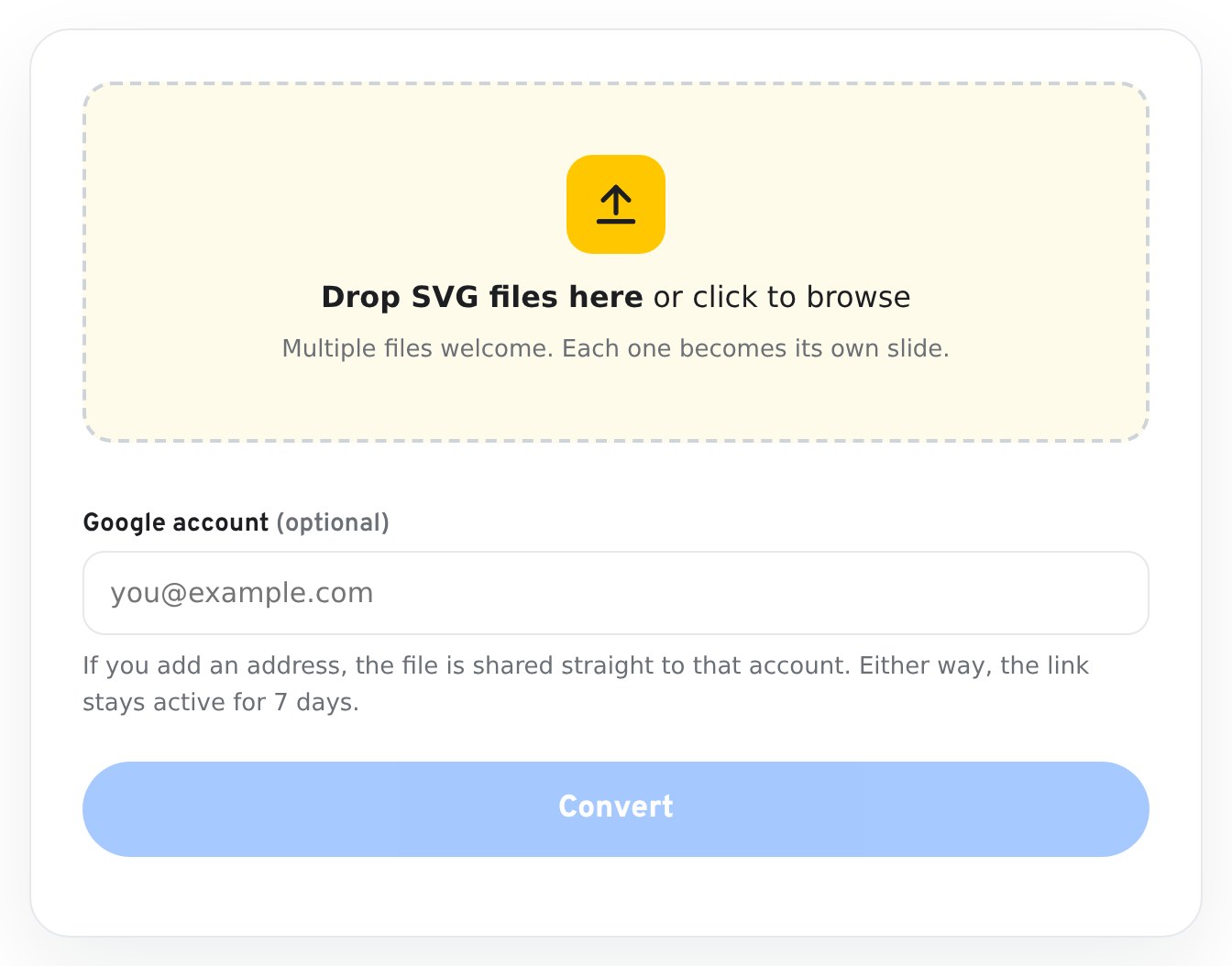
- Drop your .svg files on the upload area, or click it to browse. Each file becomes one slide.
- Optional: type a Google account address. The file is then shared straight to that account.
- Click Convert. A link to the file in Google Drive appears.
Keeping the file#
Links stay active for 7 days. After that the file is deleted.
To keep a converted file
- Open the link.
- In Google Drive, choose File › Make a copy.
The copy belongs to your account and does not expire.
How it differs from the extension#
| Web Uploader | Chrome extension | |
|---|---|---|
| Where the result goes | A new file, one slide per SVG | The slide you have open |
| Gradients | Kept as gradients | First colour only |
| SVG text | Outlined into shapes. Not editable as text. | Not converted |
| Line icons that set the stroke on the whole SVG | Converted. Strokes become filled outline shapes. | Not converted |
| Where conversion runs | On the svgslid.es server | In your browser |
| Batch size | A batch | Up to 25 files per drop |
Clip paths, masks, patterns, filters and transparency do not come through on either. See SVG feature support.
What happens to your files#
Uploaded SVG files are held only while the request runs and are deleted when it finishes. The converted file is stored in Google Drive for 7 days and shared by link. See Permissions and data.