SVG to Slides › Docs › User's Guide › Edit Shape: points and curves
Edit Shape: points and curves
- SVG to Slides Chrome extension, versions 1.2.0 and 1.3.0. The box, exact values and the two-column editor toolbar: version 1.3.0.
Edit Shape opens a vector editor on the slide at the shape’s exact size and position. Drag points and curve handles, add or remove points, then click Done. The shape updates in place and returns to its place in the stack.
To edit a shape’s points
- Double-click the shape, then click Edit Shape. In version 1.3.0 you can also select the shape and click Edit Shape on the toolbar.
- Drag a point to move it. Click a point to see its curve handles, and drag a handle to change the curve.
- Click Done, or press ENTER.
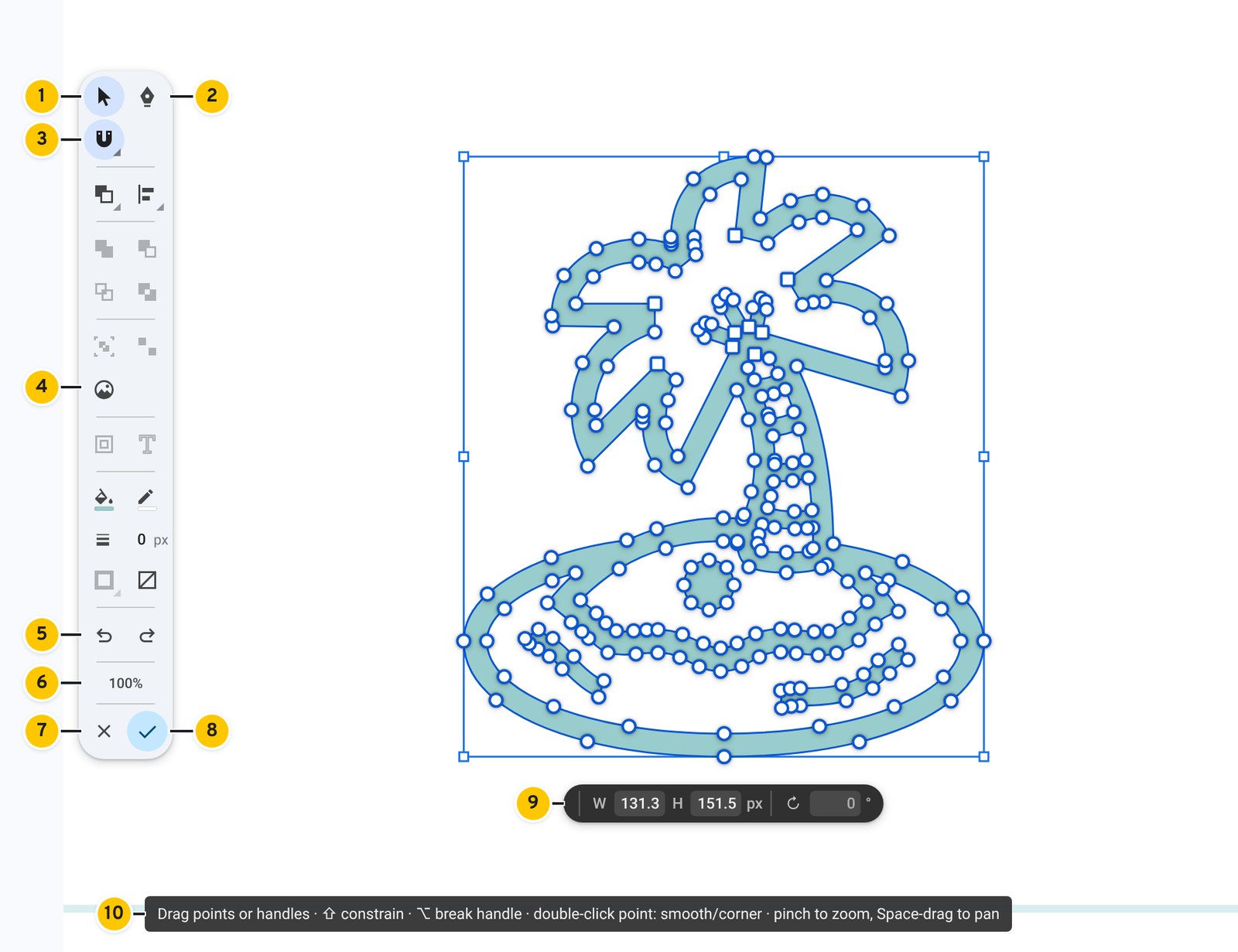
- 1Select tool. V
- 2Pen tool. Adds and removes points, and draws. P
- 3Snapping. See Snapping.
- 4The same command groups as the main toolbar: Arrange, Align, Combine, Group, Outline, fill and stroke.
- 5Undo and redo, point by point.
- 6Zoom. Click to return to 100%.
- 7Cancel. Discards the edit.
- 8Done. Applies the edit.
- 9Size pill: width, height and rotate-by. On shapes with corners it also shows the corner radius.
- 10The hint line names the keys for the current tool.
Points and handles#
| To do this | Do this |
|---|---|
| Move a point | Drag it. Hold SHIFT to keep to 45° steps. |
| Change a curve | Click the point, then drag one of its handles. |
| Move one handle only | Hold OPTION while dragging the handle. |
| Switch a point between smooth and corner | Double-click the point. |
| Add a point | Press P, then click the outline where the point should be. |
| Remove a point | Press P, then click the point. |
| Select several points | SHIFT-click each one, or drag a box around them. |
| Select every point of a shape | Click the shape. |
| Select all points | COMMAND+A |
| Nudge | Arrow keys. Hold SHIFT for ten times the step. |
| Delete the selected points | DELETE |
| Undo, redo | COMMAND+Z, SHIFT+COMMAND+Z |
| Zoom | Pinch, or COMMAND+PLUS and COMMAND+MINUS. COMMAND+0 returns to 100%. |
| Pan | Hold SPACEBAR and drag, or scroll. |
The box#
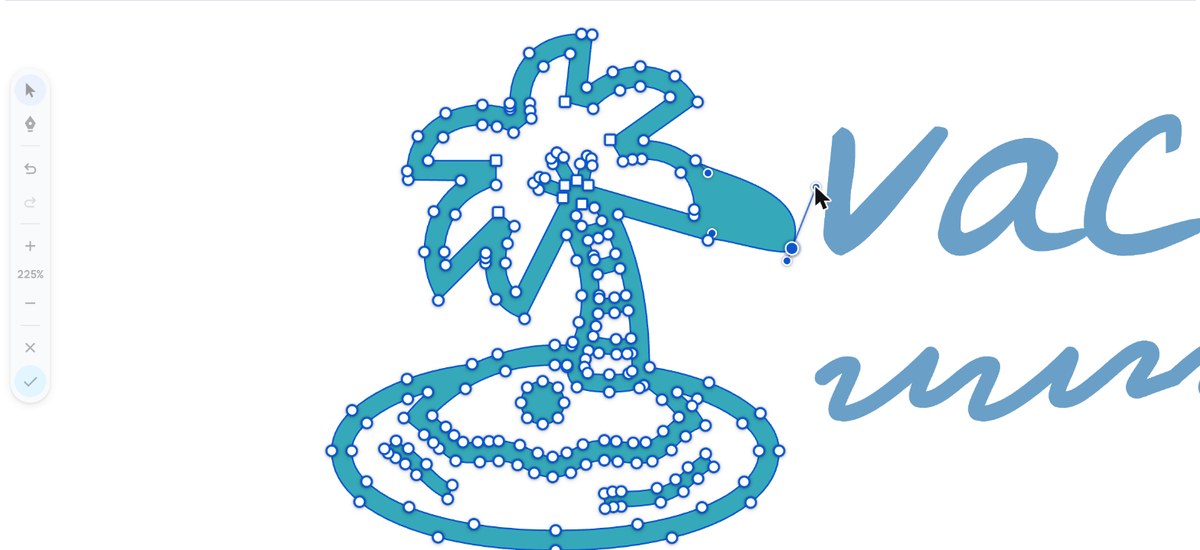
In version 1.3.0 a box surrounds the selection inside the editor. Dragging it transforms the shape while its points stay editable.
| Drag | Result |
|---|---|
| A corner | Scale. SHIFT keeps the proportions. OPTION scales from the centre. |
| An edge | Stretch in one direction. OPTION stretches from the centre. |
| COMMAND + an edge | Skew. SHIFT snaps to 15°. |
| COMMAND + a corner, or just outside a corner | Rotate. SHIFT snaps to 15°. |
Typing exact values#
The pill under the shape holds the width and height in pixels, a rotate-by field and, on shapes with corners, the corner radius. Type a value and press ENTER. Hold OPTION and drag across any number to change it by dragging. Add SHIFT for steps of ten.
Commands inside the editor#
The editor’s toolbar repeats the command groups of the main toolbar. Inside the editor a command acts on the shapes that have selected points, or on every shape in the editor when no point is selected. Combine, group, ungroup, outline, fill and stroke are held in the editor and applied when you click Done.
Done and Cancel#
Done replaces the shape on the slide with the edited one, in the same place in the stack. Shapes above it stay visible while you edit, so you can line points up against them. In version 1.3.0 the whole session is one undo step. See Undo and redo.
Cancel discards the edit. ESC clears the selection first. With nothing selected, ESC applies the edit the same as Done.
What can be edited#
Edit Shape opens directly on shapes inserted by SVG to Slides. On Slides’ own shapes, lines, text boxes and WordArt it converts the object first. See Editing Slides’ own shapes. Images, video and charts cannot be edited as shapes.