SVG to Slides › Docs › User's Guide › Aligning and distributing
Aligning and distributing
- SVG to Slides Chrome extension, version 1.3.0
The align and distribute commands move objects in one step, straight to the result, and leave images intact. One object on its own, an image included, aligns to the slide’s edges.
Commands#
| Command | Shortcut | Needs |
|---|---|---|
| Align left | OPTION+A | One object or more |
| Align centres horizontally | OPTION+H | One object or more |
| Align right | OPTION+D | One object or more |
| Align top | OPTION+W | One object or more |
| Align middles vertically | OPTION+V | One object or more |
| Align bottom | OPTION+S | One object or more |
| Distribute horizontal spacing | OPTION+SHIFT+H | Three objects or more |
| Distribute vertical spacing | OPTION+SHIFT+V | Three objects or more |
To align objects
- Select the objects.
- Click Align and distribute on the toolbar and choose a command, or press its shortcut.
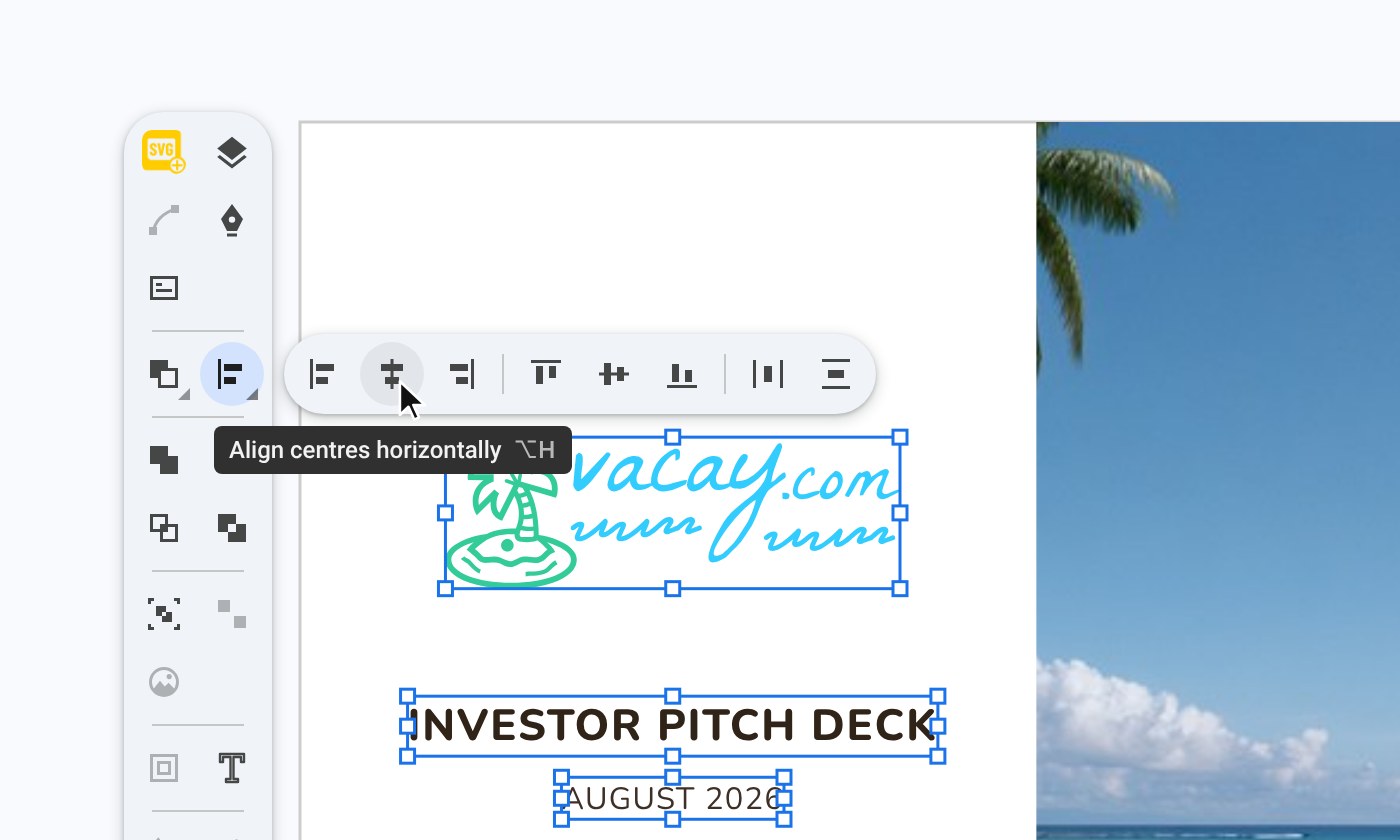
With two or more objects selected, the objects align to each other.
One object aligns to the slide#
With one object selected, the align commands use the slide. Left, right, top and bottom move the object to that edge of the slide. Centre and middle centre it on the page.
This works for images. The extension places a 1 pixel helper at the corner of the slide it needs, runs Slides’ own Align, and removes the helper, all in one undo step. Nothing extra is left in the presentation.
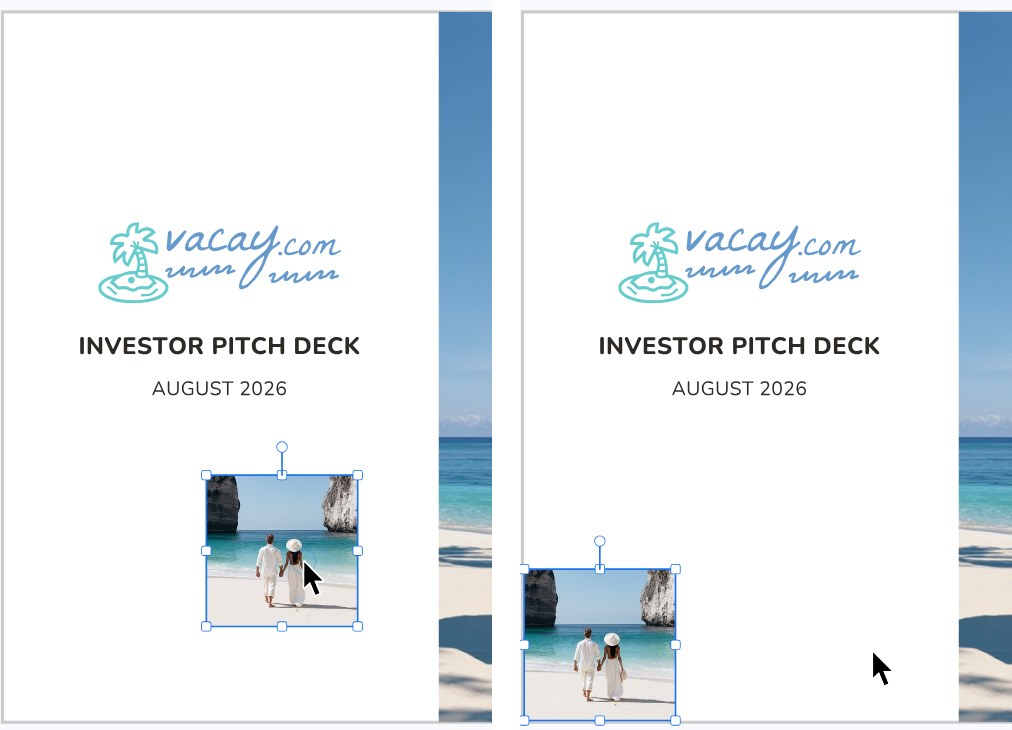
How the commands run#
The extension runs Slides’ own Align, Distribute and Center on page commands behind a still copy of the slide. You see the objects move once. Because the objects are moved by Slides and not deleted and pasted, images stay intact. See Multi-step changes and undo.