SVG to Slides › Docs › User's Guide › Drawing with the pen
Drawing with the pen
- SVG to Slides Chrome extension, version 1.3.0
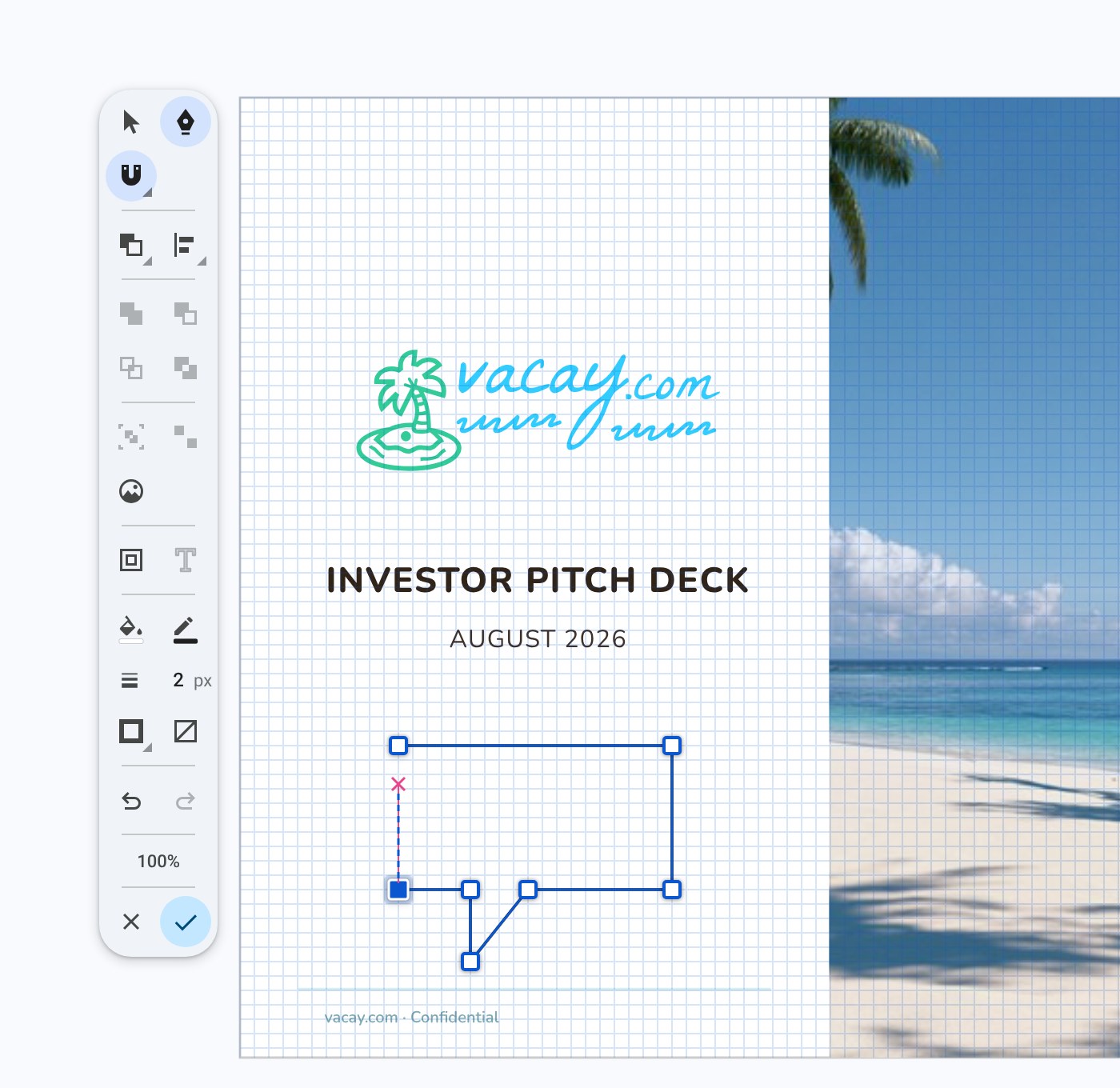
The pen draws new shapes point by point, anywhere on the slide. Press OPTION+SHIFT+P or click Pen on the toolbar. Click for a corner, drag for a curve, and click the first point to close the shape.
To draw a shape
- With nothing selected, press OPTION+SHIFT+P or click Pen on the toolbar. An empty editor opens over the slide.
- Click to place a corner point. To make a curve, press, drag and release.
- Click the first point to close the shape. A ring appears on the first point when the pointer is over it. To leave the path open, press ENTER or ESC.
- Click Done. The new shapes are placed on the slide, on top.
Pen keys#
| To do this | Do this |
|---|---|
| Place a corner point | Click. |
| Place a smooth point | Press, drag, release. |
| Make a sharp turn after a curve | Hold OPTION while dragging to break the handles. |
| Keep to 45° steps | Hold SHIFT. |
| Close the shape | Click the first point. |
| Leave the path open | ENTER or ESC |
| Remove the last point | DELETE |
| Undo one point | COMMAND+Z |
| Carry on an open path | Click its end point. |
| Add a point to a path | Click a segment. |
| Remove a point from a path | Click the point. |
| Switch to the Select tool | V |
What you get#
Each path becomes a new shape. The first shape you draw has a 2 pixel dark stroke and no fill. Each later shape starts with the paint of the last one drawn. Set a fill or stroke from the editor’s toolbar before you click Done, or afterwards on the slide.
Done places all the new shapes in one undo step.
Pen with shapes selected#
If shapes are selected when you press OPTION+SHIFT+P, the editor opens on those shapes and the pen can both edit them and draw new ones beside them.
Limits#
The pen draws point by point. There is no freehand mode.