Workspace Studio won't run on shared files. Design around it.
Studio flows fail on shared drives, shared folders and IMPORTRANGE. Messaging sheets are shared by definition. Here is the two-sheet pattern that works.

- Google’s Studio guide: flows fail on Shared Drives, shared folders and sheets with IMPORTRANGE. Files must be private to you.
- Keep the team’s messaging sheet shared. Mirror it to a private sheet the flow owner owns, with a short script.
- The flow watches the private sheet, asks Gemini what changed and which assets it touches, and posts to Chat.
- October’s nested conditionals let one flow route headline changes and proof changes to different people.
The wall
The obvious product marketing flow: when the messaging sheet changes, tell the team what changed and which assets need updating. Workspace Studio has a starter for “when a sheet changes” and steps to ask Gemini and notify a Chat space. It should take five minutes.
Then it fails. Google’s getting-started guide lists the file restrictions: flows fail if you use Shared Drives, shared folders or spreadsheets with the IMPORTRANGE function, and files must be private to you. A messaging sheet that only one person can see isn’t a messaging sheet.
Two sheets: shared for people, private for the flow
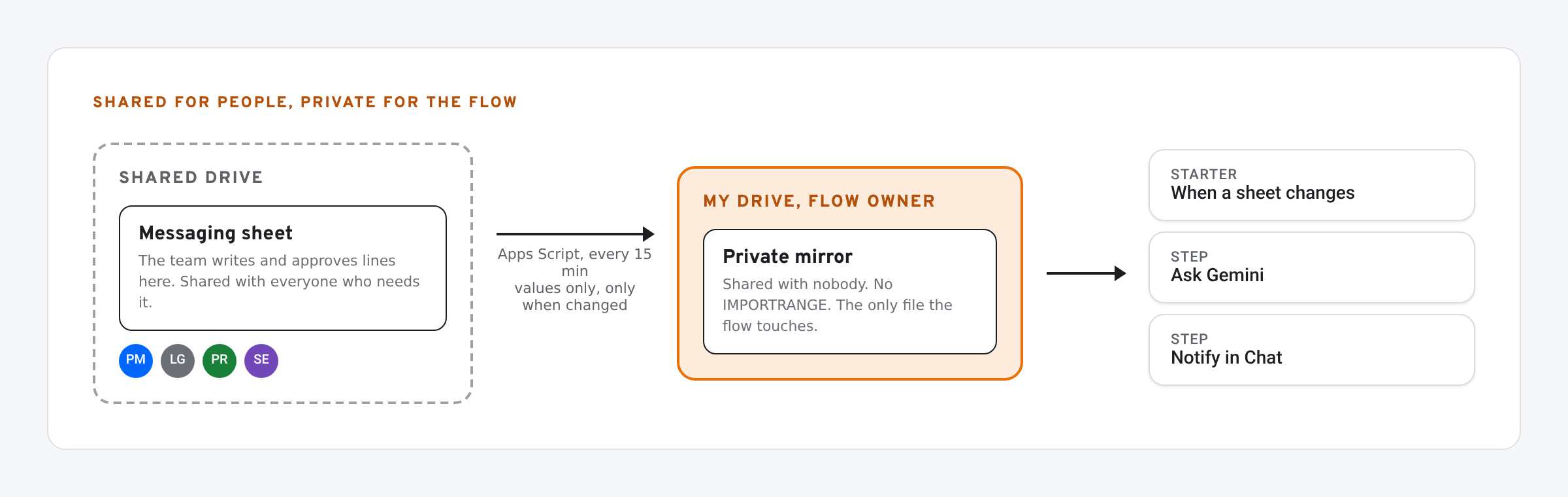
- Shared sheet: where the team writes and approves lines. Stays in your shared drive or folder.
- Private sheet: owned by the flow owner, shared with nobody, in My Drive. Holds a copy of the Messages tab.
- Mirror script: runs from the shared sheet and writes values into the private one. Values only, no IMPORTRANGE.
In the shared sheet, open Extensions › Apps Script and paste:
// In the SHARED messaging sheet. Copies the Messages tab into a private sheet that the Studio flow watches.
const PRIVATE_ID = 'paste-the-private-sheet-id';

function mirrorMessages() {
  const src = SpreadsheetApp.getActive().getSheetByName('Messages').getDataRange().getValues();
  const dst = SpreadsheetApp.openById(PRIVATE_ID).getSheetByName('Messages');
  const old = dst.getDataRange().getValues();
  if (JSON.stringify(old) === JSON.stringify(src)) return;   // write only when something changed
  dst.clearContents();
  dst.getRange(1, 1, src.length, src[0].length).setValues(src);
}

// Run once to mirror every 15 minutes.
function installMirror() {
  ScriptApp.newTrigger('mirrorMessages').timeBased().everyMinutes(15).create();
}
Run installMirror once, as the flow owner. The script runs with that person’s access, so it can write to their private sheet.
The flow
- Starter: when a sheet changes. Pick the private sheet and, if you like, only the Approved line column.
- Step: ask Gemini. “List the messaging rows that changed. For each, give the key, the old and new line, and the assets in its Used in column.”
- Step: notify the launch space in Chat with Gemini’s answer.
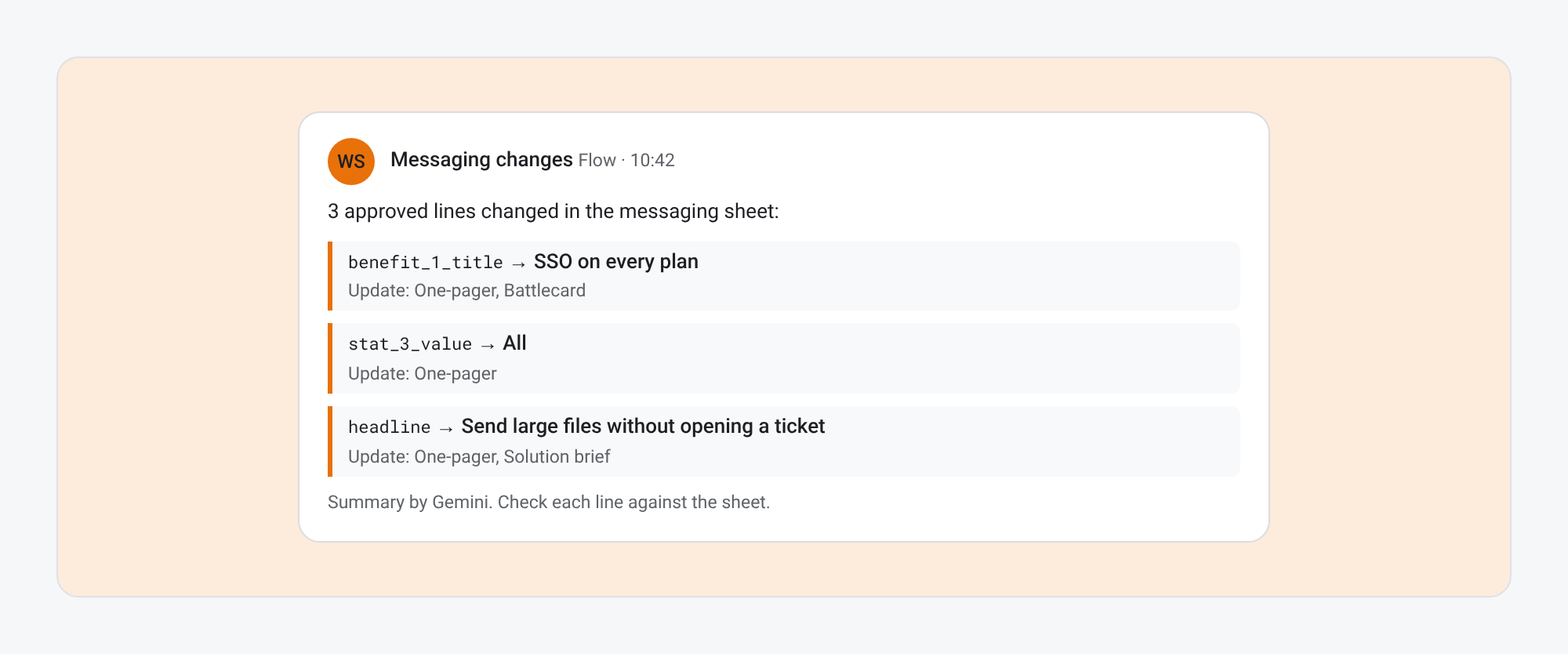
On October 9, Google added nested conditionals and new search steps to Studio. Use a condition to route by row type: headline and positioning changes to the PMM lead, proof changes to whoever owns the proof library.
Limits to plan for
- Delay: a 15-minute mirror plus the flow’s own timing. Fine for messaging; wrong for anything urgent. The script only writes when the Messages tab actually changed, so the flow doesn’t fire every 15 minutes.
- One owner: the private sheet and the flow belong to one person. Document who, and what happens when they leave.
- Usage limits: Studio has per-user limits that depend on your plan.
- Gems: if an older flow uses an Ask a Gem step, it will stop working as Gems are phased out. See turning your messaging recipes into Gemini skills.
For the meeting side of the same idea, see logging objections per slide from Meet notes.
What we have tested
- Not yet run by us: the mirror script and the flow together. The script is written against the Apps Script reference. Test on copies.
The screens in this post are mockups, not captures of Google’s products. Google Slides, Google Sheets, Google Docs, Google Forms, Google Meet, Google Chat, Google Drive, Gemini and Google Workspace are trademarks of Google LLC.