Update Google Slides collateral from one messaging sheet with Gemini
Write the brief once in a sheet. Gemini writes each line to a recipe and a character limit, and a script puts it in every one-pager, brief, whitepaper and battlecard.
Skip ahead: the Drive starter pack with templates, the messaging sheet, prompts and the sync script
- Since Oct 30, 2026, Gemini in Google Slides can edit a whole presentation from one prompt, grounded in a Drive file.
- Point that prompt at a messaging sheet and one asset updates in one step.
- For exact wording across many assets, tag text boxes with a slot name and use a script or an agent.
- Gemini writes each line under a recipe, voice rules and a hard character limit. There is no approval column. Look at every changed page.
- The starter pack has five templates, the sheet, prompts and the script.
What changed on October 30
Product messaging changes. A capability ships or a competitor moves, and every solution brief, one-pager, sales deck and battlecard that mentions it is out of date.
The fix is to write the message in one place and have every asset take its copy from there. Google Slides™ was missing a piece for this. It can link a chart or a table to Google Sheets™, but a headline in a text box is linked to nothing, so a copy change meant opening every file.
On October 30, 2026, Google announced that Gemini in Google Slides can edit an entire presentation from one prompt. You type one instruction. Gemini decides which slides it applies to and edits them in place, as ordinary text and shapes. The instruction can point at a file in Drive. Google’s own example prompt is “Update this presentation to include more details based on [reference file].”
Make the reference file your messaging sheet, and updating an asset is one prompt. The rest of this post is the setup that makes that prompt worth running, and what to use when you need more control than a prompt gives you.
This is part 1 of a series. Part 2 covers where the messaging comes from, with a workshop form, a messaging architecture and a brand style sheet.
The setup in one picture
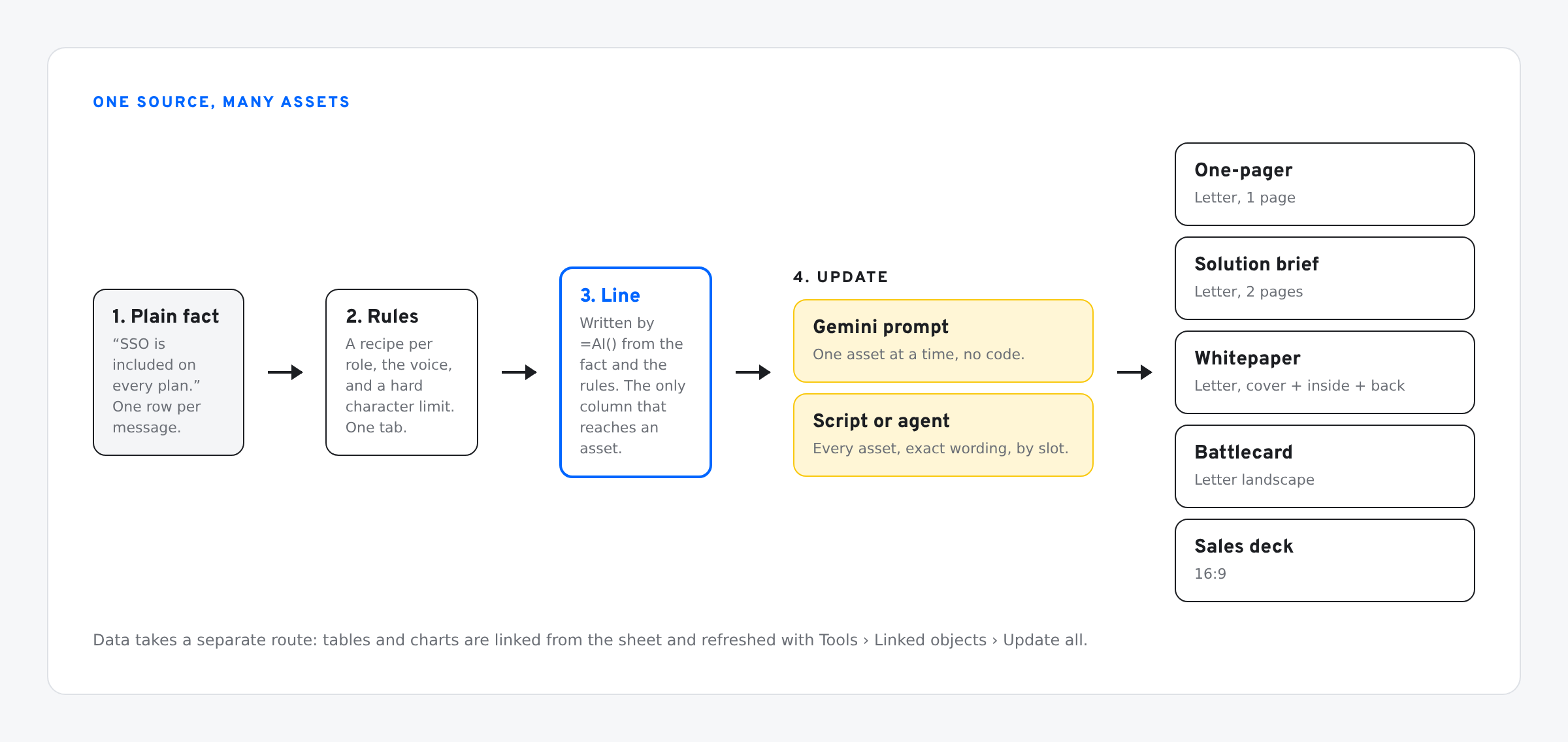
Four parts:
- Templates at real page sizes, with text boxes built to take new copy.
- A messaging sheet: one row per message, with a brief, a role and a character budget. Gemini writes the finished line.
- An update step: a Gemini prompt for one asset, or a script or agent for all of them.
- Rules in the sheet: a recipe per role, the voice and a hard length limit. They take the place of line-by-line sign-off.
Build each asset at its real size
A one-pager made on a 16:9 slide and stretched at export looks like a slide. Set the page size first.
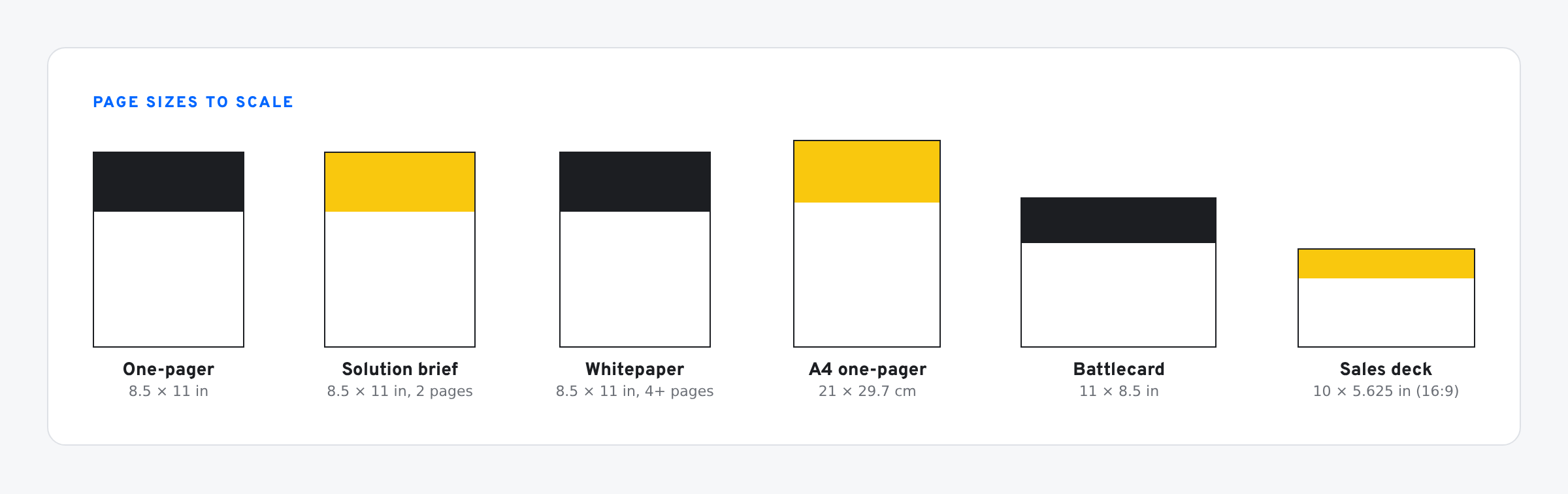
- One-pager: 8.5 × 11 in (US Letter) or 21 × 29.7 cm (A4). One page.
- Solution brief: same page, two pages. Front and back.
- Whitepaper: same page, one page per slide. Cover, inside pages, back.
- Battlecard: 11 × 8.5 in, landscape. Read on screen.
- Sales deck: Widescreen 16:9, the Slides default.
- Open File › Page setup.
- Choose Custom.
- Enter width and height. Pick inches, centimetres, points or pixels.
- Click Apply.
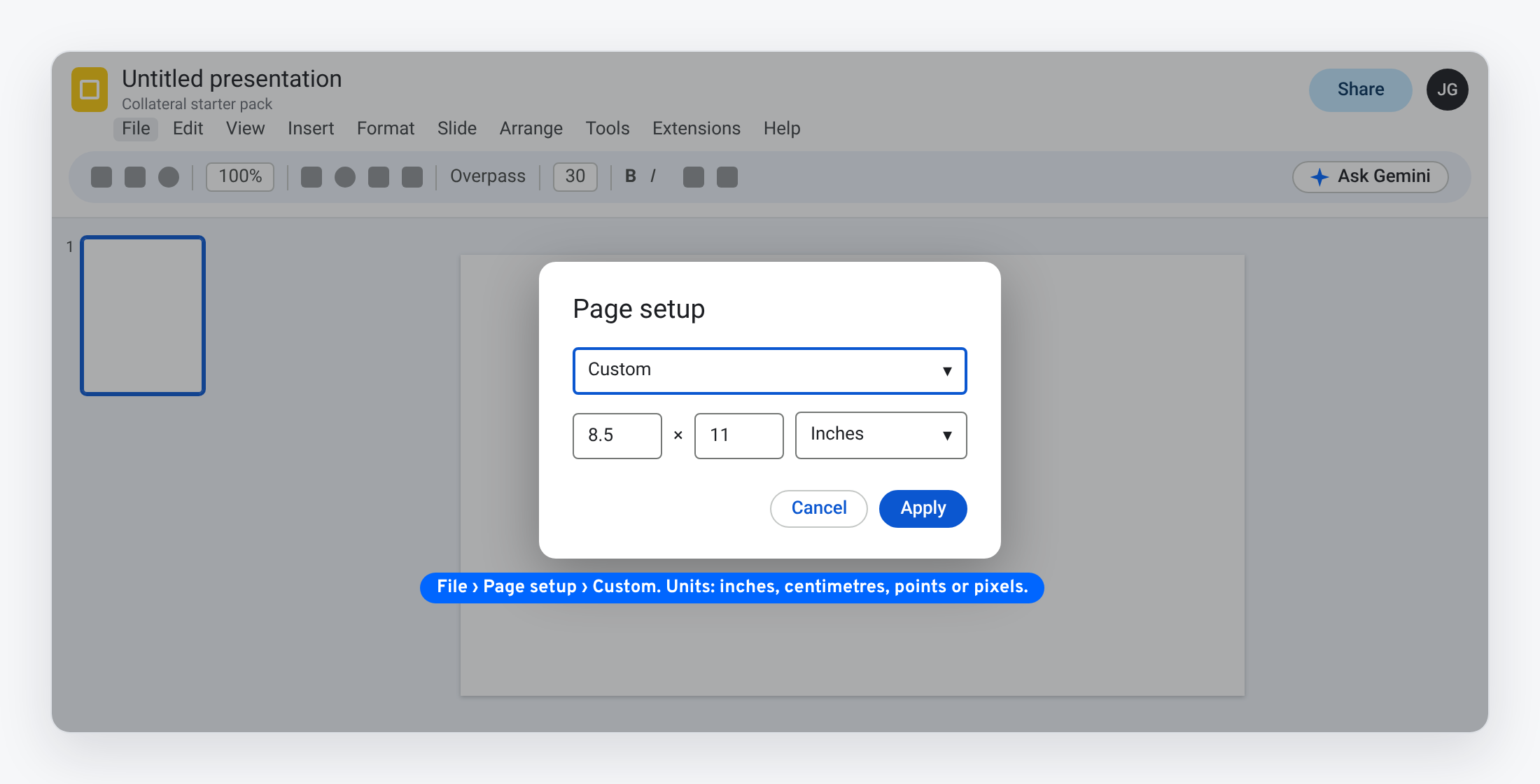
Set the size before you design. Changing it later can move and rescale what is already on the page. Page size applies to the whole file, so each asset size is its own file.
Add bleed if it goes to a printer
Slides has no bleed setting. You make the page bigger and keep important content away from the edge.
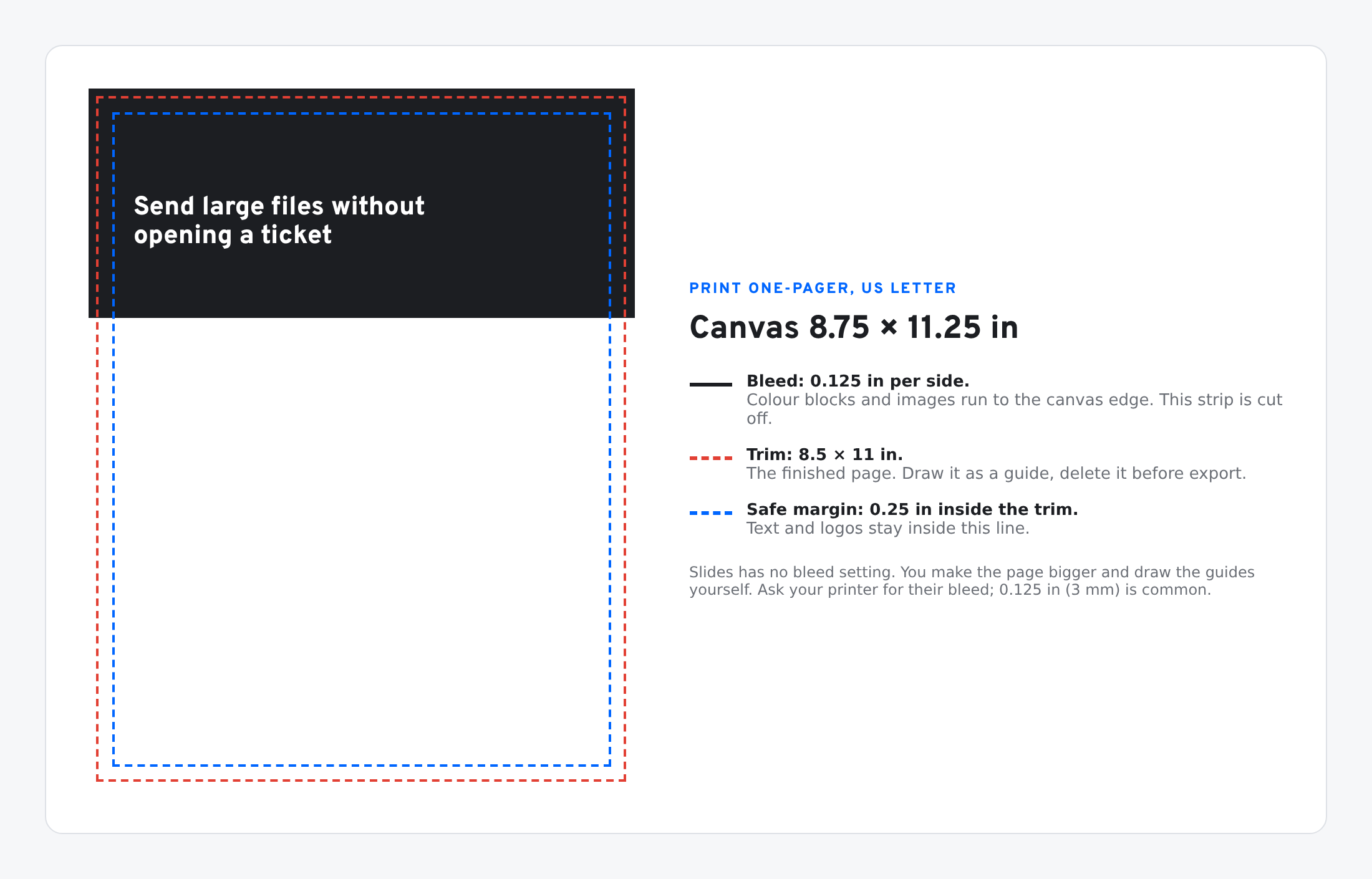
- Canvas: add the bleed to every side. For Letter with 0.125 in bleed, that is 8.75 × 11.25 in.
- Colour blocks and images that touch the edge run all the way to the canvas edge.
- Text and logos stay 0.25 in inside the trim.
- Guides: draw the trim and safe lines as dashed rectangles. Delete them before you download the PDF.
Ask the printer what bleed they want. 0.125 in (3 mm) is common.
Layout patterns that survive a copy change
Most collateral is built from the same few blocks. Reuse them across assets so a message has the same shape wherever it appears.
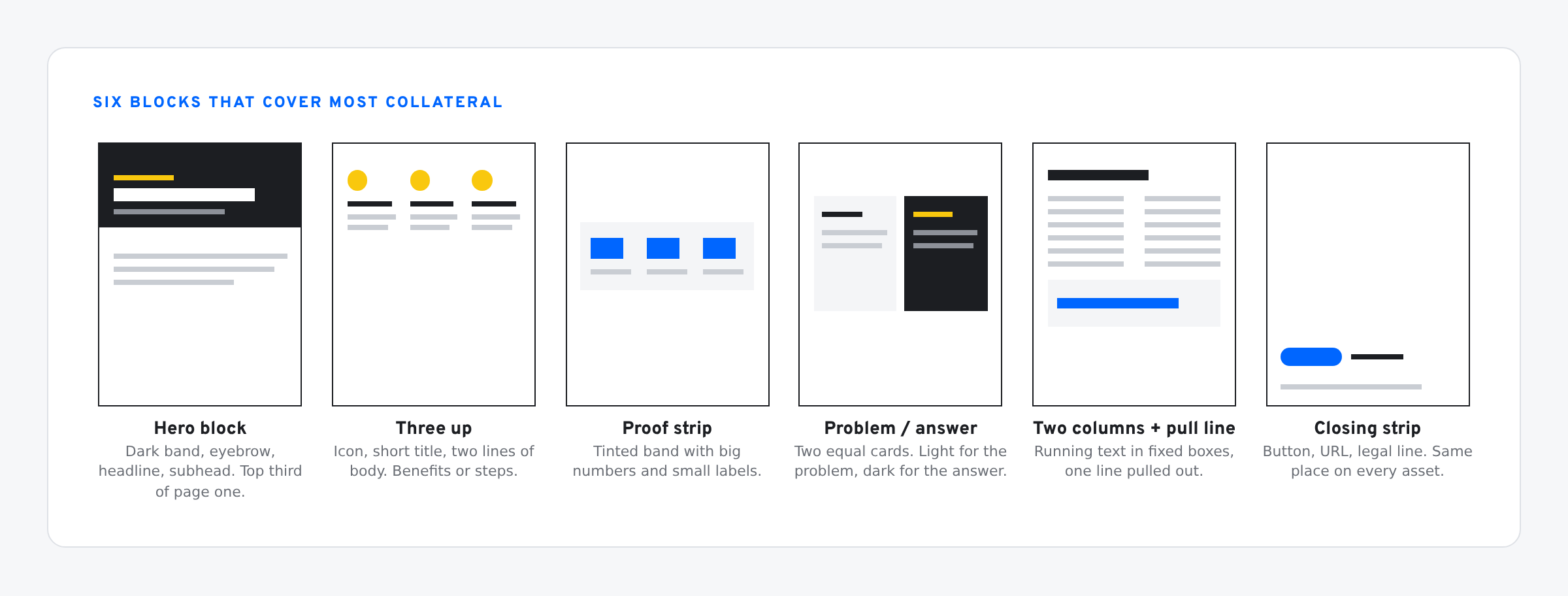
Rules for the text boxes inside them:
- Fixed boxes, with room to spare. Size each box for the longest line you will allow, not for today’s copy.
- One job per box. A headline box holds a headline. If a bold lead-in and body text share a box, split them.
- One style per role. Eyebrow, headline, subhead, body, stat, label, legal. Same font, size and colour everywhere that role appears.
- Colour blocks carry the layout. A dark band, a tinted strip and one accent colour are enough. They do not move when the copy changes.
- Logos and icons as vectors. Drop them in as SVG with SVG to Slides so they stay sharp at print size and can be recoloured.
The messaging sheet
One row per message. The sheet is the only place copy is written, and Gemini writes it.
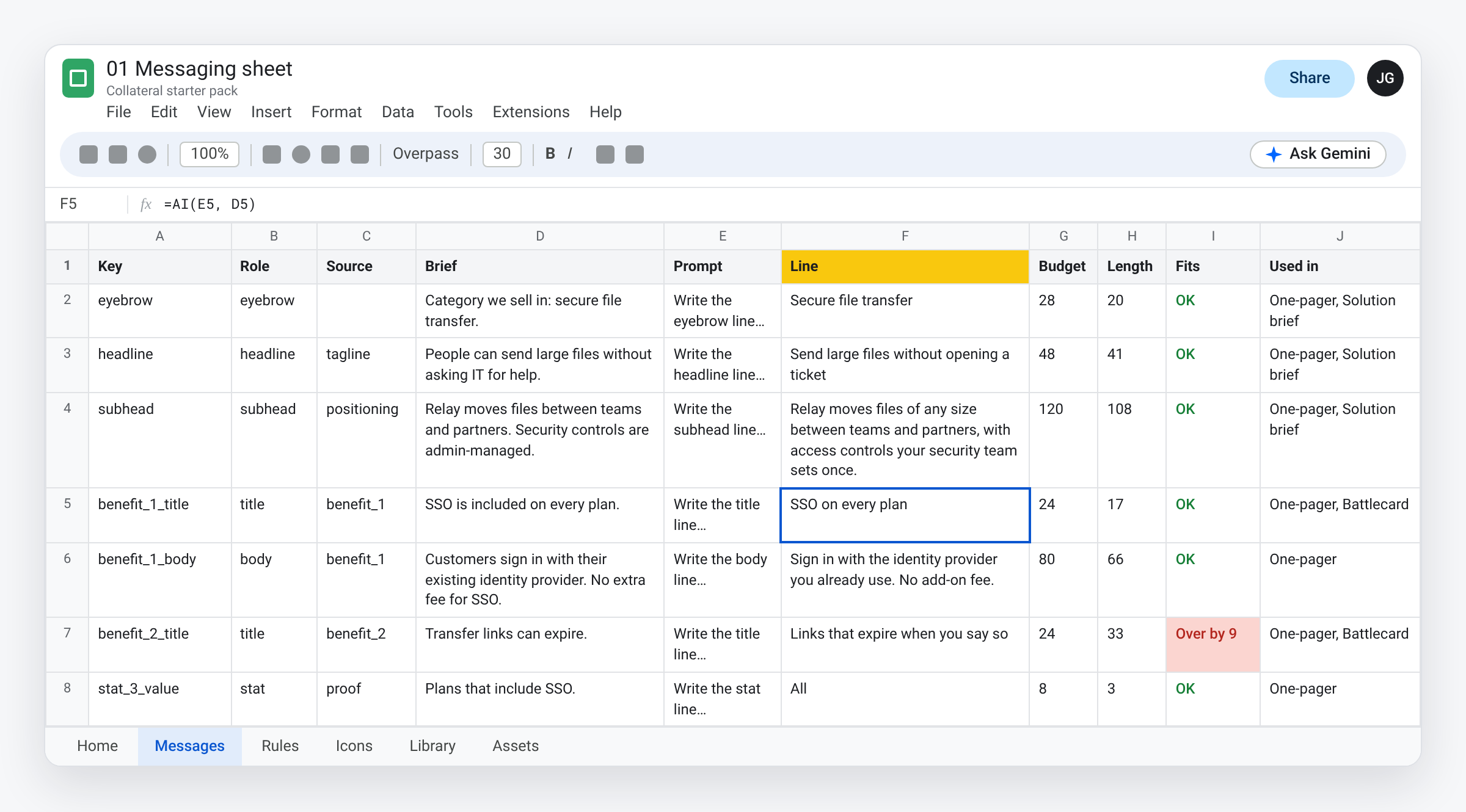
- Key: the name of the slot, like
headlineorbenefit_1_title. - Role: the kind of line: eyebrow, headline, subhead, title, body, stat, label, cta or legal.
- Source: the messaging architecture row the brief is taken from, if any. Part 2 covers the architecture.
- Brief: what the slot has to say, as a plain statement. “SSO is included on every plan.” This is the part a person owns.
- Prompt: a formula that joins the role’s recipe, the voice rules and the row’s budget into one instruction.
- Line: the finished line, written by the AI function from the prompt and the brief.
- Budget, Length, Fits: the character limit for the slot,
=LEN()of the line, and a flag when it runs over. - Used in: which assets carry this line.
The Line column is one formula, the same on every row. Sheets has an AI function that takes a prompt and a cell:
=AI(E2, D2)
The prompt in column E is built from a Rules tab:
- One recipe per role. Headline: “5 to 8 words. Lead with the outcome or the capability. Sentence case, no full stop.” CTA: “2 to 3 words starting with a verb.”
- The voice, in two or three sentences.
- Two standing rules: use only facts found in the brief, and return the line only.
- The length rule, with the row’s budget as a hard limit in characters. If the brief already fits and follows the recipe, Gemini is told to return it unchanged.
Change a rule on the Rules tab and every prompt changes with it.
The first version of this sheet had a Draft column and an Approved line column that a person filled in. We removed both on November 10. A person now owns the brief and the rules, and the line follows from them.
Limits we know about:
- The AI function needs a Google plan that includes Gemini.
- Google’s help page says nested AI functions are not supported. That is why the prompt sits in its own cell.
- In our tests, AI formulas written by a script, an import or the API did not run on their own. They show as text until you select them and click Generate and fill. One click covers every AI cell in the selection.
- A model can miscount characters. The Fits column and the sync script both check the length again.
Tables and charts: link them
Data is the part Slides already handles. Copy a range or a chart in Sheets, paste it into Slides, and choose Link to spreadsheet.
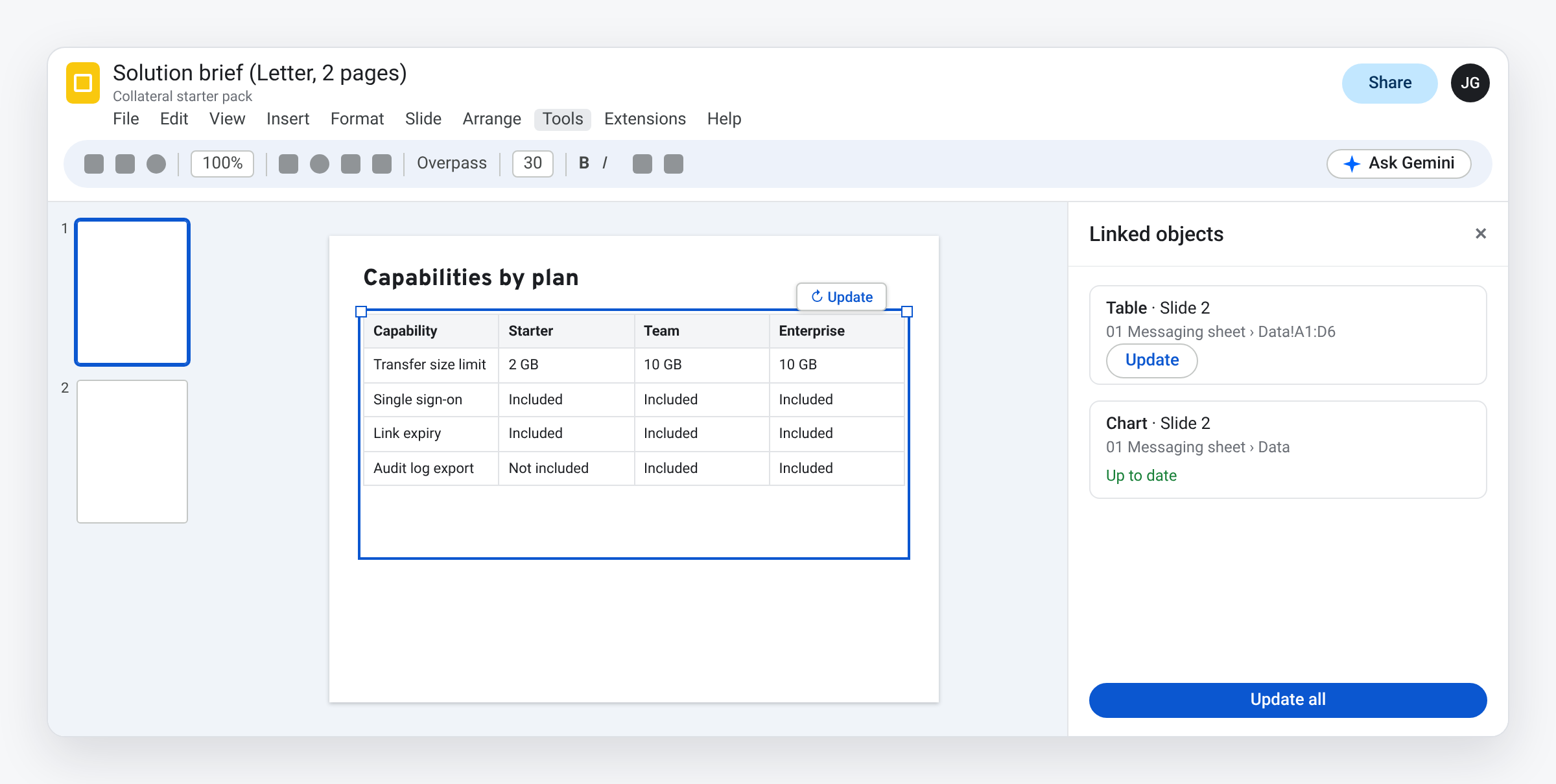
- When the sheet changes, the object shows an Update button.
- Tools › Linked objects lists every linked object in the file, with Update all.
- Updates are manual. Someone opens the file and clicks.
- Google’s help page says a table with more than 400 cells pastes unlinked.
- An update pulls the sheet’s version over any edits made to the object in Slides. Style linked tables in the sheet.
Use this for plan comparisons, spec tables, pricing and charts. A one-cell linked table can also carry a short fixed line such as a price or a date. It is still a table, so it has no text styles from your theme and no autofit. For headlines and body copy, use text boxes.
Update one asset with Gemini
This is the no-code route. Open the asset, open the Gemini side panel, reference the messaging sheet, and ask for the update.
Update this presentation from the Line column of @Messaging sheet.
Each row's Used in column says which asset it belongs to.
Use the wording exactly. Do not rephrase, add or remove sentences.
Keep every layout, font, colour and image as it is.
Do not add or delete pages.
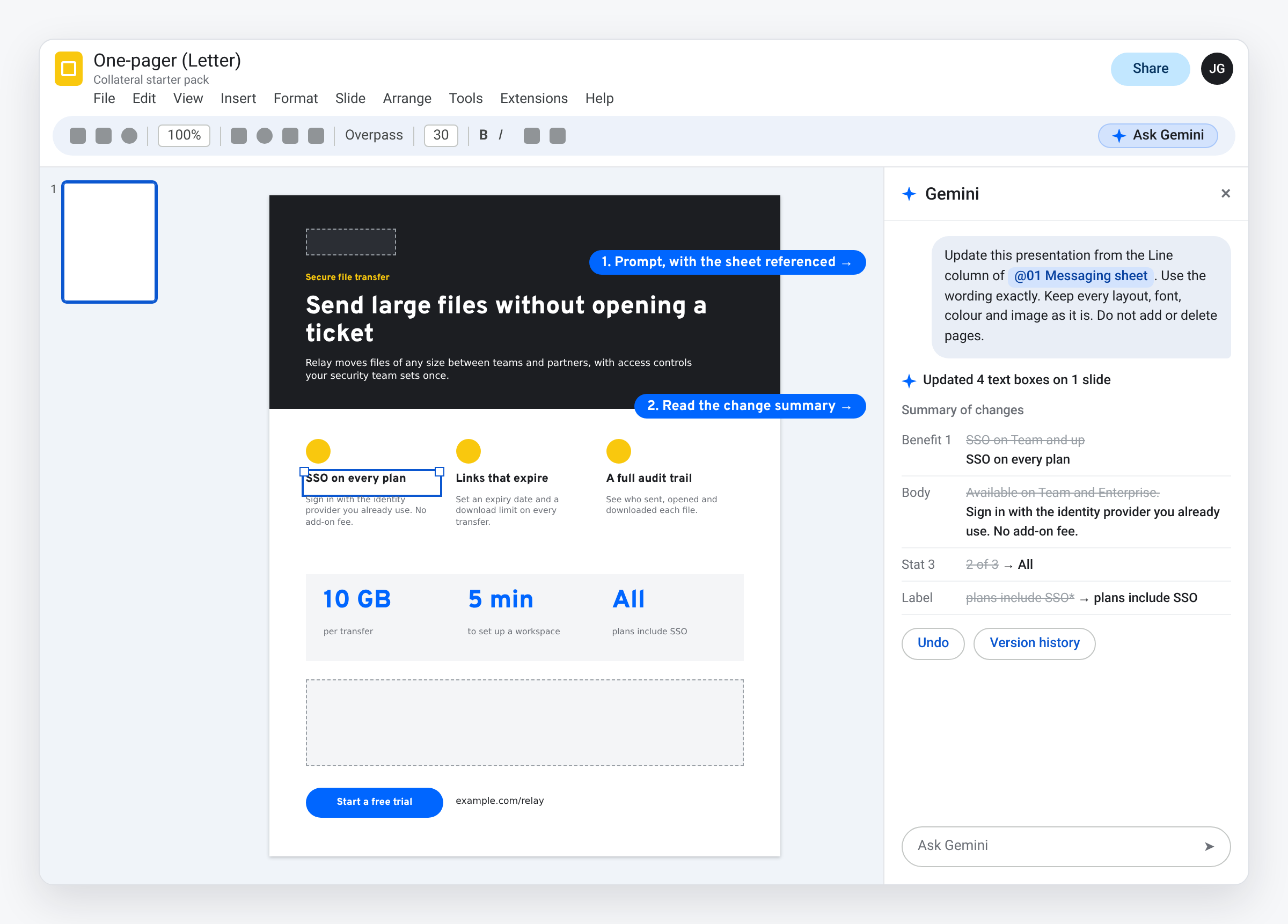
When Gemini finishes, the side panel lists what it changed. The edits are applied as if you made them, so undo and version history work.
What to plan around:
- Gemini chooses. It decides which slides change. Compare every changed line with the sheet.
- One file per prompt. Ten assets means ten prompts.
- Rollout. Google began rolling the feature out on October 29 and said it could take longer than 15 days to appear. On November 9 our Workspace account did not have it yet: Gemini edited the active slide only.
- Plan. Gemini features depend on your Google plan. Check Google’s help pages for current availability.
Exact placement: named slots and a script
When every word has to land in a specific box, across a folder of assets, give the boxes names.
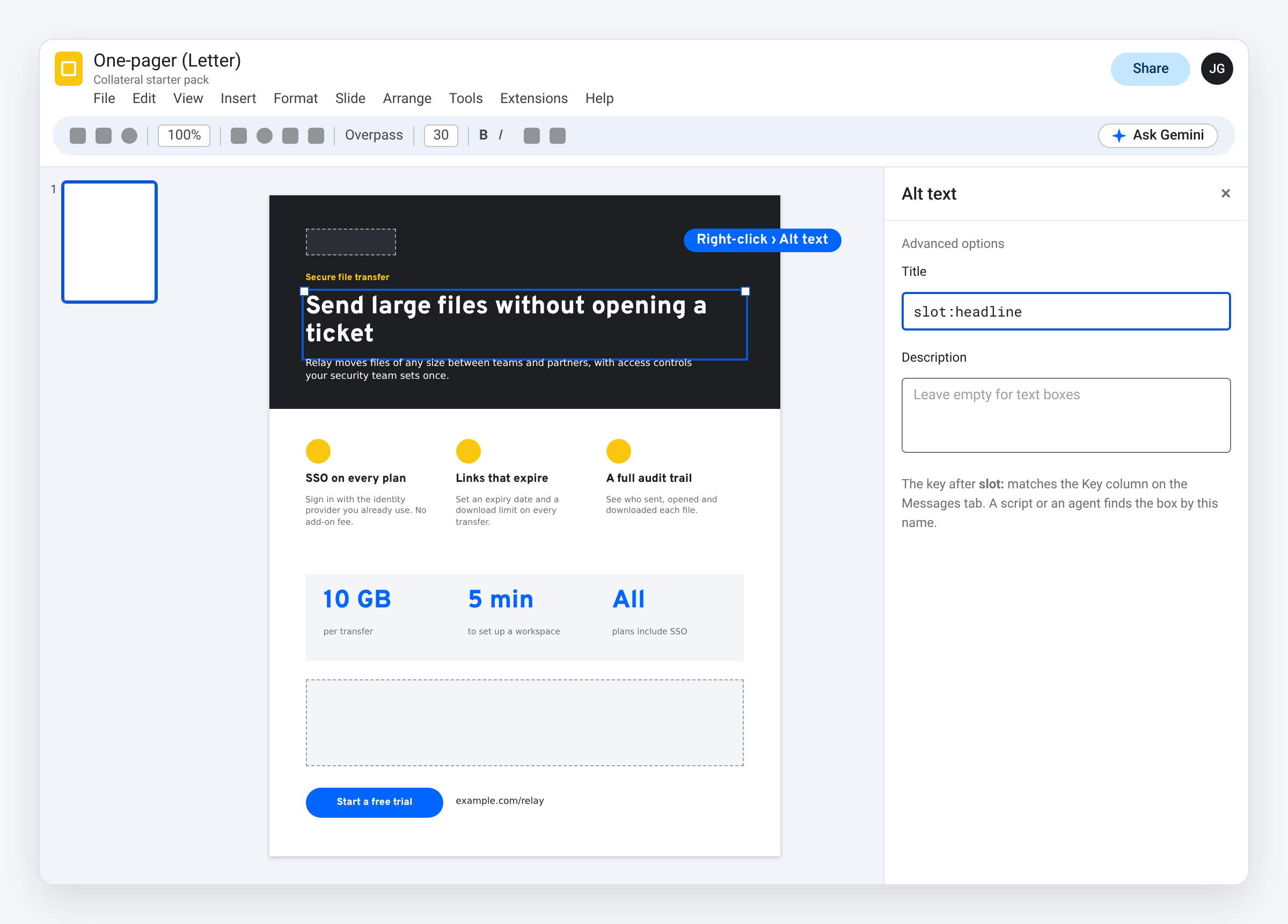
- Right-click a text box and choose Alt text.
- Put
slot:headlinein the Title. The key matches the Key column in the sheet. - Repeat for every box that takes copy. The starter templates are already tagged.
A script can now find each box by name and set its text to the row’s line. The starter sheet has one attached, written in Apps Script. It adds a Collateral menu to the sheet’s menu bar, next to Help. Nothing is added to Slides:
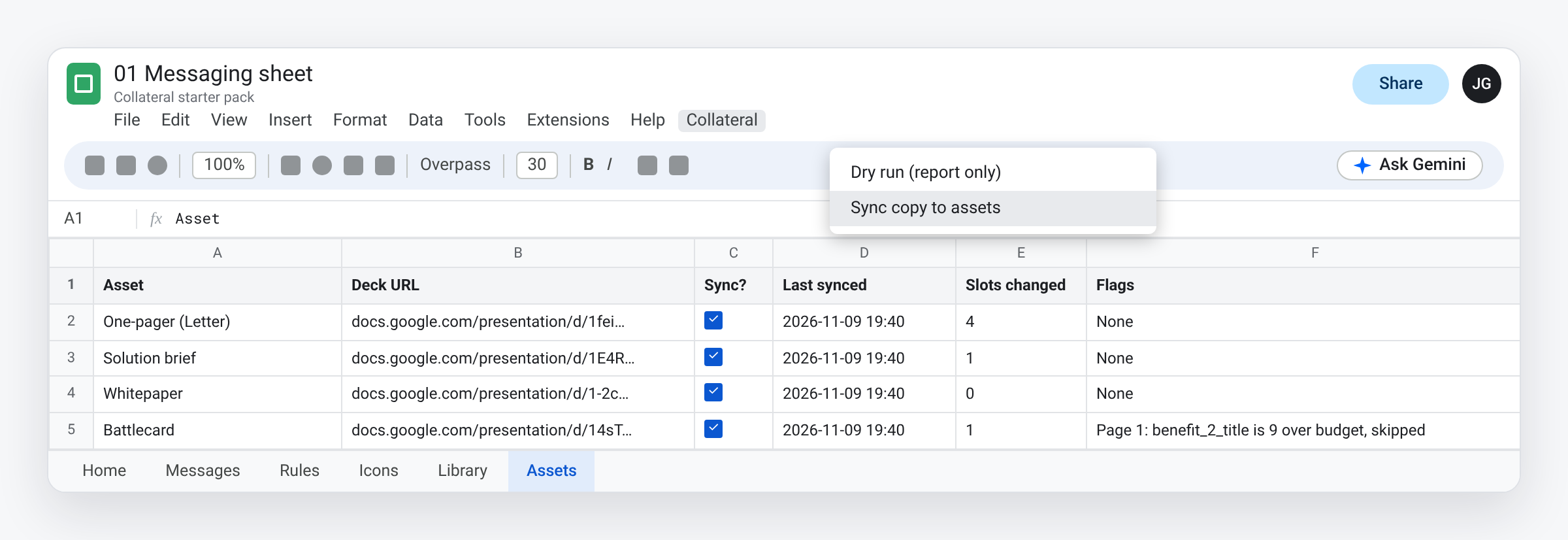
- Sync all runs the next three items on every deck on the Assets tab.
- Sync copy to assets writes each line into its tagged box.
- Apply style sets font, size and colour by role, from the brand style sheet in part 2.
- Place icons and UIs swaps tagged icons and mockups for shapes from a library deck. Part 2 covers the libraries.
- Dry run reports which copy would change and writes nothing.
- A line over its budget is skipped and flagged. So is a line Gemini has not generated yet. The script never shrinks type or resizes a box.
- Boxes without a tag are never touched.
Keep deck URLs on the Assets tab as plain text. Sheets offers to turn a link into a chip, and the script cannot read a chip.
An agent can do the same job. The pack has a short agent contract and thin instruction files for Gemini, Claude and Codex that all point to it. The contract is seven rules: write only the sheet’s finished lines, only into tagged boxes, skip anything over budget, keep the styling, leave the pages alone, look at every changed page, and do not touch a locked asset. Those files still say “approved line”. Read it as the Line column.
Use Gemini’s side panel when one person updates one asset and reads the result. Use slots when the wording is fixed and the assets are many.
Rules take the place of line-by-line approval
The first version of this setup had a person approve every line before it could reach an asset. We removed that step. The sheet now carries the constraints, and Gemini writes inside them.
- Review the rules and the briefs. They are short, and they decide every line.
- Read the Line column after a change. The Fits column flags anything over budget.
- Run Dry run to see which boxes would change.
- Sync, then look at every changed page.
What this gives up: nobody signs each sentence. A generated line can be inside its budget and still be wrong.
If your company needs sign-off, Google Drive’s file approvals work on the sheet. Open File › Approvals, add approvers and a due date, and lock the file for the review.
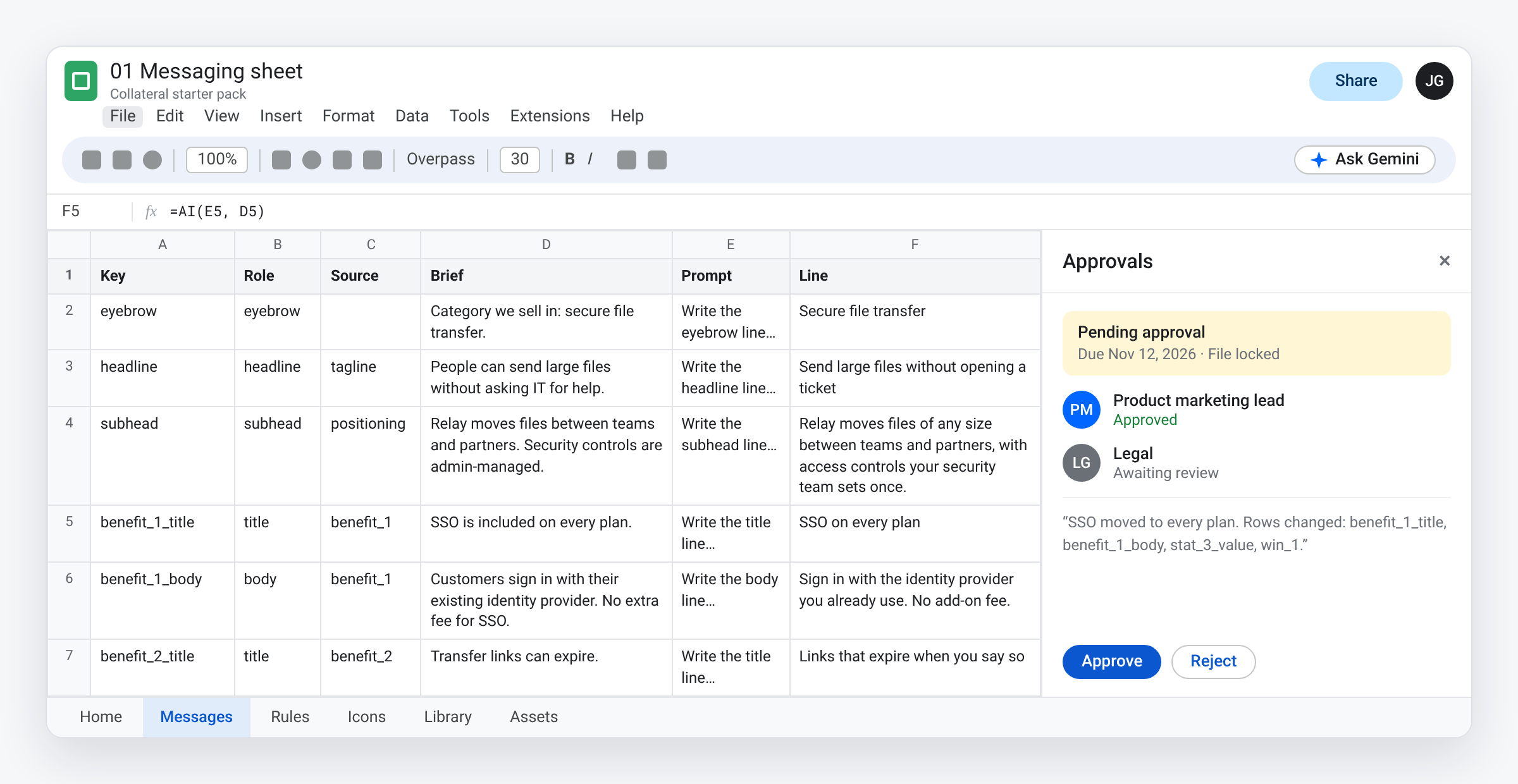
Two things from Google’s help page shape the order. Unlocking a file during an approval resets the approvals already given. And edits made after approval leave the approval attached to the previous version. So settle the briefs and rules first, approve, then sync. Approvals are available on eligible work or school accounts.
Layout shift
Slides does not shrink text to fit a box. A longer line spills out or runs into the element below it.
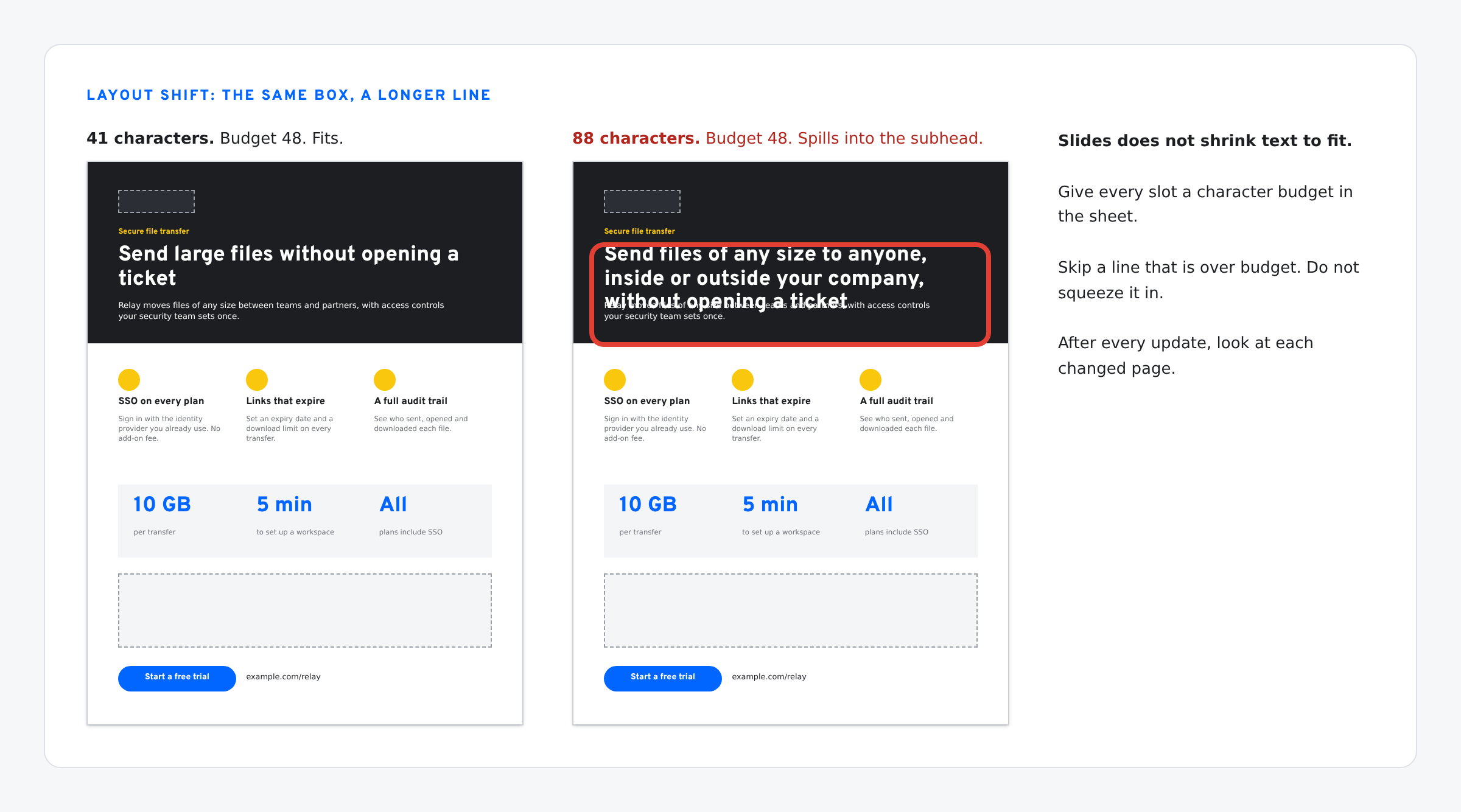
- Budget every slot. Fill the box with the longest line that still looks right, count the characters, and put that number in the sheet.
- Fix length in the sheet. The Fits column shows the problem before any asset changes.
- Skip, do not squeeze. An over-budget line stays out until the brief or the rules change and the line is generated again.
- Look after every update. A character count is an estimate. Wide letters and long words still break lines differently.
- Update linked objects last, then check the pages they sit on. A table with a new row is taller.
The starter pack
Open the Drive folder. Everything is view-only. Make your own copies.
- Messaging sheet, filled in for SVG to Slides: Home, Workshop, Architecture, Messages, Rules, Icons, Library and Assets tabs, with the script attached. Copying the sheet copies the script.
- One-pager, US Letter.
- One-pager with print bleed, 8.75 × 11.25 in, with trim and safe guides.
- Solution brief, two pages.
- Whitepaper: cover, inside page, back.
- Battlecard, Letter landscape.
- Skills and script: the agent contract, Gemini prompts, a Claude skill and a Codex AGENTS.md. The script files in that folder are the earlier, separate versions. The current script is the one attached to the sheet.
- Covered in part 2: the workshop form, the brand style sheet, the icon and UI libraries, and page recipes with two filled-in page decks.
The five templates carry sample copy for a fictional product called Relay. Each slot key in a template needs a row with the same key on your Messages tab.
To set up: copy the sheet and reload it. The Collateral menu appears in the sheet, not in Slides. Put the URLs of your own deck copies on the Assets tab. The first run asks for permission. Run the script from a copy that your own Workspace account owns. A personal Google account of ours refused the request with “This app is blocked”, and a sheet owned by a different account showed an unverified-app warning.
What we have and have not tested
Updated Nov 10, 2026.
- Checked: the templates keep their page sizes and slot tags as Google Slides files. The sheet’s budget formulas work.
- Checked: Dry run. On the example sheet it opened four decks and reported between zero and three slots to change in each, with no flags.
- Checked: Place icons and UIs swapped tagged icons and a mockup for library shapes, and the decks kept their file IDs. Mockup labels first came in too large and wrapped. The script now sizes that text from its box.
- Checked, in an earlier round: the AI function returns a line once you click Generate and fill. That test account then hit the monthly limit for the AI function after five cells. Limits depend on your plan.
- Not yet checked: the new Line formulas. All 82 on the example sheet were still waiting for Generate and fill when we wrote this, so we have not seen how well Gemini holds the character limits.
- Not yet run end to end: Sync all, with generated lines.
- Checked, one slide at a time: on a Workspace account with Gemini, we gave the side panel three lines for the one-pager and told it to use the words exactly. It showed a preview, we clicked Replace, and all three lines landed word for word. Fonts, sizes, page size and slot tags were unchanged.
- Whole-deck edit not available to us yet: the same account refused the prompt that pointed at the messaging sheet. Gemini answered that it could only edit the currently active slide. Google said the rollout could take longer than 15 days. Until it reaches you, paste the lines into the prompt, one slide at a time.
We will keep updating this post as we test each part.
The screens in this post are mockups, not captures of Google’s products. Google Slides, Google Sheets, Google Drive and Gemini are trademarks of Google LLC.
Building decks with real design assets? SVG to Slides drops SVG logos and icons into Google Slides as native, editable shapes — recolor any part, no PNG blur. Free forever. Every feature, no daily cap, no account, no Pro tier.
 Add to Chrome — free