Find which slide draws the objections
Meet notes now capture the slide on screen. Log each objection against that slide and the weak spots in your deck show up in a week.

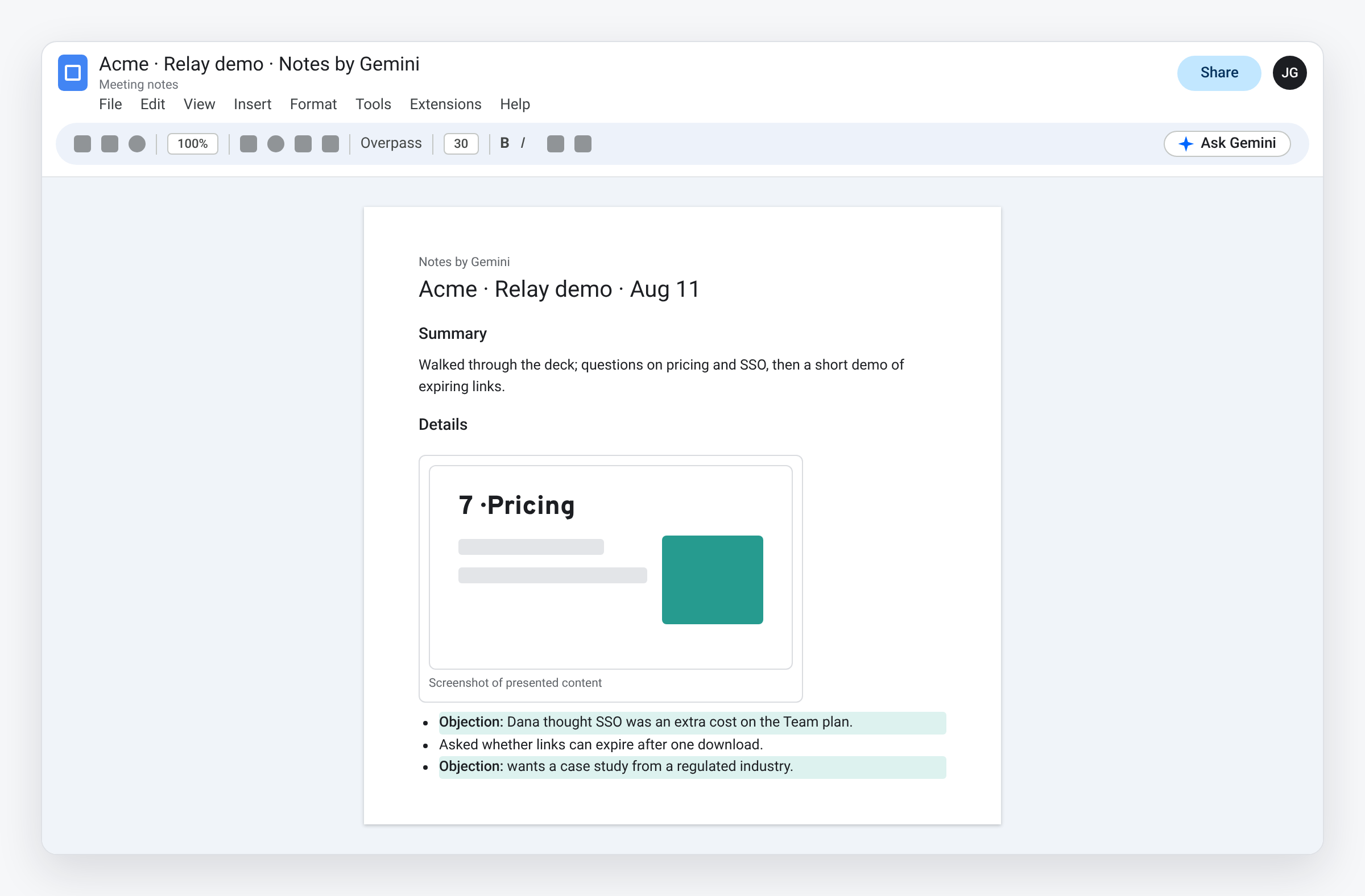
- Since August 3, Meet’s Take notes for me can embed screenshots of presented content, such as slides, in the notes doc.
- That ties what was said to the slide on screen. Log each objection with the slide it came up on.
- A simple Objections tab plus COUNTIFS shows which slides draw pushback.
- Presenters are notified and can turn capture off. Tell prospects notes are being taken.
Call notes lose the slide
Call notes say “pricing concern” or “asked about SSO.” They rarely say which slide was up. So when product marketing asks which part of the deck isn’t working, the answer is a guess.
On August 3, Google started including screenshots of presented content in Meet’s meeting notes. When you present during a call with Take notes for me on, Gemini can capture slides, charts and diagrams into the notes document, next to the summary. Now the notes know which slide was on screen.
Before the call
- Present from Slides inside Meet. Screenshots cover presented content.
- Number your slides and give each a short title in the speaker notes or on the slide. A screenshot is easier to log when the slide says “7 · Pricing.”
- Tell the prospect notes are being taken. Meet notifies the presenter that Gemini may capture screenshots, and the feature can be turned off from the notes panel. Admins can also require consent before notes start.
After the call: one row per objection
Open the notes doc. For each objection, add a row to an Objections tab in your deck-feedback sheet.
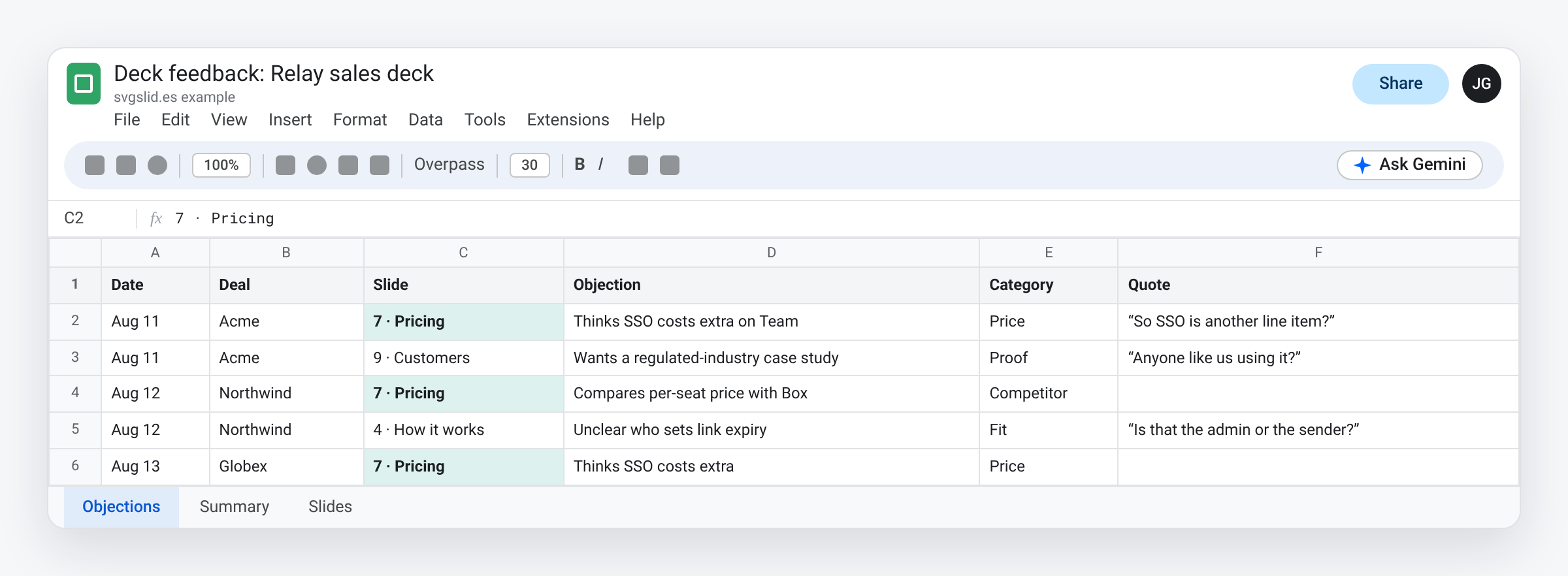
- Slide: the number and title from the screenshot.
- Objection: one plain sentence. “Thinks SSO costs extra.”
- Category: a short fixed list: price, security, fit, proof, competitor, timing.
- Quote: the prospect’s words, if the notes have them.
Gemini in the Docs side panel can draft this for you from the notes. Ask for a table with those columns, then check each row against the notes before you paste it.
Count by slide
On a Summary tab, list the slides and count:
=COUNTIFS(Objections!C:C, A2)
Add a colour scale to the count column and you have a heat map of the deck. After ten calls the pattern is usually obvious: one or two slides draw most of the pushback.
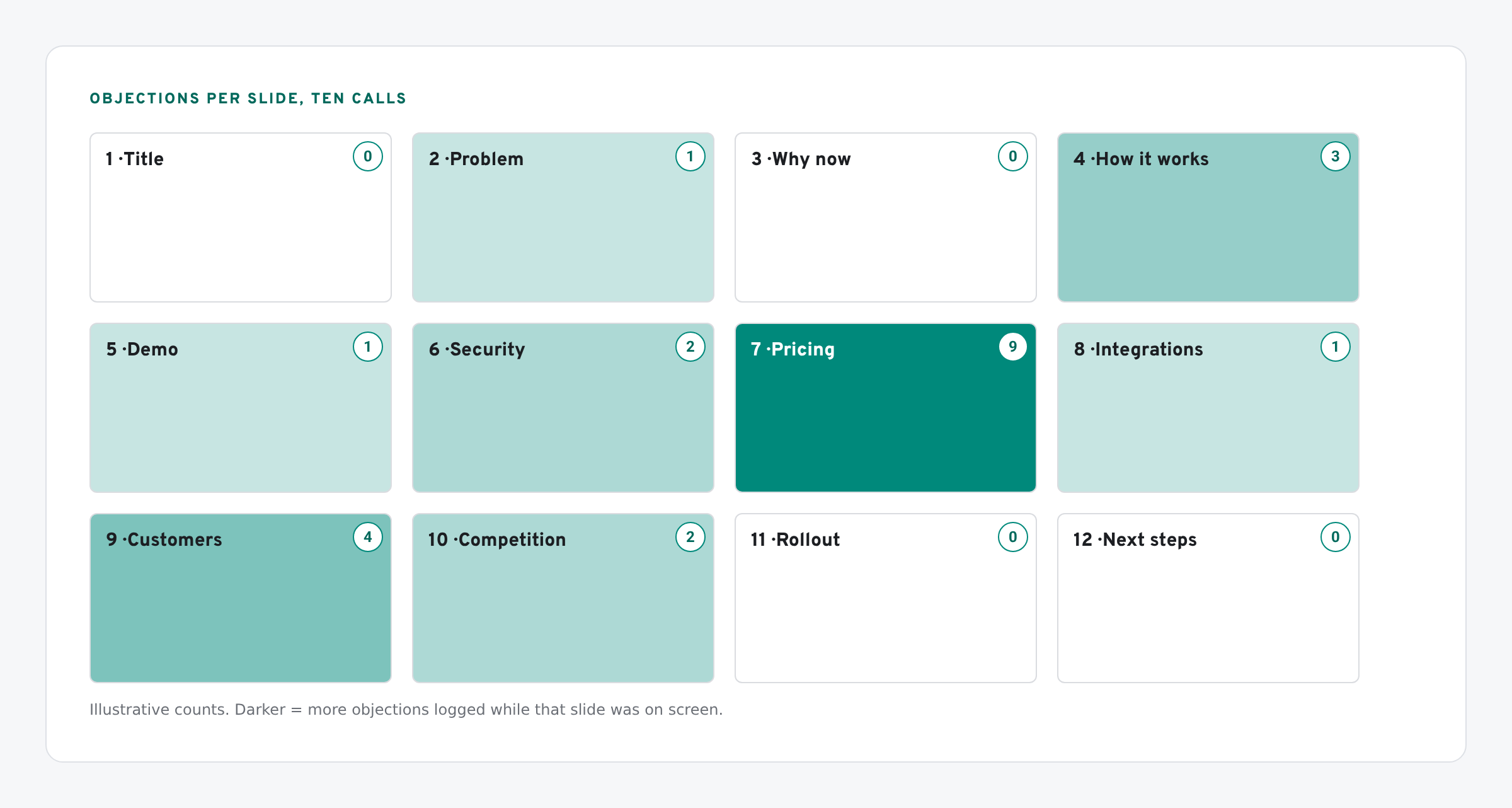
Read the hot slides with the quotes next to them. Often the fix is a missing proof point or an unclear line, not a missing feature. Those are product marketing fixes.
Automating the log
Workspace Studio has a starter that runs when a meeting transcript is ready, and steps that can ask Gemini and add rows to a sheet. That could write the Objections tab for you. Google’s starter guide notes that this starter fires on the transcript, not on Gemini’s notes, so whether a flow sees the slide screenshots is something to test. We haven’t yet.
What we have tested
- Checked in Sheets: the COUNTIFS summary formula.
- Not yet checked by us: screenshot capture itself. It was rolling out when we wrote this; availability depends on your Workspace edition and admin settings.
The screens in this post are mockups, not captures of Google’s products. Google Slides, Google Sheets, Google Docs, Google Forms, Google Meet, Google Chat, Google Drive, Gemini and Google Workspace are trademarks of Google LLC.