Product screenshots go stale. Native UI mockups don't.
Every release breaks the screenshots in your decks. Build simplified product UI as native shapes and live text instead, kept in one library deck, and a renamed button is a find and replace.

- Screenshots go stale every release, blur in print, and can’t be searched, recoloured or translated.
- A simplified UI mockup shows the one thing the slide is about, in your brand colours, at any size.
- Build components in Figma, export SVG, drop them into Slides with SVG to Slides. Shapes land native; labels go in as Slides text boxes.
- Keep every component in one library deck with a searchable label, so anyone can copy the current version.
Why screenshots rot
A screenshot is a picture of one build of your product, on one screen, at one size. The next release renames a button and it’s wrong. Printed on a one-pager, it’s soft. Put in a German deck, the UI is still in English. And nobody can find which twelve decks use it.
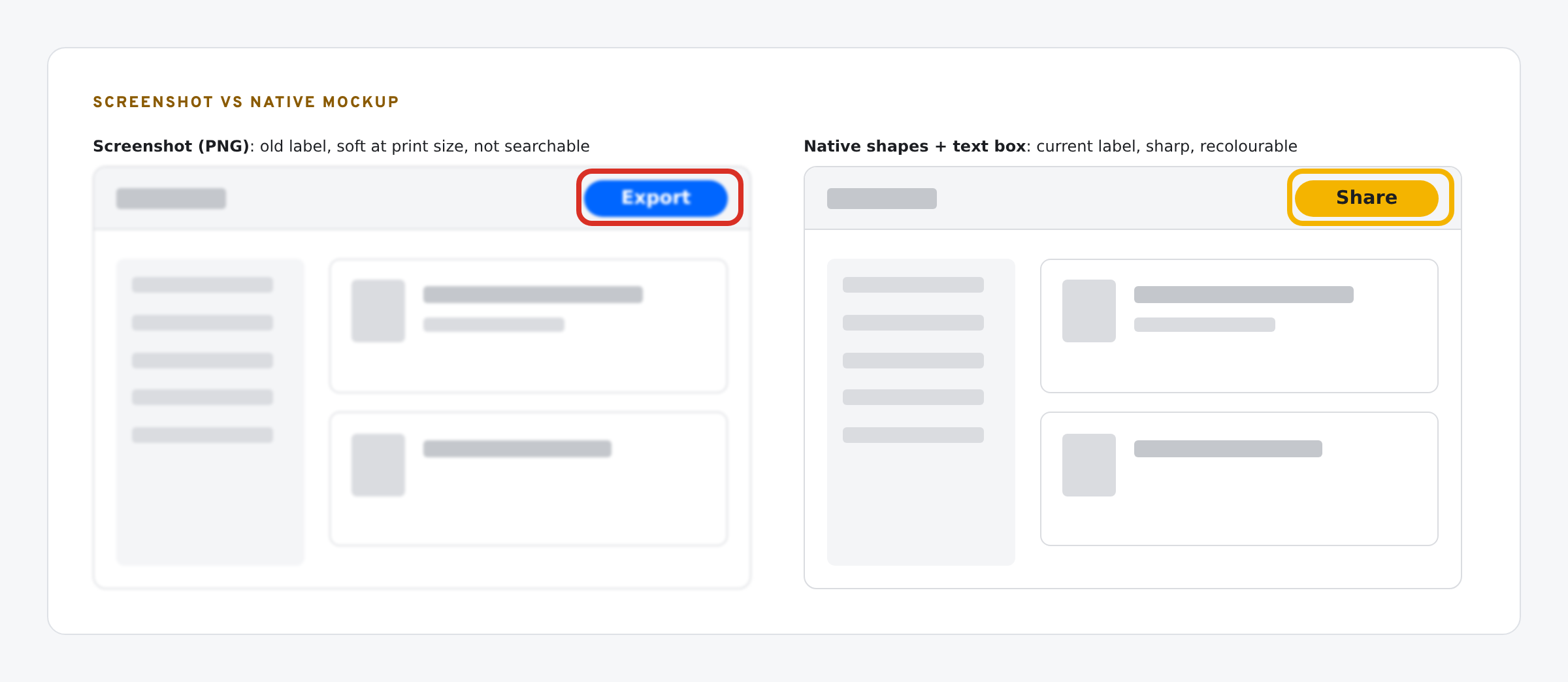
A simplified mockup fixes all four. It shows only what the slide is about, built from shapes and live text. It scales cleanly, takes your colours, translates like any text box, and a find and replace updates every label.
Simplify first
A mockup is a diagram of the product, not a copy of it. For each slide, decide the one thing the viewer should see, and draw that.
- Keep: the layout, the element being talked about, the labels that explain it.
- Drop: real data, menus nobody looks at, avatars, timestamps, scroll bars.
- Grey everything except the element the slide is about. Colour that one.
- Eight to twenty elements per mockup. More, and it’s a screenshot again.
Build in Figma, bring in as SVG
- Draw components in Figma: button, input, toggle, card, nav bar, table row. Flat fills and strokes. No shadows, blurs or gradients.
- Keep text out of the SVG, or delete it after export. Labels go in as Slides text boxes so they stay editable.
- Export each component as SVG. Figma’s export settings cover the options.
- Drop it into Slides with SVG to Slides. Drag the file onto your Slides tab, click where it goes, press Cmd/Ctrl+V. Every path becomes a native shape. Step by step: how to insert an SVG into Google Slides.
- Add the labels as text boxes in your type styles, on top of the shapes. Group them.
Why flat: SVG to Slides converts paths, shapes, fills and strokes. Filters, clip paths, patterns and gradient transforms don’t convert. What Google Slides supports from SVG has the details.
One library deck
Put every component on its own slide in a single deck: the UI library. Under each one, add a small text label in white or light grey with its name, like ui:button-primary. Nobody sees it in use, but Ctrl+F finds it.
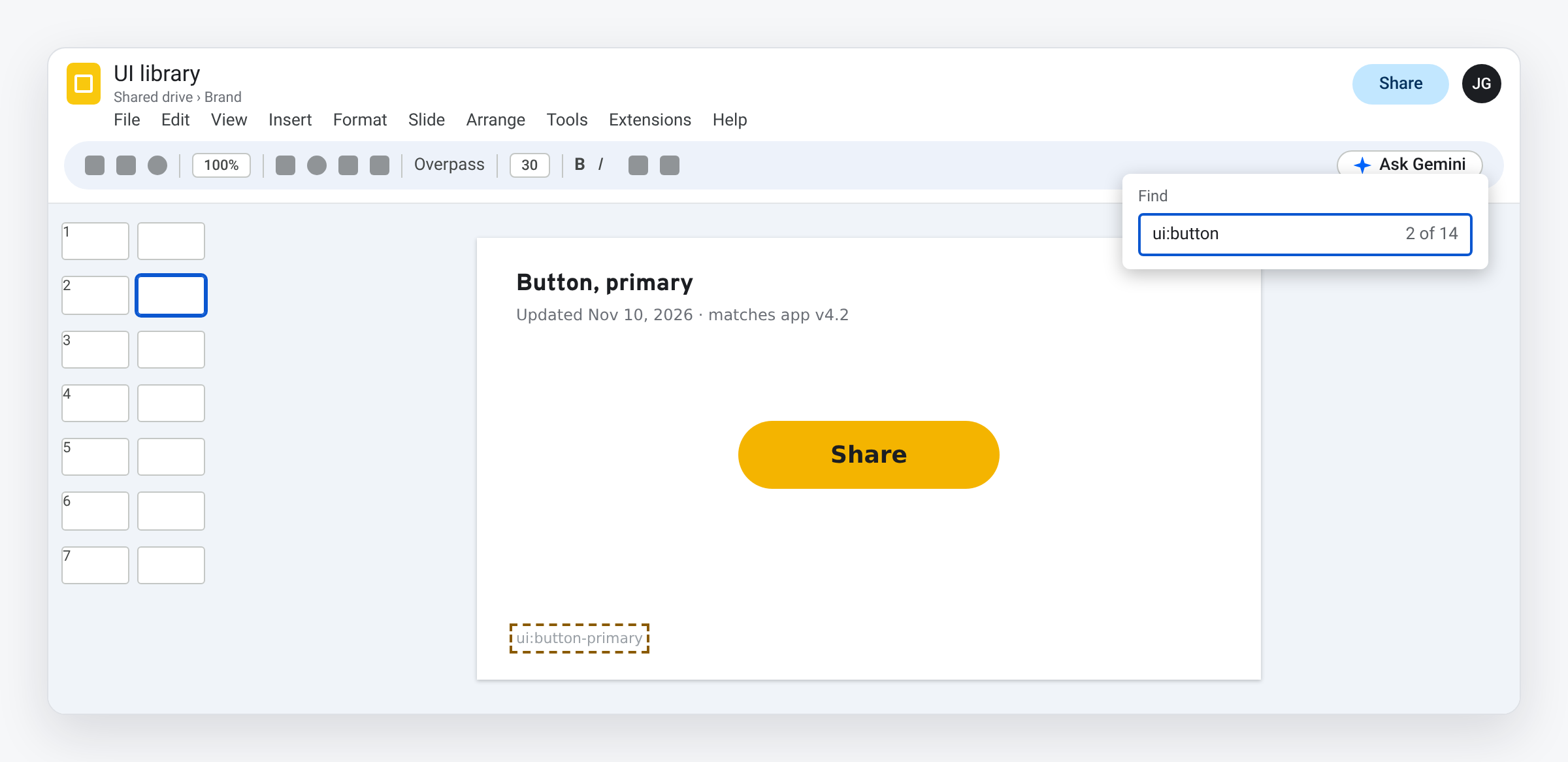
- When the product changes, update the component in the library. Note the date on the slide.
- To use one, copy it from the library. Don’t copy from an old deck.
- The same deck holds your icons. Convert an open-licence set once, one icon per slide, each with its label. That answers “where do I get icons for Google Slides?” for the whole team.
A renamed button is a find and replace
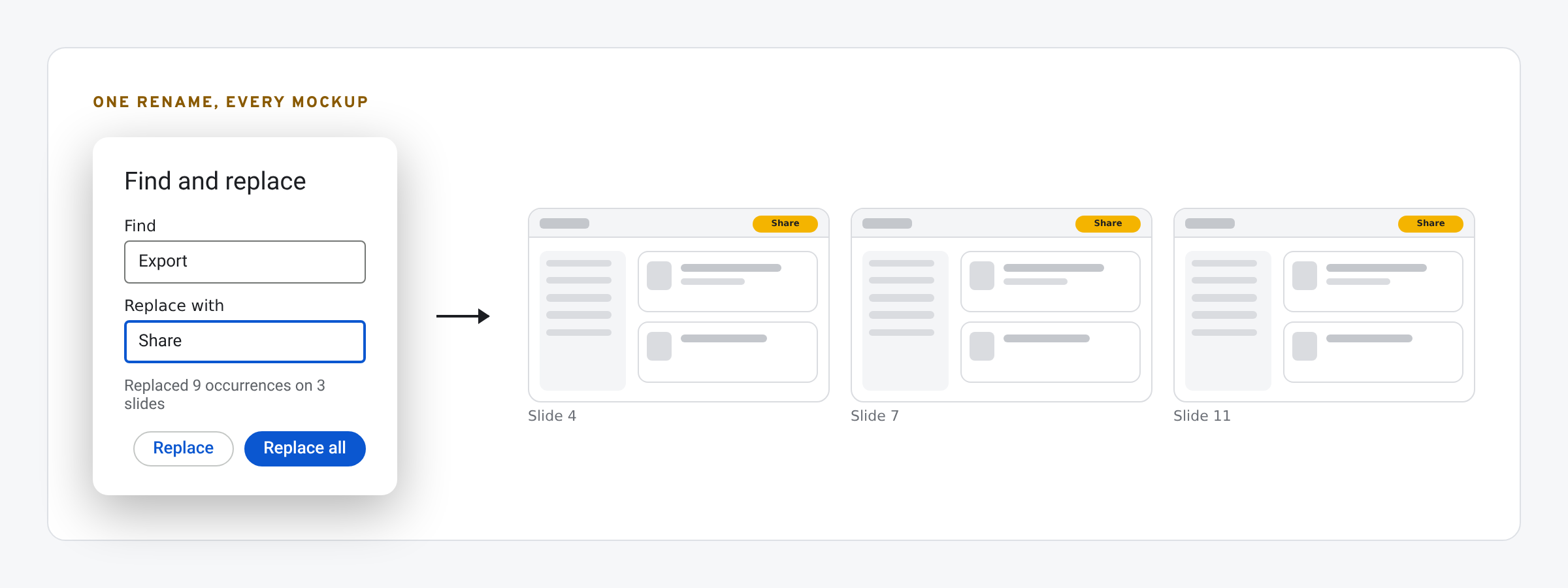
Labels are live text, so Edit › Find and replace updates every mockup in a deck at once. Colours are fills, so a rebrand is a recolour: change the colour of any shape or icon in Google Slides with the fill picker. And the same mockup works in Docs and Drawings, since it’s native shapes.
Logo designers build marks as vectors so one file works at every size. If you want to see that discipline up close, Will Paterson’s logo design channel walks through it. Your product visuals deserve the same treatment: one source, every size, no blur. That’s the SVG vs PNG argument in practice.
Where this fits
This is the visual side of the collateral system in part 1 and part 2: copy comes from the messaging sheet, visuals come from the library. Charts follow the same rule: draw them as native shapes. And after any Gemini restyle, diff the deck to check the mockups weren’t touched.
What we have tested
- Checked: a 16-element UI mockup SVG converted to 12 native shapes and 2 text boxes with the SVG to Slides converter and our placement script, and the shapes recolour with the fill picker.
- Note: the Chrome extension doesn’t convert SVG text. Add labels as text boxes, as above.
The screens in this post are mockups, not captures of Google’s products. Google Slides, Google Sheets, Google Docs, Google Forms, Google Meet, Google Chat, Google Drive, Gemini and Google Workspace are trademarks of Google LLC.
Building decks with real design assets? SVG to Slides drops SVG logos and icons into Google Slides as native, editable shapes — recolor any part, no PNG blur. Free forever. Every feature, no daily cap, no account, no Pro tier.
 Add to Chrome — free