Audit what Gemini's whole-deck edit changed
Gemini can now edit an entire presentation from one prompt. It tells you what it changed. Here is how to check, object by object, with a snapshot before and a diff after.

- Since October 30, Gemini in Slides can edit multiple slides or a whole deck from one prompt, and it lists what it changed.
- For collateral with approved copy, check the list against the deck: text, fonts, sizes, positions, new and deleted objects, alt text tags.
- A short Apps Script snapshots every object to a sheet. Snapshot, run the prompt, snapshot again, diff.
- Anything in the diff you didn’t ask for gets undone.
One prompt, many slides
On October 30, Google announced that Gemini in Google Slides can edit multiple slides or an entire presentation at once. You can refresh fonts, backgrounds and colour schemes across a deck, restyle it to match another file, or condense and expand slides. Gemini decides which slides need to change and lists the changes in the side panel.
For a pitch draft, the list is enough. For a solution brief with approved wording, slot tags and a print layout, you want to know exactly which objects moved and which words changed. That takes a before and an after.
The loop
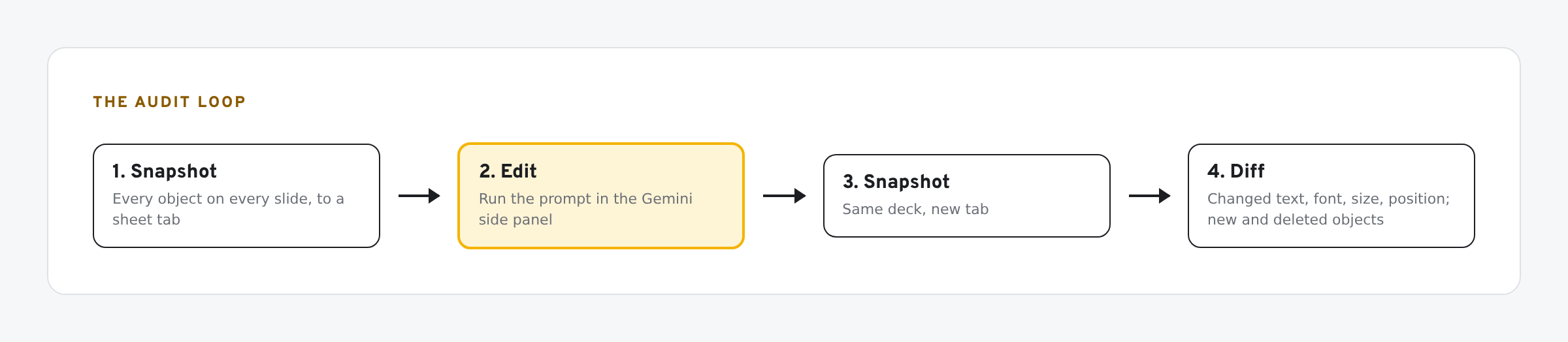
- Snapshot. Record every object on every slide.
- Edit. Run your prompt in the Gemini side panel.
- Snapshot again.
- Diff. List every object whose text, font, size or position changed, and every object added or deleted.
The script
Make a sheet with a tab called Audit and paste the deck URL into B1. Then Extensions › Apps Script, paste this, save and reload:
// Bound to a sheet. Put the deck URL in Audit!B1. Menu: Audit > Snapshot / Diff last two.
function onOpen() {
  SpreadsheetApp.getUi().createMenu('Audit')
    .addItem('Snapshot deck', 'snapshot').addItem('Diff last two snapshots', 'diff').addToUi();
}

function snapshot() {
  const ss = SpreadsheetApp.getActive();
  const deck = SlidesApp.openByUrl(ss.getSheetByName('Audit').getRange('B1').getValue());
  const rows = [['Slide', 'Object ID', 'Type', 'Tag', 'Left', 'Top', 'Width', 'Height', 'Font', 'Size', 'Text']];
  deck.getSlides().forEach((slide, i) => slide.getPageElements().forEach(el => {
    let font = '', size = '', text = '';
    if (el.getPageElementType() === SlidesApp.PageElementType.SHAPE) {
      const t = el.asShape().getText();
      text = t.asString().trim();
      if (text) { font = t.getTextStyle().getFontFamily() || 'mixed'; size = t.getTextStyle().getFontSize() || 'mixed'; }
    }
    rows.push([i + 1, el.getObjectId(), String(el.getPageElementType()), el.getTitle() || '',
               Math.round(el.getLeft()), Math.round(el.getTop()), Math.round(el.getWidth()), Math.round(el.getHeight()), font, size, text]);
  }));
  const sh = ss.insertSheet('Snap ' + Utilities.formatDate(new Date(), ss.getSpreadsheetTimeZone(), 'MM-dd HHmmss'));
  sh.getRange(1, 1, rows.length, rows[0].length).setValues(rows);
}

function diff() {
  const ss = SpreadsheetApp.getActive();
  const snaps = ss.getSheets().filter(s => s.getName().startsWith('Snap ')).sort((x, y) => x.getName() < y.getName() ? -1 : 1).slice(-2);
  if (snaps.length < 2) throw new Error('Take two snapshots first.');
  const [a, b] = snaps.map(s => new Map(s.getDataRange().getValues().slice(1).map(r => [r[1], r])));
  const head = ['Slide', 'Object ID', 'Type', 'Tag', 'Left', 'Top', 'Width', 'Height', 'Font', 'Size', 'Text'];
  const out = [['Slide', 'Object ID', 'Tag', 'Change', 'Before', 'After']];
  a.forEach((r, id) => {
    const n = b.get(id);
    if (!n) { out.push([r[0], id, r[3], 'Deleted', r[10], '']); return; }
    for (let k = 4; k < head.length; k++) if (String(r[k]) !== String(n[k])) out.push([n[0], id, n[3], head[k], r[k], n[k]]);
  });
  b.forEach((n, id) => { if (!a.has(id)) out.push([n[0], id, n[3], 'New object', '', n[10]]); });
  const sh = ss.getSheetByName('Diff') || ss.insertSheet('Diff');
  sh.clearContents().getRange(1, 1, out.length, out[0].length).setValues(out);
}
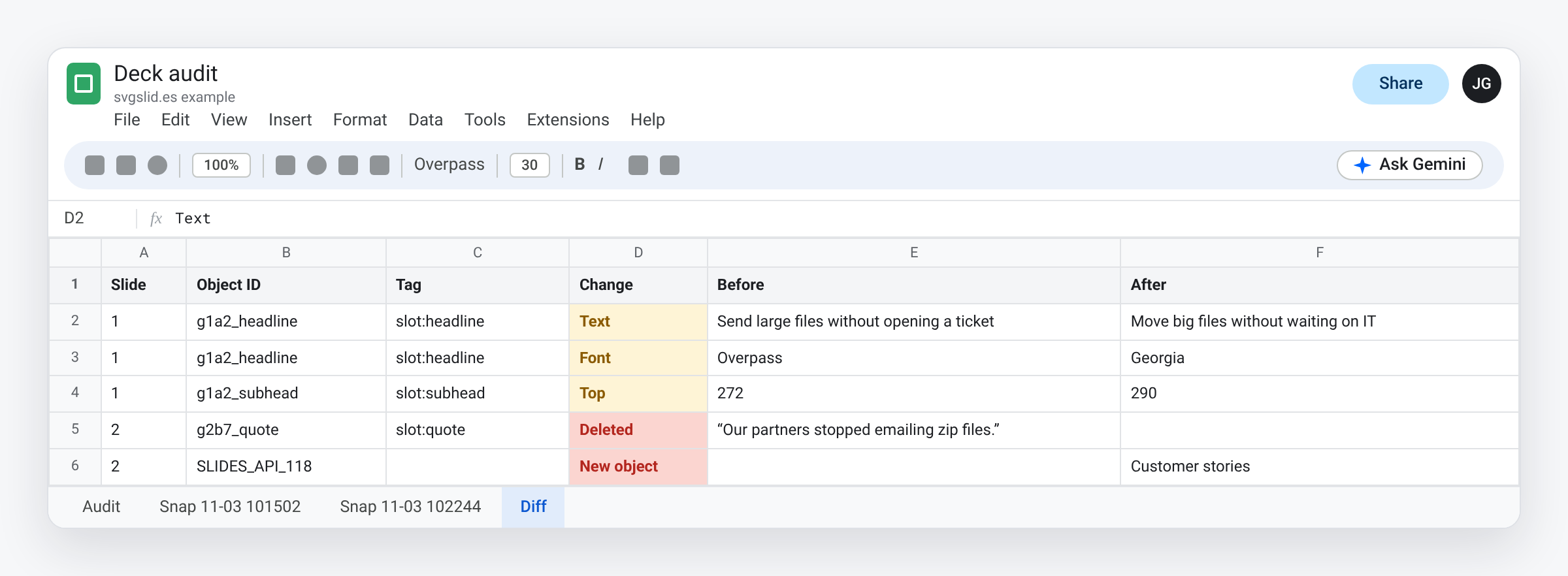
The Audit menu appears in the sheet. Each snapshot gets its own tab. Diff last two snapshots writes a Diff tab.
Reading the diff
- Text: compare each changed line with your approved copy. Paraphrase is the most common drift.
- Font and size: a restyle prompt should change these. A copy prompt shouldn’t.
- Left, top, width, height: moved boxes cause layout shift. Check the page.
- New object / Deleted: a deleted object loses its object ID and its alt text tag. If scripts find boxes by tag, re-tag the replacement.
- Tag: the alt text title. If you tag boxes like
slot:headline, the diff shows which slot changed.
Two limits: the snapshot reads top-level objects, so shapes inside a group appear as one group; and it records the style of the text as a whole, shown as “mixed” when a box has more than one font or size.
When something changed that shouldn’t have
Gemini’s edits work like your own: undo and version history both apply. Undo straight away, or restore the version from before the prompt and rerun with a tighter instruction. “Do not change any text” and “do not move or resize any object” are worth stating outright.
If your decks are localized, run the diff on every language version: a font change that fits English may break German. See localizing a one-pager without breaking the layout. If a skill drives the prompt, the diff is how you test it: see Gemini skills for messaging recipes.
What we have tested
- Not yet run by us against a Gemini edit: whole-deck editing hadn’t reached our account when we wrote this. Google said rollout could take longer than 15 days.
- The script is written against the SlidesApp reference. Run it on copies.
Update, Nov 2026: part 1 of our collateral series puts this to work: update Google Slides collateral from one messaging sheet with Gemini.
The screens in this post are mockups, not captures of Google’s products. Google Slides, Google Sheets, Google Docs, Google Forms, Google Meet, Google Chat, Google Drive, Gemini and Google Workspace are trademarks of Google LLC.