Run a messaging workshop in Google Forms and build a brand style sheet in Google Sheets
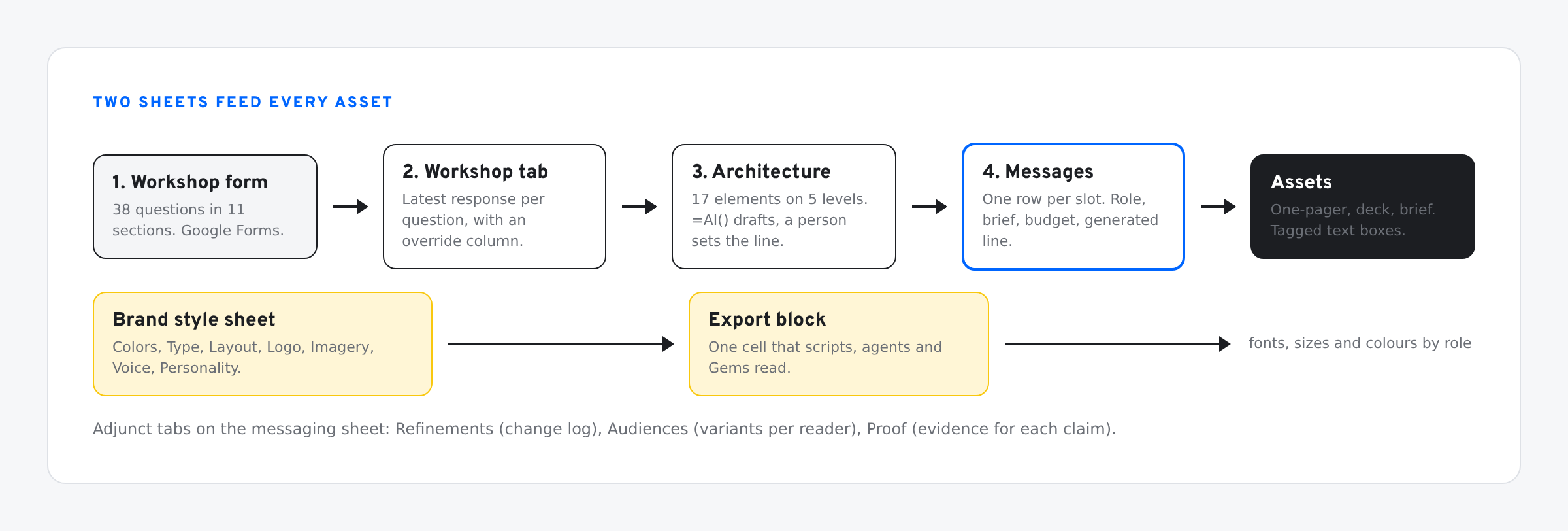
A form collects the answers. One sheet turns them into messaging. A second sheet holds the brand's colours, type and voice in a form scripts and Gems can read.
Skip ahead: the worked example, with every sheet and template filled in for SVG to Slides
- A messaging workshop runs as a Google Form: 38 questions in 11 sections, built by script from one tab.
- Answers feed a five-level messaging architecture of 17 lines. Those lines are the briefs Gemini writes every slot from.
- Icons and UI mockups live in two library decks of native shapes. Asset decks pull from them by tag.
- Page recipes from seven live pages give a formula for each block of a solution or product page.
- A brand style sheet holds colours, type, voice and personality, and exports itself as one cell of text.
- Roles tie the two sheets together, so a script can set fonts and colours on tagged text boxes.
- The worked example fills all of it in for SVG to Slides.
What part 2 adds
Part 1 set up a messaging sheet and showed how to push its lines into Google Slides™ assets. It started with the briefs already written.
This part covers what comes before and beside that sheet:
- A workshop, run as a Google Form, that collects the raw material for the messaging.
- A messaging architecture: five levels of message, drafted from the workshop answers. It supplies the briefs for the Messages tab.
- A brand style sheet: colours, type, layout, logo, imagery, voice and personality in one Google Sheets™ file that scripts, agents and Gems can read.
- Icon and UI libraries: master decks of native shapes that asset decks pull from.
- Page recipes: block formulas taken from seven live solution and product pages.
- A worked example: all of it filled in for SVG to Slides.
The workshop, as a Google Form
A messaging workshop is a set of questions asked in a fixed order. A form does that well. People answer on their own time, the answers land in one row, and nobody has to take notes.
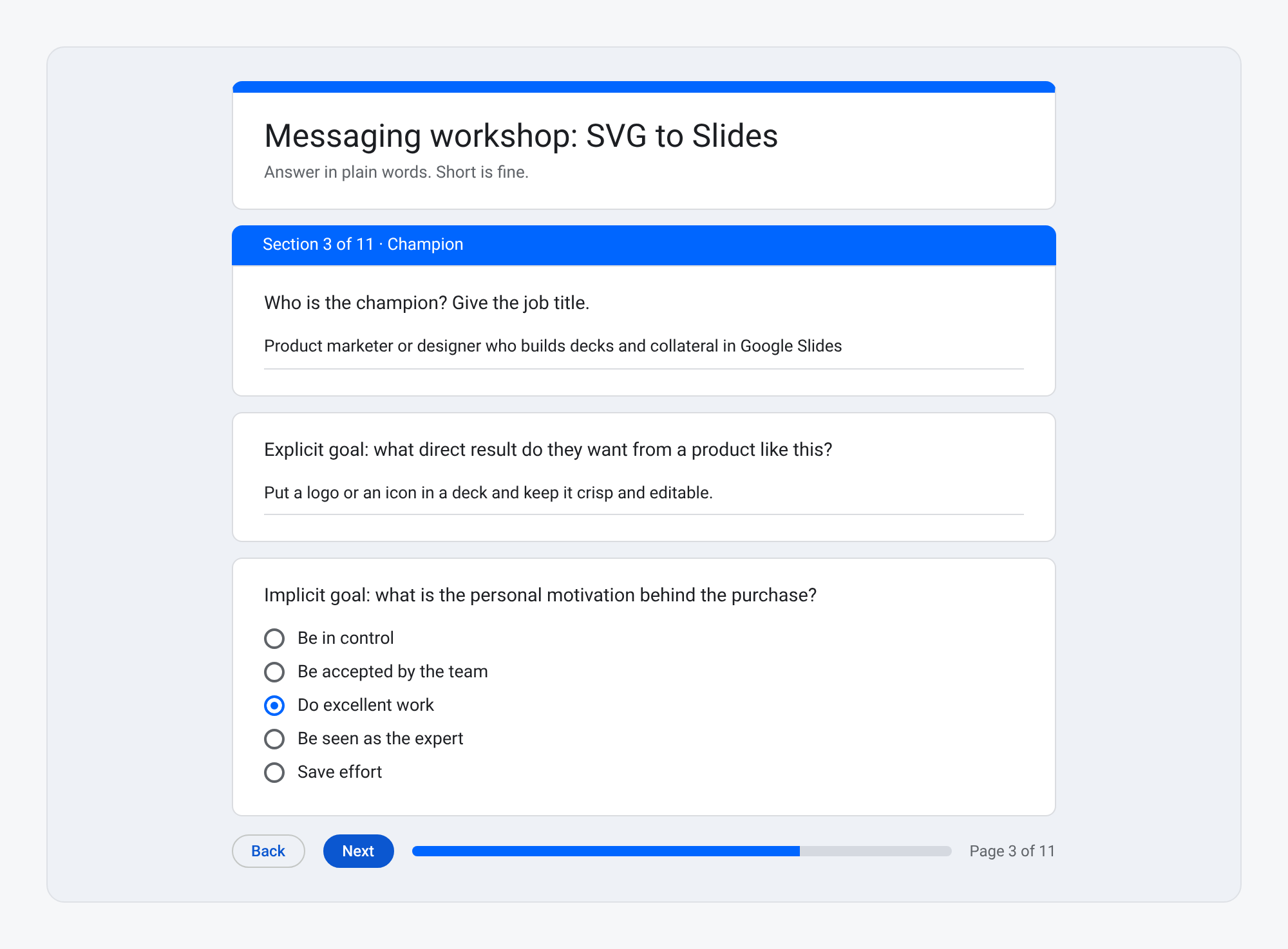
The form has 38 questions in 11 sections:
- Company and focus. What it is, in one sentence. Where it should be in two years.
- Market. The category you are in, what you get mistaken for, and the alternatives a buyer weighs.
- Champion. The job title, what they are responsible for, the explicit goal and the personal one.
- Target organizations. Size, verticals, and what must be true for a fit.
- Buying scenarios. What is happening when they go looking. One primary, the rest secondary.
- Awareness. A 1 to 5 scale, from “not sure I have this problem” to “why are you better?”
- Needs. Must have, important to have, nice to have.
- Selling proposition. What is unique, why it is relevant, what makes it believable.
- Sweet spot. What you do for customers that rivals cannot.
- Message raw material. Context, problem, promise, how it works, benefits, secondary points.
- Personality and tone. One of twelve archetypes, a runner-up, and four tone scales.
The questions live on the Workshop tab of the messaging sheet: key, section, question, type and choices. The Workshop › Build the form menu item reads that tab, builds the form, and points its responses at the same spreadsheet. To change a question, change the row and build a new form.
Three columns on the Workshop tab turn responses into inputs:
- Latest response reads the newest row of the Responses tab, matched by question text.
- Override is where you type a correction or a better answer after the session.
- Final is the override if there is one, otherwise the response. Everything downstream reads Final.
You can skip the form and type straight into Override. The example below was filled that way.
The messaging architecture
The workshop produces notes. The architecture turns them into a small set of lines, ordered the way a buyer meets them.
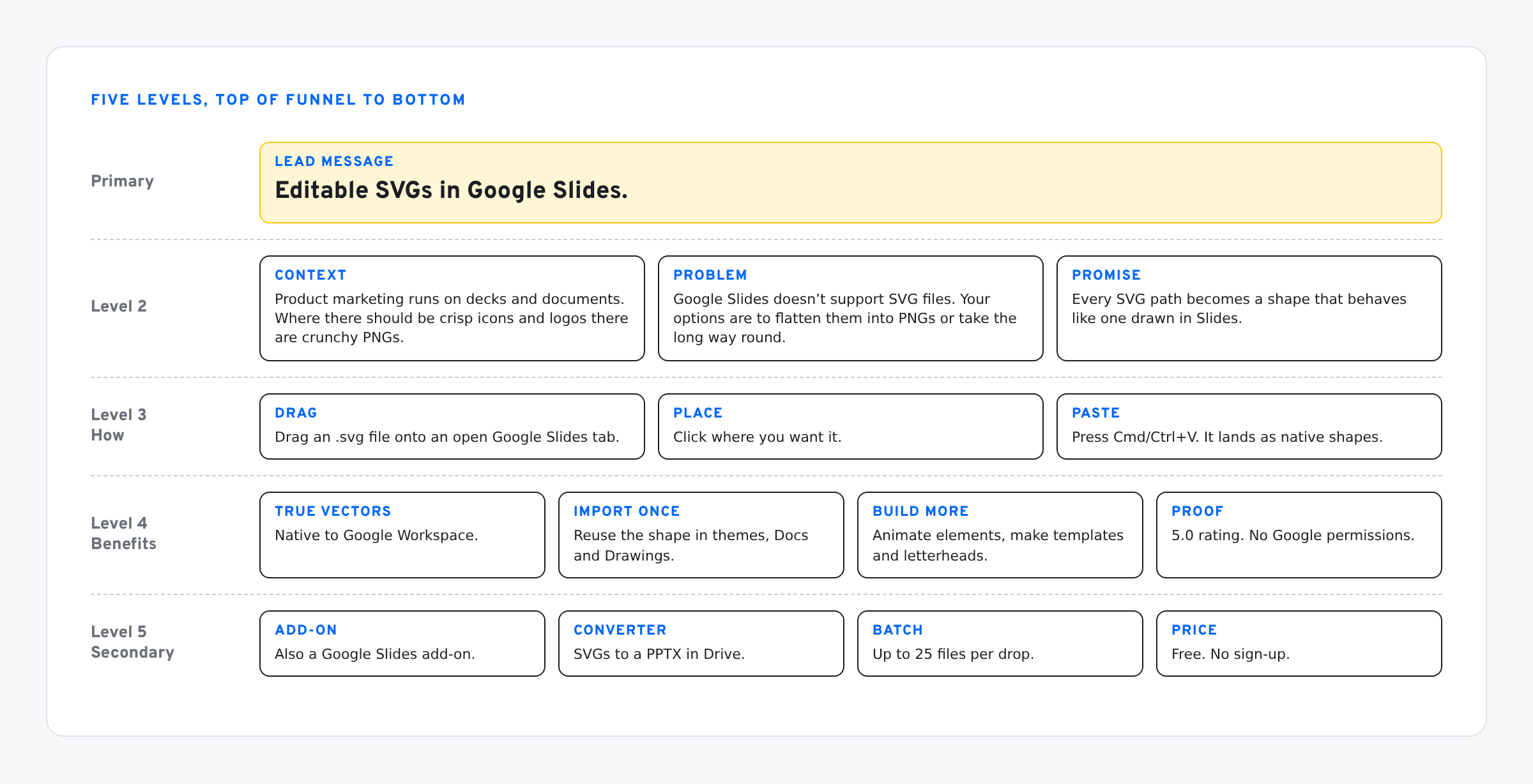
- Primary. The lead message and a positioning statement.
- Level 2. Context, problem, promise. The short narrative.
- Level 3. How it works, in three steps or pillars.
- Level 4. Benefits, and the proof behind them.
- Level 5. Secondary points for further down the page.
Each of the 17 rows on the Architecture tab names the workshop answers it draws on, joins them into a Source notes cell, and drafts a line from them with the AI function:
=AI("Promise. Write this element of a B2B messaging hierarchy from the workshop notes. One or two sentences. Plain, specific, active voice.", E6)
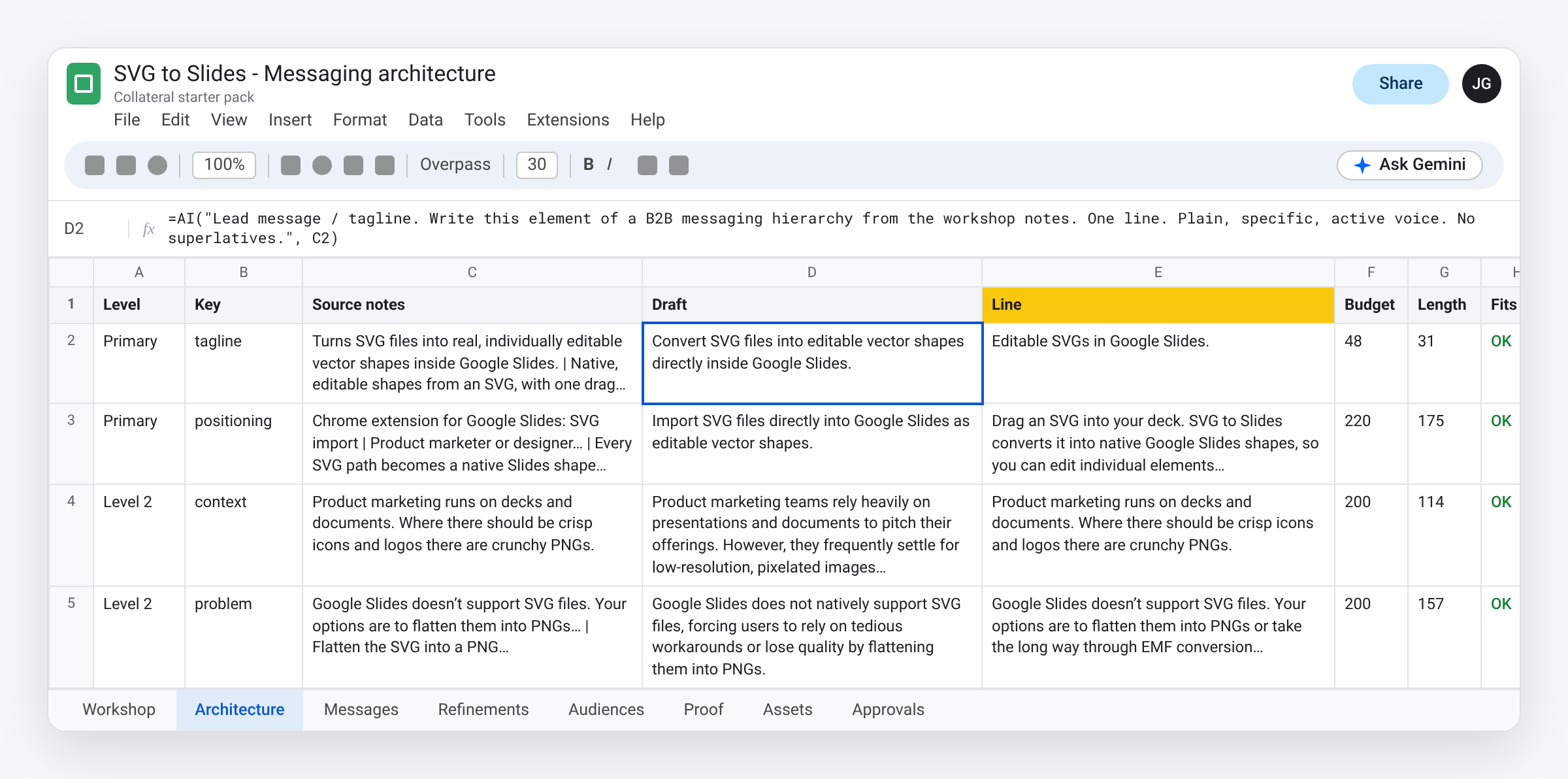
The drafts are a starting point. For the lead message Gemini returned “Convert SVG files into editable vector shapes directly inside Google Slides.” The line we kept is “Editable SVGs in Google Slides.” Same claim, less than half the length. The architecture is the one place a person still sets the line. There are 17 of them, and every brief downstream is taken from them.
From architecture to slots
The Messages tab is the one from part 1: Key, Role, Source, Brief, Prompt, Line, Budget. Two of its columns connect it to the rest:
- Role: eyebrow, headline, subhead, title, body, stat, label, cta or legal. The Rules tab holds a recipe per role, and the style sheet sets type by role.
- Source: the architecture row this slot draws on, if any. The Brief is then that row’s line, looked up by formula. Slots with no source get a brief typed by hand.
A headline slot takes the lead message as its brief. The AI function fits it to 40 characters under the headline recipe. A subhead slot takes the positioning statement. When an architecture line changes, the brief changes with it and the line is generated again.
There is no approval column. Part 1 explains what replaced it and what that gives up.
Three adjunct tabs handle what happens after the first version:
- Refinements: a log of every change to a line. Date, key, previous line, new line, reason, source.
- Audiences: variants of a line for a named reader, drafted by formula from the base line.
- Proof: each claim, its evidence, where the evidence lives, and when it was last checked.
A style sheet for Workspace
Web pages keep their look in a style sheet. Collateral in Slides usually keeps it in someone’s head. The brand style sheet is a Google Sheets file that writes it down in a form a script can read.
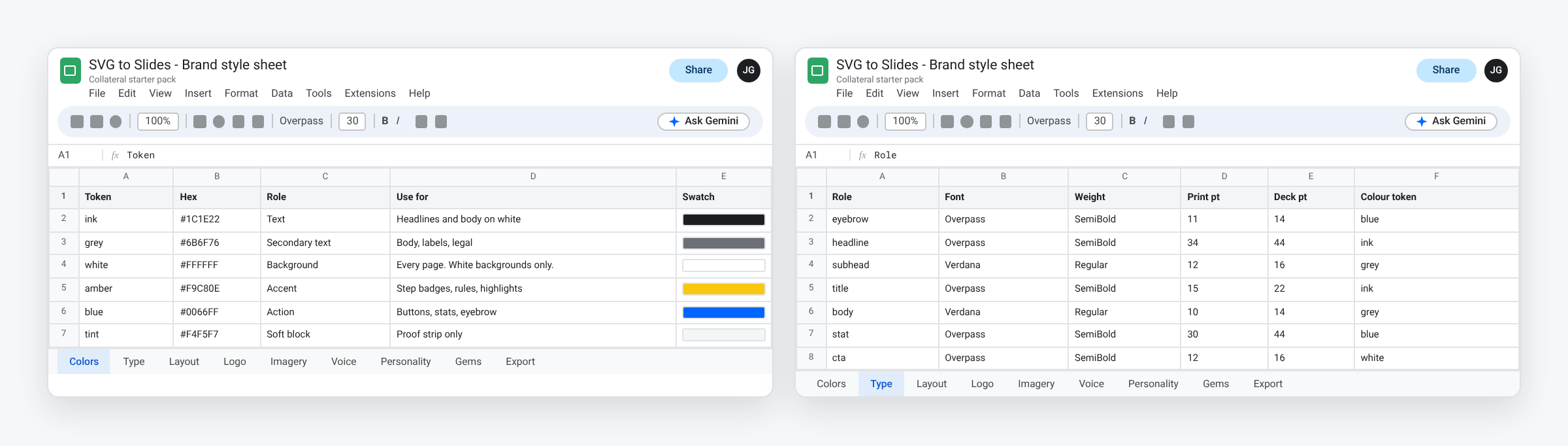
- Colors: a token, a hex value, a role, where to use it, and what colour text goes on it.
- Type: one row per role. Font, weight, size for print, size for decks, line spacing, colour token.
- Layout: margins, bleed, safe margin, gaps, corner rules.
- Logo: the file, clear space, minimum size, allowed backgrounds, what not to do.
- Imagery: style, background, palette, what to avoid, export format.
- Voice: each rule with a do, a do not, and a before and after.
- Personality: the archetype and tone scores from the workshop, plus “we are” and “we are not”.
Roles tie the two sheets together. The Messages tab says a slot is a headline. The Type tab says a headline is Overpass SemiBold at 34 points in ink. The Apply style menu item reads both and sets the font, size and colour on every tagged text box, without touching the words.
The export block
The Export tab joins every other tab into one cell of plain text, by formula. Change a hex value on the Colors tab and the block changes.
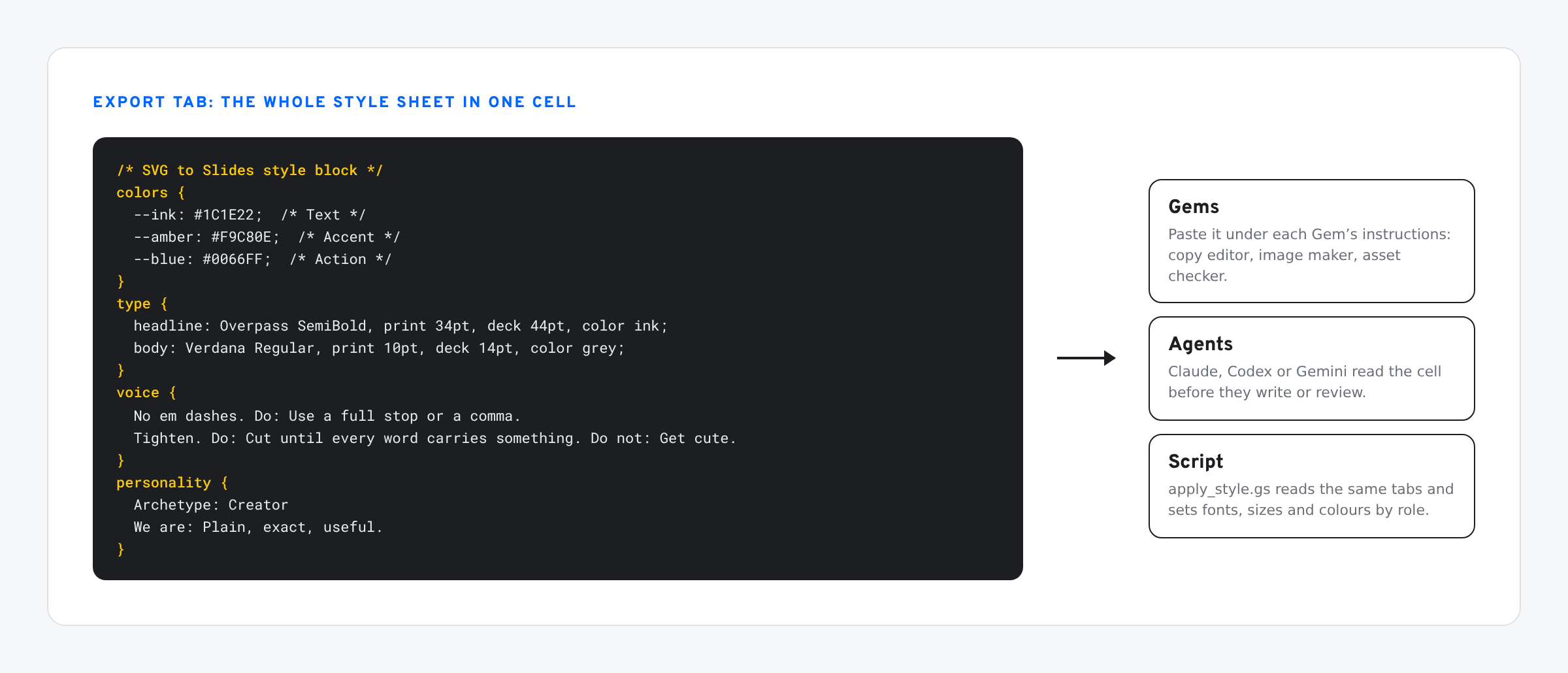
That one cell is what you hand to anything that writes or reviews for the brand. An agent reads it before it drafts. A reviewer pastes it next to a deck. A Gem carries it permanently.
Gems
A Gem is a saved set of instructions in Gemini. The Gems tab holds the instructions for five of them. Paste the instructions into a new Gem, then paste the export block under them.
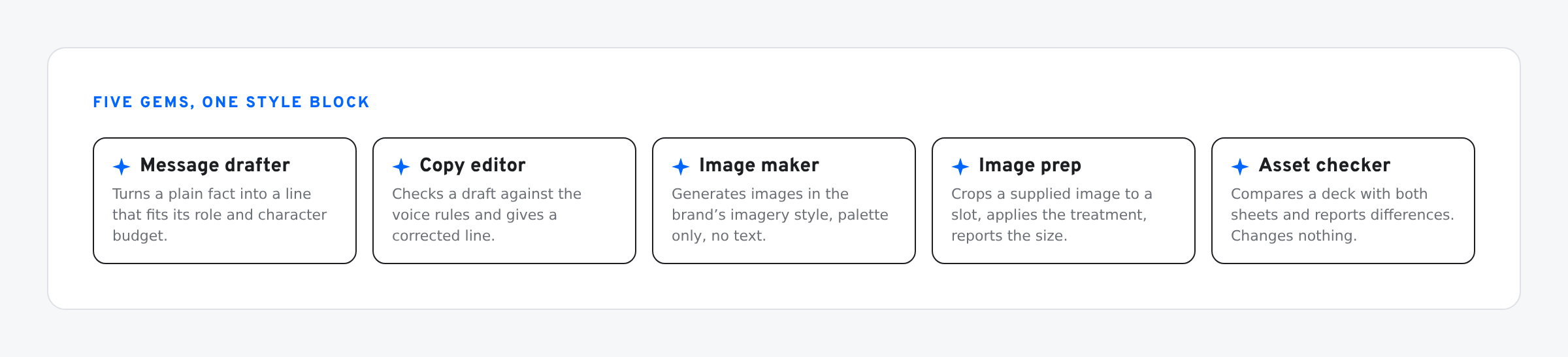
- Message drafter writes a line from a fact, for a role and a budget. It may not add a claim that is not in the fact.
- Copy editor lists each line that breaks a voice rule and gives a corrected line.
- Image maker generates images to the Imagery rules: palette only, no text, no logos.
- Image prep crops a supplied image to a slot and applies the brand treatment.
- Asset checker compares a deck with both sheets and reports. It changes nothing.
Whether Gems and image generation are available depends on your Google plan.
Worked example: SVG to Slides
We filled the whole scaffold in for our own product. The answers come from what SVG to Slides already says about itself on this site and on its store listing.
- Messaging architecture: workshop answers, 17 architecture lines, 82 slots, rules, proof log.
- Brand style sheet: nine colour tokens, nine type roles, seven voice rules, the export block.
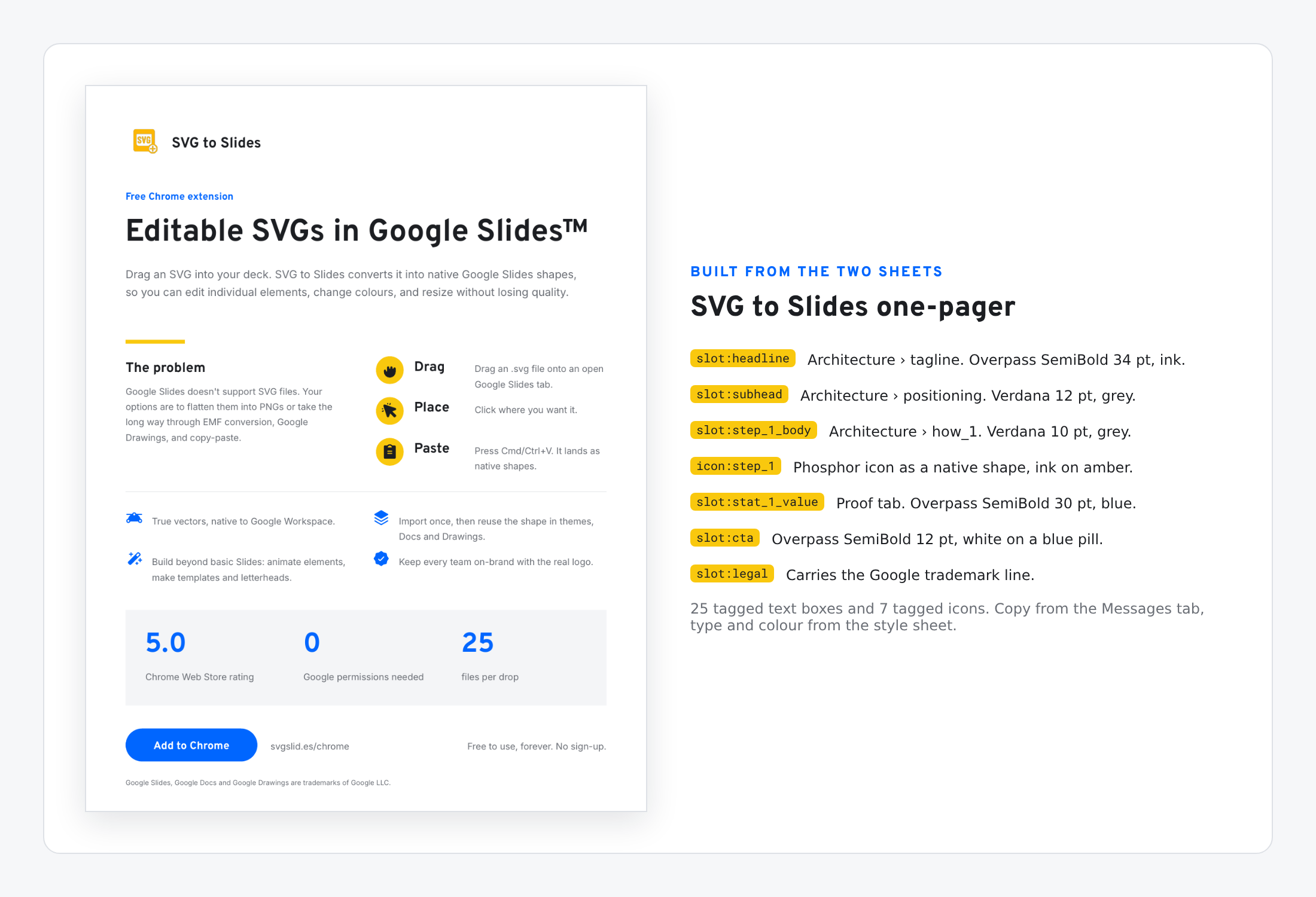
- One-pager, US Letter, and a three-slide deck, 16:9. Every text box and icon is tagged.
The graphics follow the same rule as the copy: native objects, tagged by name, pulled from one source.
Icon and UI libraries
The Google Slides API cannot create a custom shape. Apps Script can copy one from another deck. So icons and mockups live in two master decks, and asset decks pull from them and keep their file IDs.
- Icon library: 85 icons from Phosphor Icons, an MIT-licensed set, one per slide, placed as native shapes by the SVG to Slides converter.
- UI library: 13 mockups, one per slide. Shapes are native and labels are ordinary text boxes.
- Tags. Every element of a library item carries
lib:<name>in its alt text. An icon slot in an asset carriesicon:step_1. A mockup slot carriesui:fill-picker. - Search. Each library slide has a 6 point white text box next to the item with its name and keywords. Ctrl+F in the deck finds it.
- Icons tab. One row per icon slot: key, icon, colour token, size. The Icon cell is a dropdown of every icon in the library. Type to filter.
- Place icons and UIs replaces each tagged slot with the library item, scaled to the slot and coloured from the style sheet.
- Add to library takes the link from the web converter, appends each converted slide to a library, tags it, and adds it to the dropdown.
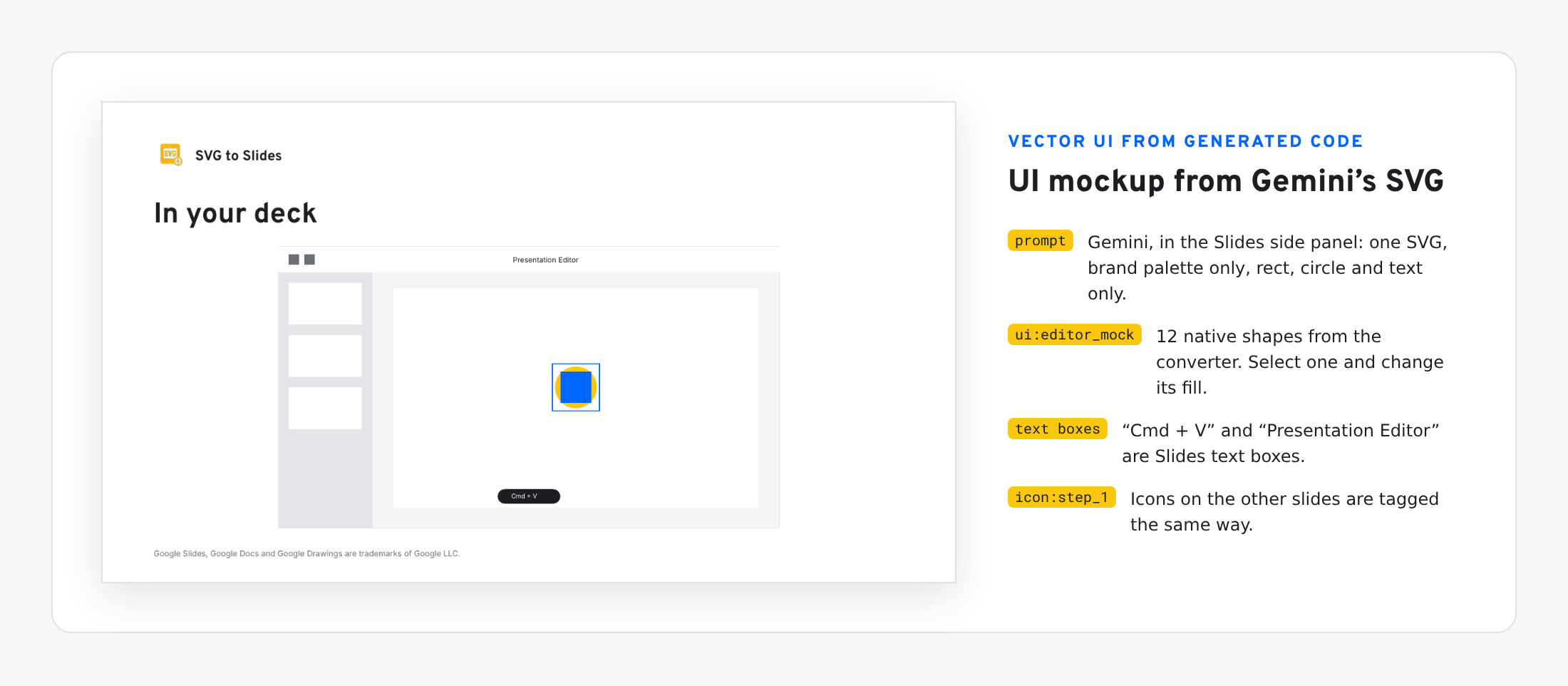
The first mockup was drawn by Gemini as code. We asked the Slides side panel for SVG code of an editor mockup, limited to the brand palette and to rectangles, circles and text. It returned 16 elements, and the converter turned them into native shapes and two text boxes. The other twelve were drawn the same way, as plain SVG.
Two things went wrong with mockup text, and both are fixed in the script:
- Labels wrapped. Slides always wraps at the edge of a text box, and it renders Verdana wider than we estimated. The boxes are now half again as wide.
- Text did not scale. A mockup placed smaller than its library size kept its full-size type. The script now sets mockup type from the height of its box.
Page recipes
To get past a one-pager we read seven live pages block by block: three solution pages (Pitch for sales teams, Ramp for consulting firms, Gong for revenue enablement) and four product pages (Ramp corporate cards, Pitch, Riskified Policy Intelligence, Close communication).
- Twelve blocks cover all seven: hero, proof bar, problem, pillar trio, feature row, benefit list, feature grid, how it works, FAQ, closing CTA, fact columns, testimonial.
- The feature row is the repeating unit. A title of 3 to 7 words, a body of 17 to 28 words, and one UI crop that shows what the body names.
- Solution pages keep feature names out of headlines until a grid near the end. Headlines state the reader’s result.
- Product pages name the feature in the hero and explain the mechanism before the gain. Flat fact lists carry terms and limits.
The page recipes sheet has a headline formula, a body formula, lengths and a visual for each block, and the block order for both page types. We filled them in for SVG to Slides as two decks, one block per slide: a solution page for product marketing teams and a product page for the Chrome extension. Their 57 lines sit on the same Messages tab as everything else. We left the testimonial block out. We have no customer quotes on file.
The example sheet also has a Home tab: one row per tab with what it holds, who edits it, and a live count. Tabs are coloured by stage: inputs, working copy, output, logs.
Three things the exercise showed:
- Most of it already existed. The lead message, the problem statement and the four benefits were on the homepage. The scaffold gave them one address each.
- Proof needs a date. A store rating is true on the day you check it. The Proof tab records that day.
- Personality was the gap. The copy rules were written down. The archetype and tone scores were not, so the sheet marks them as proposed until a workshop confirms them.
What happened when we ran it
Updated Nov 10, 2026.
- The AI function works, with a click. Formulas written by a script, an import or the API show as text until you select them and click Generate and fill. Select a range and one click covers every AI cell in it.
- There is a monthly limit. Our first test account generated five cells and then Sheets reported that the monthly limit for the AI function was reached. Limits depend on your plan.
- The Line formulas are not proven yet. All 82 were waiting for Generate and fill when we wrote this. We have not seen how well Gemini holds the character limits.
- Gemini in Slides edits one slide for us today. On a Workspace account with Gemini, a prompt with three lines changed the one-pager word for word and kept fonts, sizes and slot tags. The whole-deck prompt from part 1 was refused: the rollout had not reached the account.
- Gemini writes usable SVG. With the palette and the allowed elements spelled out in the prompt, the code converted without edits. It shortened the label we asked for.
- The sheet formulas hold. Latest response, Final, Source notes, Brief, Prompt, Length, Fits and the export block all compute as Google Sheets files.
- The form builder works. It built the 38-question form for the example on its first run and added the Responses tab.
- Dry run works. It opened four decks and reported between zero and three slots to change in each, with no flags.
- Place icons and UIs works, after the two text fixes above. Decks kept their file IDs.
- Scripts need the right owner. A personal Google account refused the permission request with “This app is blocked”. A sheet owned by a different account showed an unverified-app warning. A copy owned by the Workspace account that runs it worked.
- Link chips break the Assets tab. Two deck URLs had been turned into chips, and the script could not open them. Keep them as plain text.
- Not yet run end to end: Sync all with generated lines, and Add to library.
What is new in the starter pack
Open the Drive folder. Everything is view-only. Make your own copies.
- Example: SVG to Slides, the filled-in set described above. Start here.
- Messaging sheet with the script attached, brand style sheet, icon library, UI library, page recipes, and the two page decks.
- Messaging architecture and brand style sheet for a fictional product. These two are the first version: the architecture sheet still has Draft and Approved line columns and no script.
- Scripts as separate files. These are also the first versions. The current script is the one attached to the example sheet.
To set up: copy the example messaging sheet. The script comes with it. Reload, and the Collateral and Workshop menus appear. Point STYLE_SHEET_URL, ICON_LIBRARY_URL and UI_LIBRARY_URL in the script at your own copies. Workshop › Build the form creates the form and writes its links to the Workshop tab.
The screens in this post are mockups, not captures of Google’s products. Google Slides, Google Sheets, Google Forms, Google Drive and Gemini are trademarks of Google LLC.
Building decks with real design assets? SVG to Slides drops SVG logos and icons into Google Slides as native, editable shapes — recolor any part, no PNG blur. Free forever. Every feature, no daily cap, no account, no Pro tier.
 Add to Chrome — free