 Add to Chrome, free
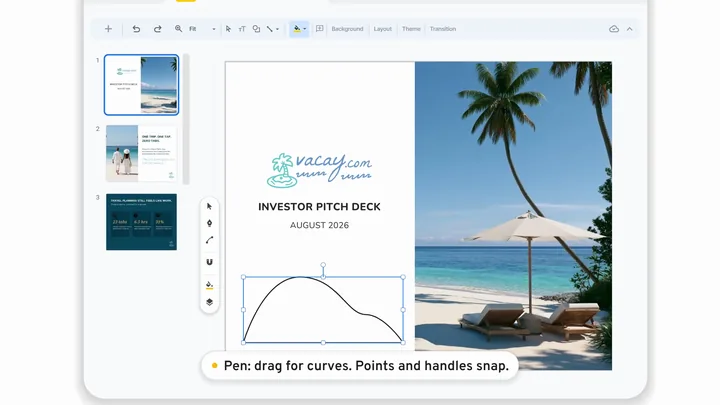 Draw curves
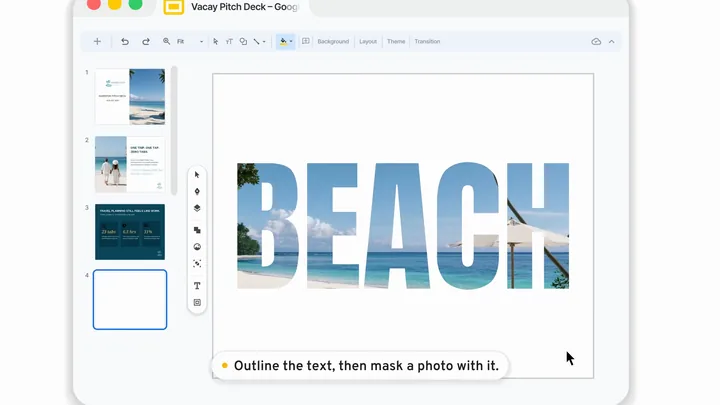 Outline text
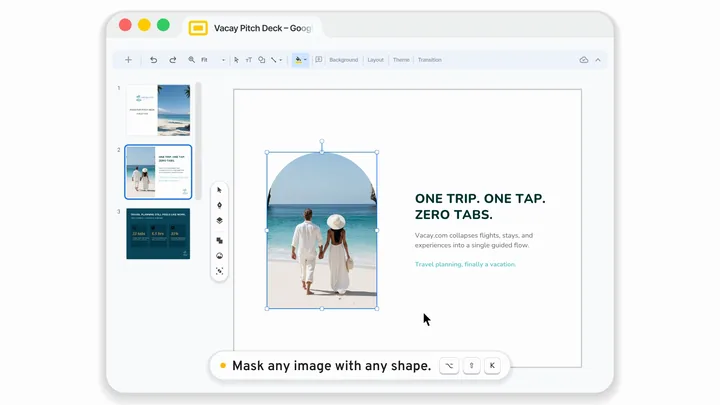 Mask with any shape
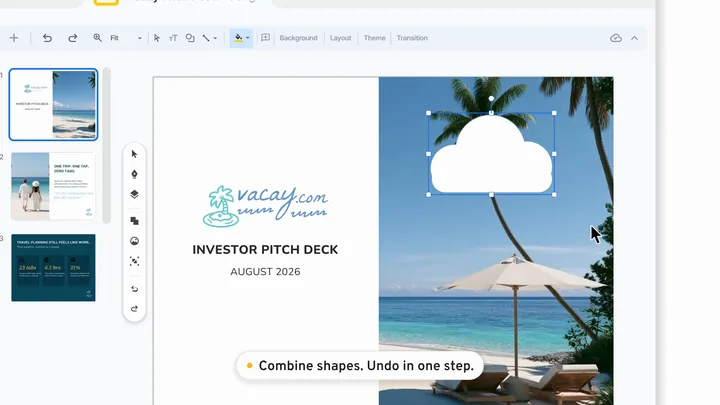 Combine shapes
 Reach into groups
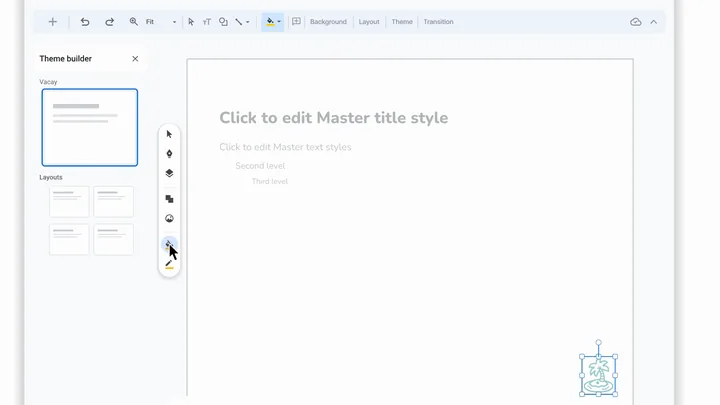 Jump to theme objects
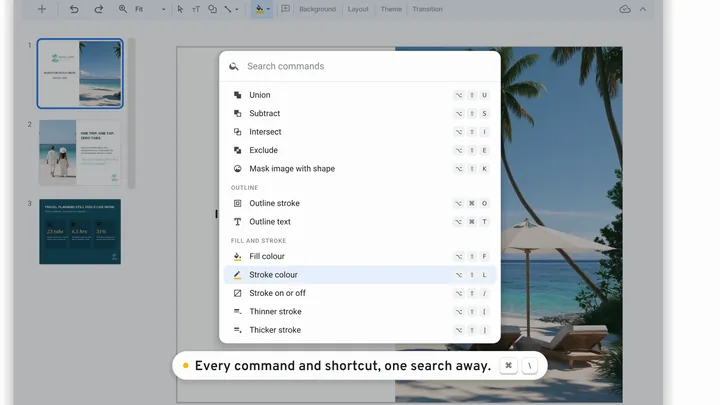 Search every command
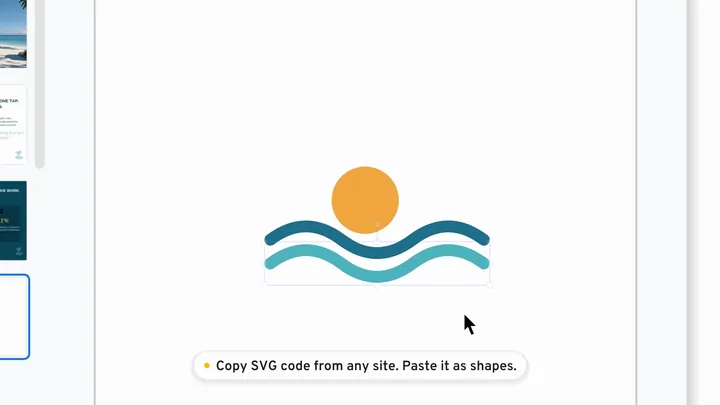 Paste SVG code
SVG to Slides started as a way to drop SVG files onto a slide as real shapes. Version 1.3 turns it into a set of drawing tools that work on any shape in the deck: a pen that draws curves and snaps them to a grid, exact stroke weights, text you can outline and use as a mask, union and subtract, a layers panel that reaches into nested groups and theme objects, and a command palette that lists all of it. The extension also got 92% smaller, and it no longer talks to a server.
In this release
- One toolbar and the command palette
- The pen, snapping and exact strokes
- Outline text and mask any image with any shape
- Union, subtract, intersect, exclude and one-step undo
- Instant align, including a single image to the slide edge
- Layers, nested groups and theme objects
- Paste SVG code, sharper small drops and a 92% smaller extension
- How it works, shortcuts, fixes and known limits
One toolbar
Everything in one place, at the left edge of the canvas.
Everything sits in one toolbar at the left edge of the slide canvas. Closed, it is a single round button; click it or press ⌥\. It remembers whether you left it open.
- Top: Layers, Edit Shape, Pen, and the command palette.
- Then: Arrange and Align (each opens a row of options), Combine, Group, Outline, and fill and stroke, with a weight field in pixels.
- Every button, pop-out item and field has a tooltip with its shortcut.
- On a short screen, Combine and then Outline fold into one button each.
- While a change is running the toolbar ignores clicks, so nothing gets applied twice.
Draw with the pen
Draw the shapes the shape menu doesn’t have, with points and handles that snap to a grid.
Slides gives you a shape menu. The pen gives you the shapes that aren’t in it.
Click for corners, drag for curves. Every point and handle lands on the grid.
- With nothing selected, press ⌥⇧P or click Pen. An empty editor opens over the slide. (With shapes selected, it opens on them and you can still draw.)
- Click to place a corner. Click and drag to place a smooth point and pull out its curve handles.
- Hold ⌥ while dragging to break the handles apart, or ⇧ to keep them at 45° steps.
- A dashed segment follows the pointer so you can see the next curve before you commit it.
- Click the first point (a ring appears on it) to close the shape, or press Enter or Esc to leave the path open.
- Delete removes the last point; ⌘Z steps back point by point.
- Click Done. Every new path goes onto the slide on top, in one undo step.
New paths start as a 2 px dark stroke with no fill, then take the paint of the last one you drew. Click the end point of any open path to carry on drawing it. Click a middle point to remove it, or a segment to add one.
Snapping
Clean geometry without eyeballing it: snap to points, whole pixels or a grid you size.
The magnet button in the editor controls snapping for the pen, for dragged points and for curve handles.
- Points: other points, the horizontal and vertical lines through them, and the slide’s edges and centre. Pink guides and a small × show what caught.
- Pixels: rounds to whole pixels.
- Grid: shows a grid from the slide’s top-left corner and snaps to it. Type a size in pixels; typing one turns the grid on. ⌘' shows or hides it. The grid hides itself when its lines would be less than 6 screen pixels apart.
- Points win when one is within 6 screen pixels; otherwise the grid or pixel rounding applies.
- Hold ⌘ to place a point freely. Points and pixels are on to start; your settings stay on this computer.
Exact strokes
Exact weights, and a stroke inside or outside the shape without changing its visual size.
Option-drag to scrub, type to be exact.
- Weight in pixels. The toolbar’s weight field takes any value. Hold ⌥ and drag on it to scrub; add ⇧ to move in steps of 10.
- Stroke position: inside, centre or outside. Inside and outside move the outline in or out by half the weight, so the shape keeps its visual size. The setting is remembered on this computer.
- Stroke on or off, thinner, thicker, and fill and stroke colour all have shortcuts (see below).
- Exact geometry in Edit Shape: type a width, height, rotation or corner radius in the pill under the shape, and scrub any of them with ⌥-drag.
- The box in Edit Shape scales from its corners (⇧ keeps proportions, ⌥ scales from the centre), stretches from its edges, rotates from just outside a corner, and skews with ⌘ on an edge. ⇧ snaps rotation and skew to 15°.
Outline text, then use it
Text becomes shapes, one per letter, with the font’s exact curves.
Type, outline (Option-Command-T), select both, mask (Option-Shift-K).
Outline text (⌥⌘T) turns a text box into shapes with the font’s exact curves. From there it’s a shape like any other: reshape it in Edit Shape, combine it, or use it as a mask, as above. Outline stroke (⌥⌘O) does the same for lines and borders.
- To get the letter shapes, the extension downloads the font file from Google Fonts. That is a public download and needs no permission.
- Changed your mind? On the computer that outlined it, ⌥⌘T on the outlined shapes puts the editable text back.
Mask any image with any shape
Crop a picture to any shape, or to outlined text. The picture doesn’t move.
Put a shape (or a group of shapes, or outlined text) over a picture, select both, and press ⌥⇧K. The shape on top cuts out the picture under it.
Any shape works, not just the crop shapes in Slides’ menu.
- The picture stays exactly where it was: not stretched, not re-cropped.
- The result takes the image’s place in the stack, and the whole thing is one undo step.
- Edit the mask’s points later in Edit Shape; the picture holds still while the outline moves.
- Text needs outlining first. Rotated images aren’t supported yet.
Union, subtract, intersect, exclude
Build one shape out of many, then undo it in one press.
Union, then Command-Z and Shift-Command-Z.
Select two or more shapes and pick a combine command from the toolbar or with ⌥⇧U, ⌥⇧S, ⌥⇧I or ⌥⇧E. Subtract cuts every shape on top out of the bottom one. The commands also work inside Edit Shape, on the shapes you have points selected in, or on every shape in the editor when no points are selected.
One undo step
A change that takes several steps in Slides undoes in one.
A combine, an outline, a stroke-position change or a whole pen session takes several steps in Slides. Press ⌘Z right after one of them and the extension walks Slides back the whole way in one press. ⇧⌘Z or ⌘Y walks forward, through a chain of the extension’s changes. It never presses undo more times than the change took, and if you edit the slide yourself in between, Slides’ own undo takes over. Text editing keeps Slides’ normal undo.
Align and distribute, instantly
Align a single photo to the slide edges. Objects move once, straight to the result.
One photo, three edges, no in-between frames.
Align and distribute run Slides’ own commands behind a still copy of the slide, so objects move once, straight to the result. Because nothing is deleted or pasted, images stay intact. And a single object, image included, now aligns to the slide: left, centre, right, top, middle or bottom.
Layers and nested groups
Select, rename and hide anything on the slide, even deep inside groups.
Three levels down, Command-click, rename.
Press ⌥1 for a list of every object on the slide, front first. It docks over the filmstrip and follows the slide you’re on.
- Groups fold open and closed. Selecting something inside a group opens the groups around it.
- Click a row to select it, even deep inside a group; ⇧-click adds. Drag top-level rows to restack.
- ⌘-click on the slide selects the innermost object under the pointer, without ungrouping anything. While you hold ⌘, an outline shows what you’d get.
- Double-click a name to rename. Enter keeps it, Esc cancels, a click elsewhere keeps it.
- The eye hides an object while you work on what’s behind it.
- Tiny objects (under 6 px on screen) say so on the first click; a second click zooms in and selects them.
Theme objects and the theme builder
Pick a theme object in Layers, or ⌘-click it, and go straight to the editor that holds it.
Click a theme object twice and the theme builder opens on it.
Logos, footers and backgrounds that come from the theme can’t be selected on a normal slide, which is why they seem stuck. Layers shows them greyed with an M. Click one: a note says it lives on the theme. Click again within five seconds and the theme builder opens on the layout or master that holds it, with the object selected. Change it there, press ⌥⇧M (or close the builder) to go back, and every slide that uses that layout or master shows the change.
Command palette
Every command, searchable, with its shortcut beside it.
Command-Backslash, type, Enter.
⌘\ opens a searchable list of every command, grouped the way the toolbar is, with its shortcut beside it. Type to filter, use the arrow keys, press Enter to run, and Esc or ⌘\ again to close.
Paste SVG code
Paste SVG code from any site and get shapes you can recolour and edit.
Copy element in DevTools, Command-V in Slides.
You don’t need a file. Copy SVG markup from anywhere (a site’s logo via Inspect › Copy › Copy element, a code editor, an icon library’s “copy SVG” button) and press ⌘V on a slide. The extension recognises SVG code on the clipboard and sends it through the same converter as a dropped file, so it lands as native shapes you can recolour and edit. Use logos you have the right to use.
Small SVGs keep their detail
Small icons keep their detail when you enlarge them.
Dropped small, enlarged, still sharp.
Slides stores a pasted shape’s points exactly as they arrive and resizes it by changing its transform. So an icon dropped at 12 px used to carry 12 px worth of detail forever, and enlarging it showed lumps on the curves. Now every shape’s points are written in a large frame of their own and scaled down to size, so enlarging it later has all the detail it needs.
92% smaller, and nothing leaves your browser
14 MB to 1.1 MB, and your SVGs are never uploaded.
Until now the extension carried a copy of Python, compiled to WebAssembly, to run its converter on every Slides tab. The converter is now plain JavaScript inside the extension. The installed extension went from 14 MB to 1.1 MB, and the download from 5.8 MB to under 400 KB. The server fallback is gone too, along with the permission it needed: SVGs are converted in your browser and never uploaded. What it asks Chrome for now: access to Google Slides pages, where its tools run, and storage, for your settings.
How it works
For the curious, the parts that took the longest to get right:
- Masks are pictures in shapes. In Slides, a masked image is a shape whose fill is the picture. The extension builds that shape from your mask’s path and places the picture by measuring the path’s exact bounds (the true extremes of its curves, not their control points), so the picture lands where it was to four decimal places.
- One image, one edge. Slides’ own Align needs two objects to align a single one to the slide. The extension pastes a 1 px invisible square at the corner it needs, aligns, and deletes the square, all in one step. Nothing extra stays in your deck.
- No visible steps. Multi-step changes run under a still copy of the slide (and of Slides’ toolbar), so you see the result, not the steps.
- One-press undo counts the Slides steps each change took and replays exactly that many, only while the slide still matches the change.
- Theme objects are found with Select all: anything it doesn’t reach is on the theme. The check reads until two passes agree, and it never marks an object as theme just because a click missed.
- The converter port keeps the old one’s exact rounding and parsing rules, and was checked against it on every SVG in our test set plus 3,000 random ones.
Shortcuts
| Action | Mac (Windows: Ctrl for ⌘, Alt for ⌥) |
|---|---|
| Show or hide the toolbar | ⌥\ |
| Command palette | ⌘\ |
| Layers | ⌥1 |
| Theme builder, and back | ⌥⇧M |
| Pen: draw anywhere, or edit the selection | ⌥⇧P |
| In the editor: pen, select | P, V |
| Snap to grid on or off (editor) | ⌘'; hold ⌘ to place freely |
| Mask image with shape | ⌥⇧K |
| Union, subtract, intersect, exclude | ⌥⇧U, ⌥⇧S, ⌥⇧I, ⌥⇧E |
| Outline stroke | ⌥⌘O |
| Outline text, or restore it | ⌥⌘T |
| Align left, centre, right | ⌥A, ⌥H, ⌥D |
| Align top, middle, bottom | ⌥W, ⌥V, ⌥S |
| Distribute horizontally, vertically | ⌥⇧H, ⌥⇧V |
| Group, ungroup | ⌘⌥G, ⇧⌘⌥G |
| Bring forward, send backward; to front, to back | ⌘↑, ⌘↓; ⇧⌘↑, ⇧⌘↓ |
| Rotate 15° or 1° | ⌥← ⌥→; add ⇧ for 1° |
| Larger, smaller | ⌘⌃K, ⌘⌃J |
| Fill colour, stroke colour | ⌥⇧F, ⌥⇧L |
| Stroke on or off, thinner, thicker | ⌥⇧/, ⌥⇧[, ⌥⇧] |
| Undo or redo one of the extension’s changes in one press | ⌘Z, ⇧⌘Z or ⌘Y |
| Select inside a group | ⌘-click; ⇧⌘-click adds |
Smaller fixes
- Layer tooltips no longer read “undefined”, and renaming a layer always ends with Enter, Esc or a click elsewhere.
- Objects are no longer flagged as theme objects or as too small to see by mistake.
- The align preview measures text boxes and Slides’ own shapes by their frames, not their drawn pixels.
Known limits
- Gradients, pattern fills, transparency and shadows don’t carry through combine and outline. Images, video and charts can’t be combined or outlined.
- Layer names, hidden layers, outlined-text memory and stroke-position memory are kept on the computer you used.
- Skew is in Edit Shape only. Only top-level layers drag to restack.
- One-press undo stops applying once you change the slide yourself.
- The pen draws point by point; there is no freehand pencil yet.
Getting 1.3
Chrome updates extensions on its own, usually within a few hours; check chrome://extensions for version 1.3.0. The update removes a permission, the converter server’s address. What’s left is access to Google Slides pages, where the tools run, and storage. It still has no access to your Google account.
Slides lets you recolour and resize a shape, but not reshape it. Version 1.2 added a vector editor that opens right on the slide, so you can move the points and curves of any shape and put it back where it was.
Double-click, Edit Shape, drag. Recorded in Google Slides.
Edit Shape
Double-click a shape, then click Edit Shape. The editor opens on top of the slide at the shape’s exact size and position. Drag points and curve handles, add or remove points with the pen, and select several at once. Undo, redo and zoom work the way they do in Figma and Illustrator. Click Done and the shape updates in place, at the zoom you were editing at.
Round corners
On shapes with corners, small circles appear just inside each one. Drag a circle toward the middle to round it; a pill under the shape shows the radius in pixels, and you can type a value there instead. Select the whole shape, or several shapes, and every corner rounds together. Select one or a few points and only those corners change.
Three cards, twelve corners, one drag. Then type 25 and press Enter.
Layers stay put
Shapes that sit on top of the one you’re editing stay visible while you work, so you can line things up against them. Click Done and each edited shape goes back to its place in the stack.
Works on Slides’ own shapes
The editor also opens on shapes you didn’t bring in with SVG to Slides: the shape menu, arrows, callouts, lines, text boxes and WordArt. It converts them into custom shapes first, and the button tells you what that costs:
- Shapes lose their adjustment handles (the small yellow diamonds).
- Lines lose their connection points, and arrowheads become separate shapes.
- 3D shapes like the cube and can keep their shading as flat colours.
- WordArt becomes outlined letters, so you can reshape them but not retype them.
Text inside a shape stays editable. Cancel puts the original back.
Click to insert
Drop an SVG onto a slide and click where it goes. It lands there as native shapes, with nothing to paste. If Slides ever turns the insert down, the extension asks you to press ⌘/Ctrl + V instead.
Smaller fixes
- SVG shapes made only of straight lines now land as Slides polylines, so Slides’ own Edit points works on them too.
- Placement and the editor now measure the slide you have open. Before, visiting another slide first could throw both off.
Editor shortcuts (1.2)
| Action | How |
|---|---|
| Select points | A or V, then click, Shift-click or drag a box |
| Pen: add or remove points | P, then click a segment to add, a point to remove |
| Smooth or corner point | Double-click the point |
| Round corners | Drag a circle inside a corner, or type a value in the pill below the shape. Shift for 10 px steps |
| Constrain to 45° | Hold Shift while dragging |
| Break a curve handle | Hold Option / Alt while dragging it |
| Nudge | Arrow keys, Shift for 10× |
| Select all, delete | ⌘A, Delete |
| Undo, redo | ⌘Z, ⇧⌘Z |
| Zoom | Pinch, ⌘+ / ⌘−, ⌘0 for 100% |
| Pan | Hold Space and drag, or scroll |
| Done | Enter, or Esc with nothing selected |
1.2 added one Chrome permission, storage, used to remember that you had seen the update note.
Removed an unused permission flagged in Chrome Web Store review.
First release. Drag SVG files onto a Google Slides tab and they land as native, editable shapes, converted inside your browser.