Google Slides finally does letter spacing
Tracking has landed in Slides. Here's what it is, how to use it well, and why Docs looks next.
Skip ahead: the subtle Google slip-up that hints letter spacing is coming to Docs very soon
- Slides now has letter spacing, which type designers call tracking.
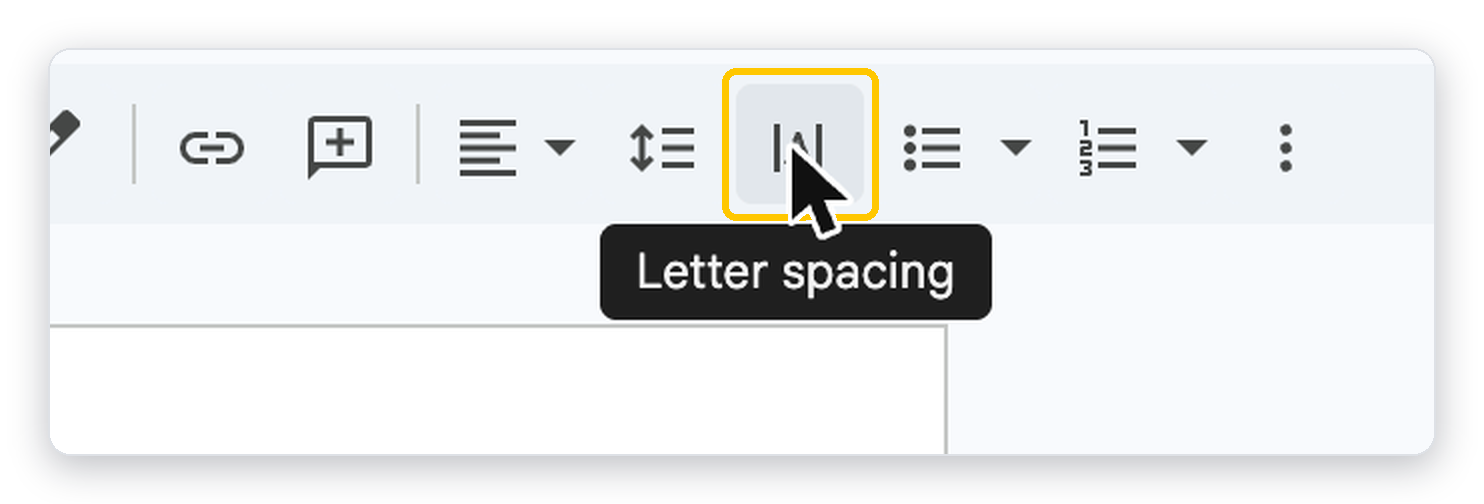
- Find it in the toolbar (the |A| button next to line spacing) or Format › Text › Letter spacing.
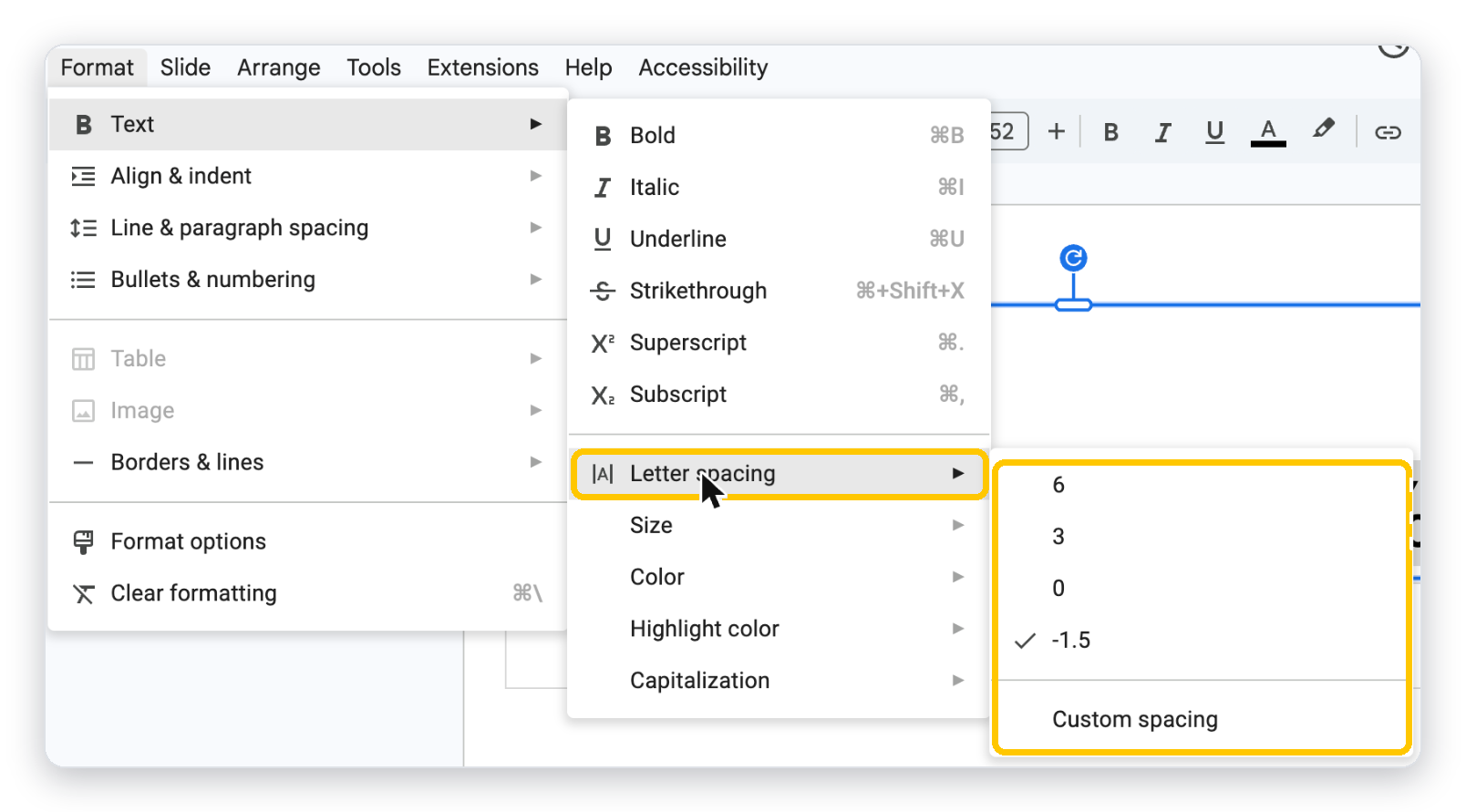
- Presets: 6, 3, 0, −1.5, plus Custom spacing.
- Docs’ help center already documents it. The Docs editor doesn’t show it yet.
Tracking, not leading
Three spacing ideas get mixed up constantly, so let’s pin them down.
- Tracking adds or removes the same space after every letter in a selection. This is the new control.
- Kerning fixes the gap between one specific pair, like AV. The font handles it. Slides doesn’t expose it.
- Leading is the space between lines. In Slides that’s the line spacing button right next door.
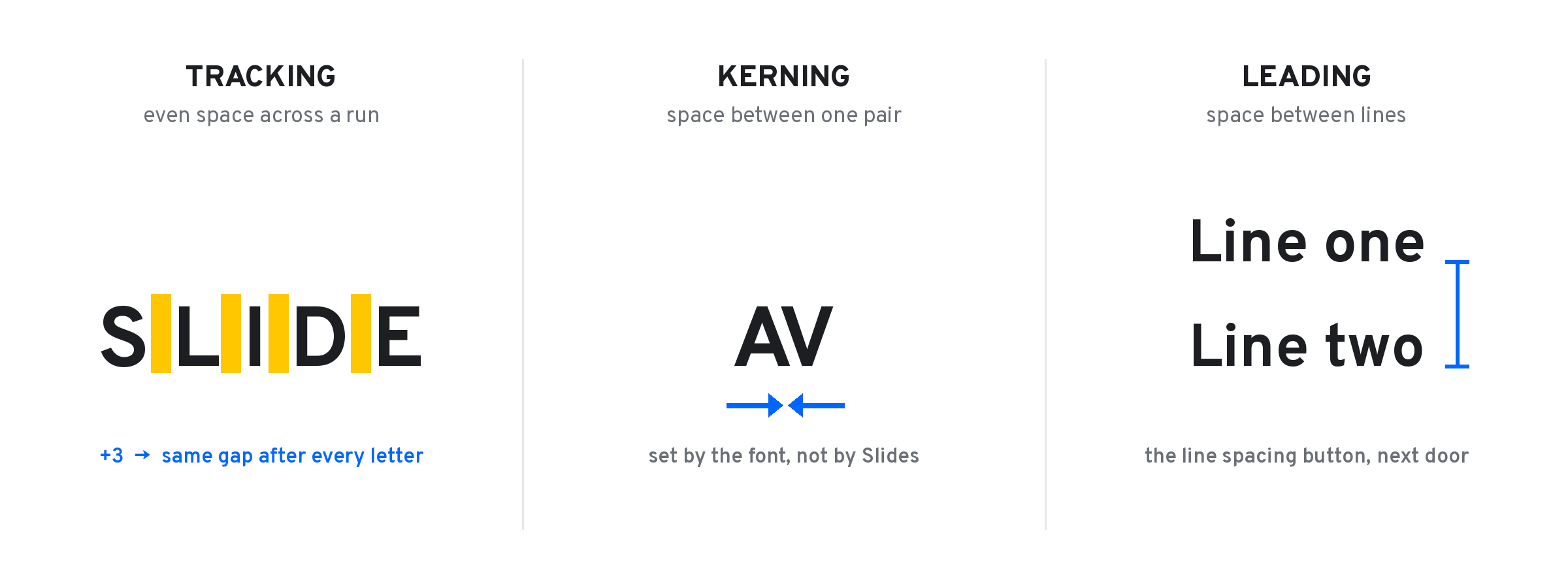
Google calls it letter spacing. Same thing. If a brand guide says “track +50,” this is the knob.
Where it lives
Select text or a whole text box. The new button sits between line spacing and bullets.
Prefer menus? It’s also under Format › Text › Letter spacing, with the same presets.
The presets, decoded
Four presets cover most jobs. Positive opens text up. Negative pulls it in.
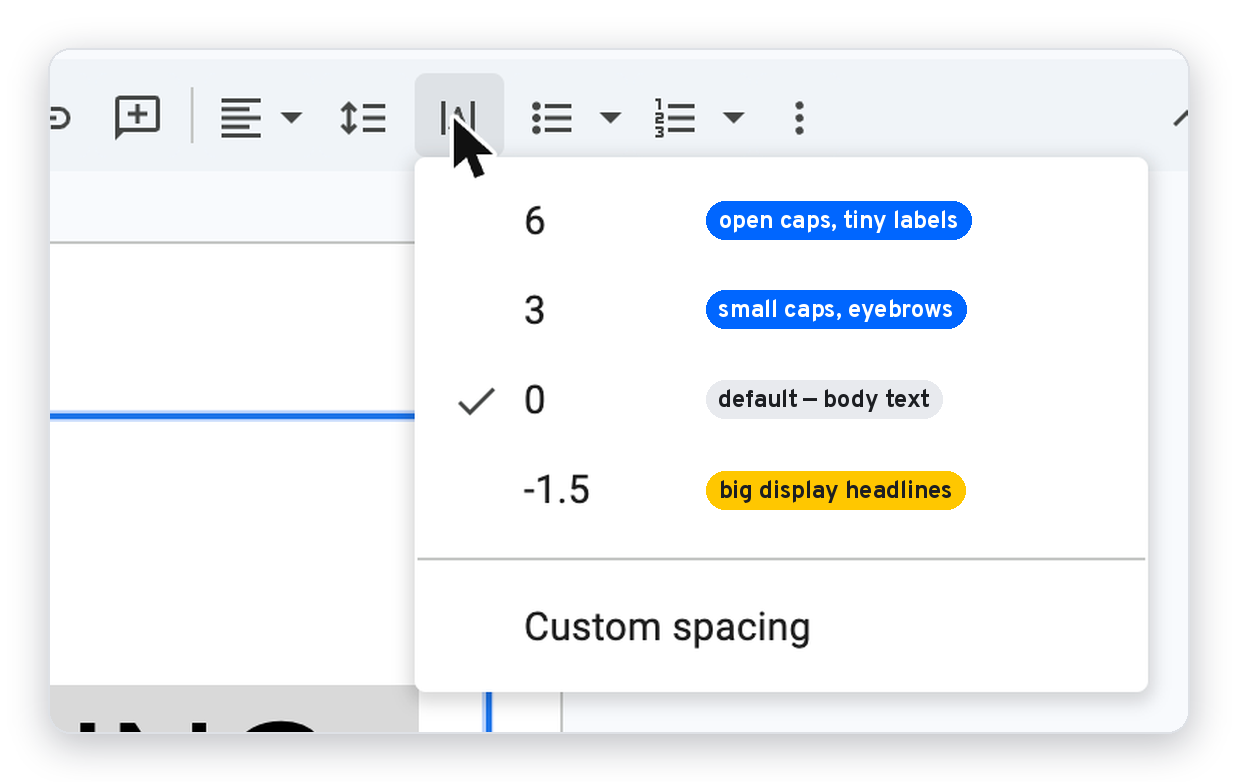
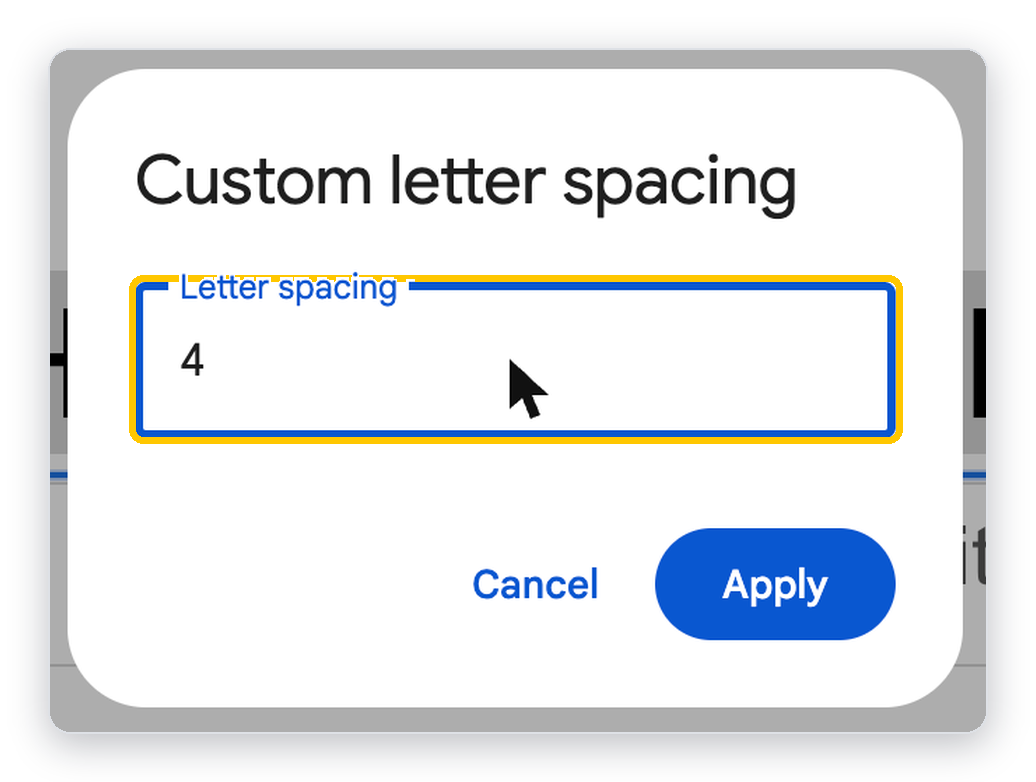
Custom spacing takes any value, including decimals and negatives. The dialog shows no unit, so judge by eye, not by number.
Use it like a designer
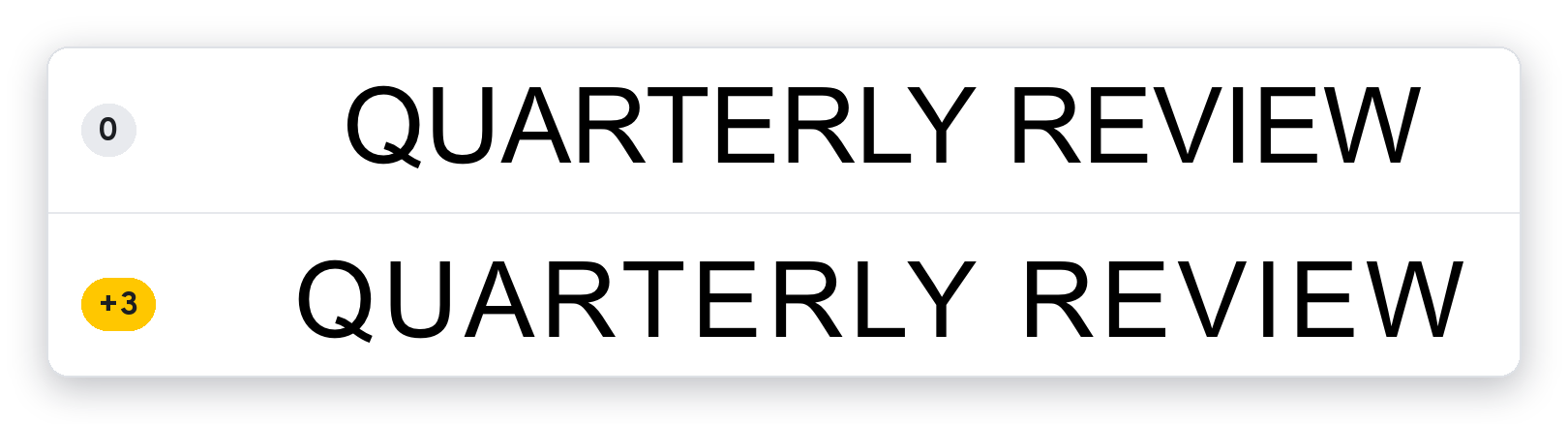
1. Open up all caps. Capitals are designed to sit next to lowercase. Set alone, they feel cramped. A little air fixes it. This is the single best use of the feature.
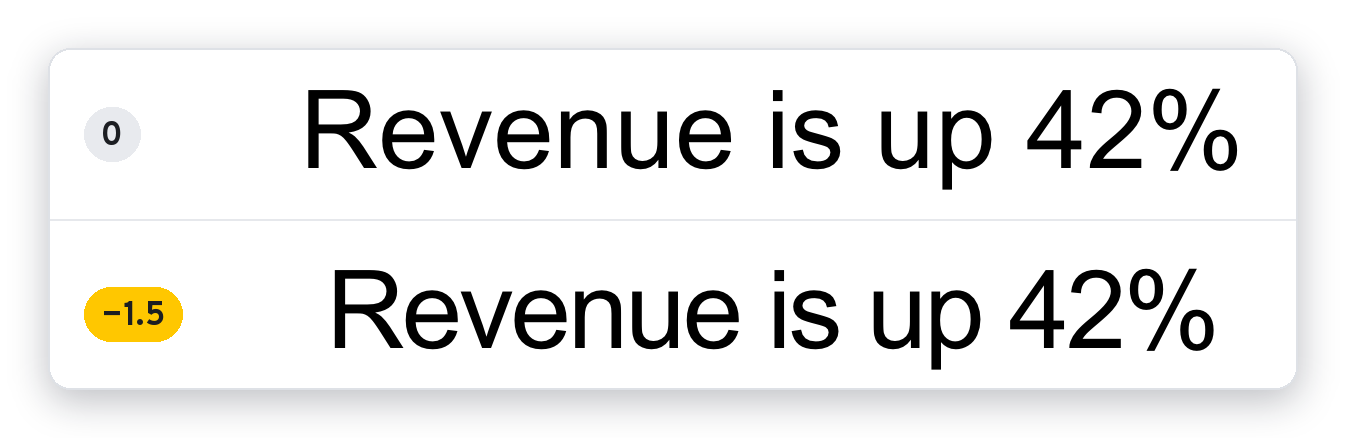
2. Tighten big headlines, slightly. Display sizes look loose at default spacing. A small negative value makes a headline feel set, not typed.
3. Leave body text at 0. Fonts are spaced for reading sizes already. Tracking paragraphs only slows people down.
4. The bigger the type, the tighter. The smaller, the looser. That’s the whole philosophy in one line.
5. Watch the reflow. Positive values widen every line. Recheck line breaks, and make sure text doesn’t spill out of its box.
6. Pick one value per role. Eyebrows at +3, headlines at −1.5, everything else at 0. Consistency is what reads as polish.
7. Check it in Present mode. Spacing that looks right at 50% zoom can look different full screen.
Step by step
- Select the text, or click the edge of a text box to select all of it.
- Click Letter spacing (|A|) in the toolbar, or go to Format › Text › Letter spacing.
- Pick 6, 3, 0 or −1.5.
- Or choose Custom spacing, enter a value, and click Apply.
- To reset, select the text and choose 0.
The slip-up that points to Docs
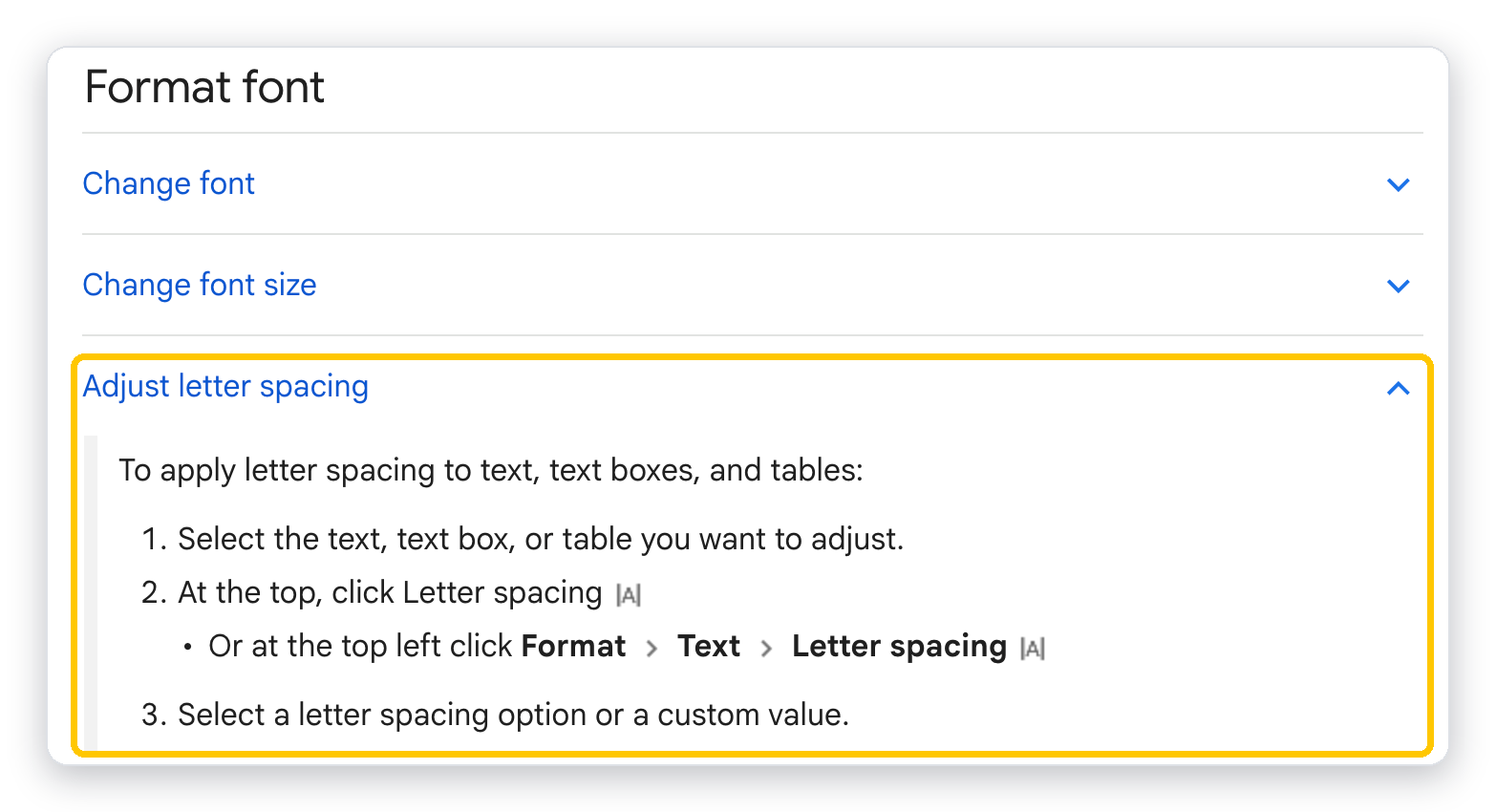
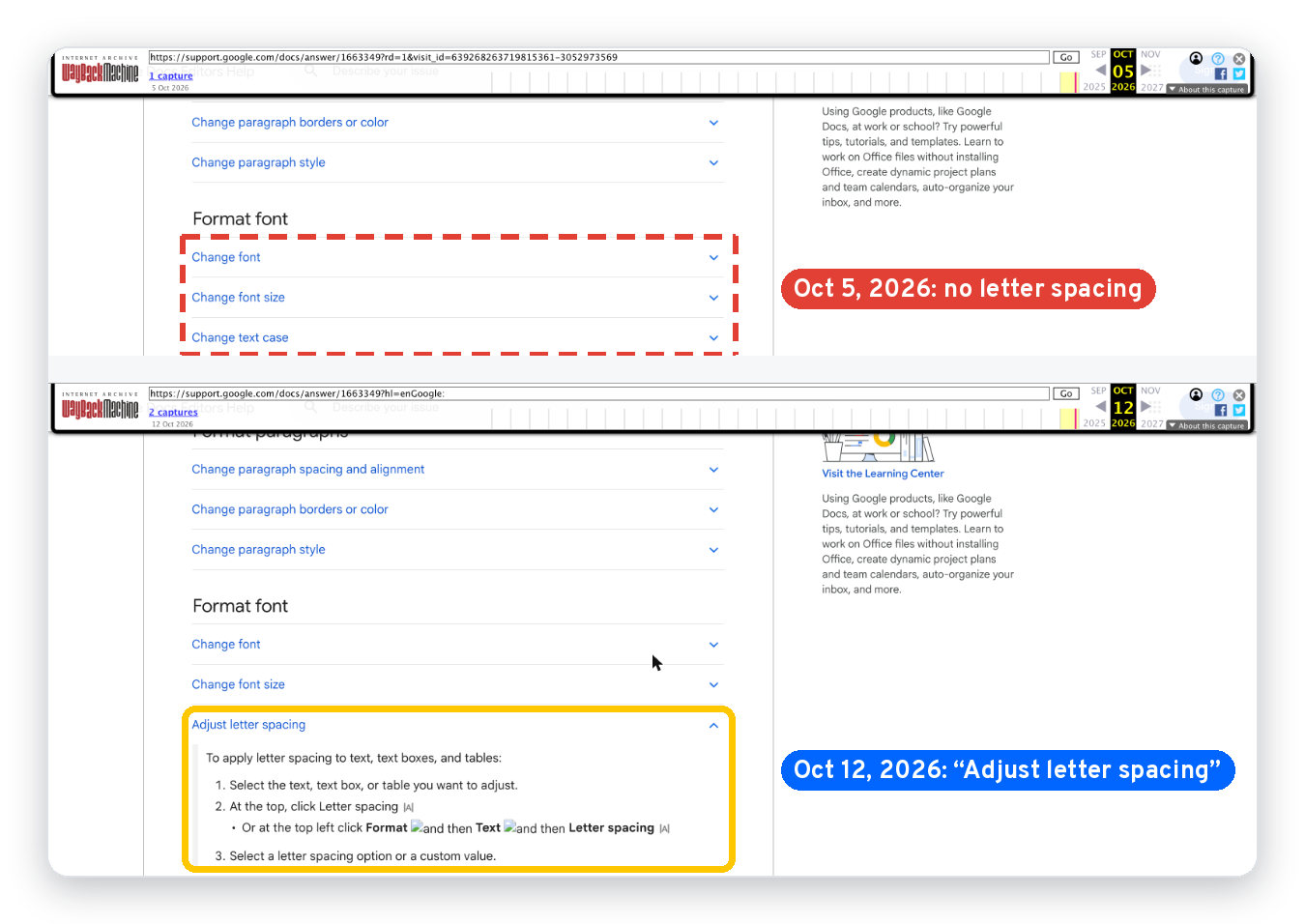
Clue 1: the Docs help center already explains it. Google’s Docs article Change how paragraphs & fonts look now has an “Adjust letter spacing” section. It covers text, text boxes and tables, with the same toolbar button and menu path as Slides.
Clue 2: it’s new. The Wayback Machine shows the section missing on Oct 5, 2026 and present by Oct 12, 2026. Earlier captures in July, August and September don’t have it either. (All captures.)
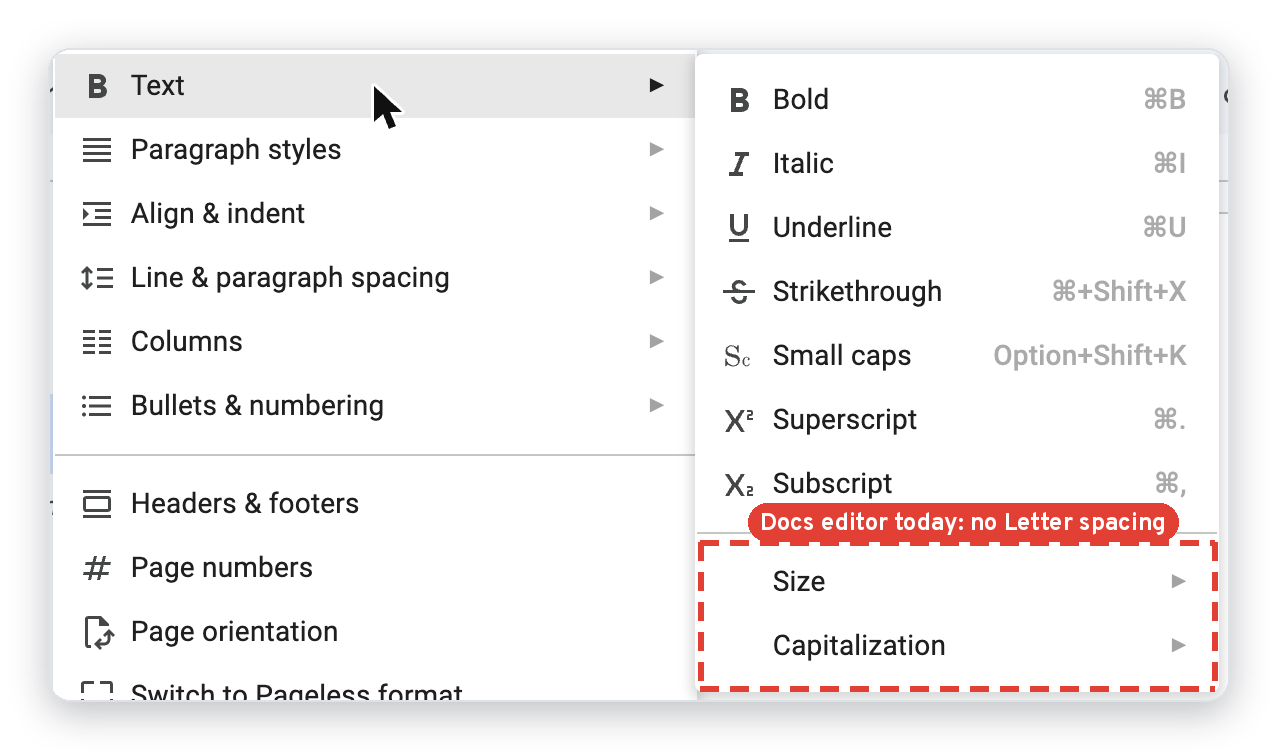
Clue 3: the editor isn’t there yet. As of today, Format › Text in Docs still stops at Size and Capitalization. Help articles often go up ahead of a staged rollout.
Clue 4: precedent. When Google added custom line spacing in 2019, it shipped to Docs and Slides together. Shared text features tend to travel as a pair.
Our read: strong signal, not a promise. We haven’t found a Workspace Updates announcement yet. We’ll update this post when Docs gets the button.
Building decks with real design assets? SVG to Slides drops SVG logos and icons into Google Slides as native, editable shapes — recolor any part, no PNG blur. Free forever. Every feature, no daily cap, no account, no Pro tier.
 Add to Chrome — free